
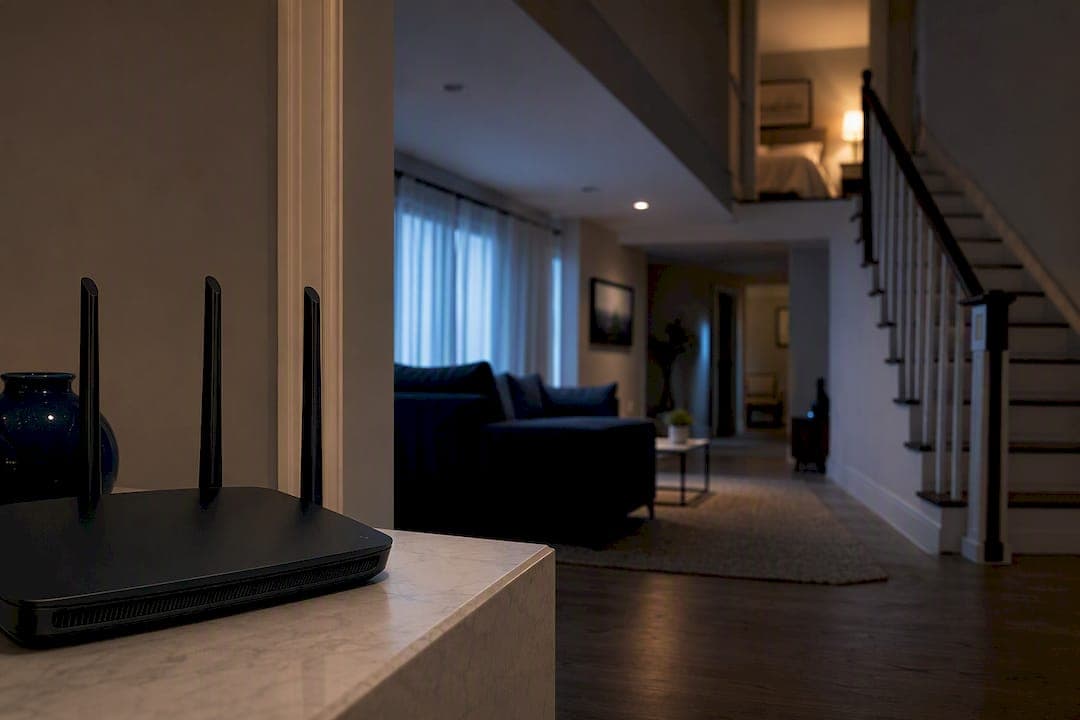
Use 5 GHz as your default for phones, laptops, streaming boxes, and game consoles; keep 2.4 GHz reserved for smart plugs, cameras, and other low-bandwidth devices that sit far from the router. Modern router technology, including beamforming and the 802.11ac and 802.11ax standards, has made 5 GHz strong enough to cover most homes without the dead zones that plagued earlier generations. This guide walks through the speed and range trade-offs, why interference happens, and how to test both bands in your own house.
TL;DR:
- Slowdowns on 2.4 GHz often result from channel congestion caused by neighboring networks and household electronics like microwaves and cordless phones, which can be mitigated by switching channels.
- Most smart-home gadgets and budget devices support only 2.4 GHz, making it wise to keep these on that band to free up 5 GHz for faster, modern hardware.
- The effective range of 5 GHz drops sharply through walls and floors, while 2.4 GHz maintains a steadier connection at longer distances, especially in multi-floor homes.
- Real-world testing of download speeds, ping, and jitter at your usual device locations is essential to determine which Wi-Fi band performs best in your specific environment.
Table of Contents
- 2.4GHz vs 5GHz: A Quick Comparison
- How Frequency Affects Speed and Range
- Why 2.4GHz Gets Congested and How to Fix It
- Which Devices Actually Support Each Band?
- When to Choose Each Band for Your Home
- How to Check and Switch Your Wi-Fi Band
- Testing Both Bands in Your Own Home
- A Practical Note on Making This Decision
- Confirm It Yourself With a Real Speed Test
- Sources
- FAQ
2.4GHz vs 5GHz: A Quick Comparison
Each band trades one thing for another. 2.4 GHz travels farther and pushes through walls and floors more easily, but it carries less data and shares its limited channels with more devices. 5 GHz moves data faster and suffers less interference, but its signal fades faster over distance and struggles with dense obstacles like brick or concrete.
Here's the breakdown:
- 2.4 GHz advantages: longer range, better wall penetration, wider device support (older smart-home gadgets, printers, thermostats)
- 2.4 GHz drawbacks: slower top speeds, only a few non-overlapping channels, leading to potential congestion in dense neighborhoods
- 5 GHz benefits: much higher throughput, many available channels, reducing interference from neighboring networks
- 5 GHz drawbacks: shorter effective range, weaker penetration through thick walls, slightly less universal device support on older hardware
| Factor | 2.4 GHz | 5 GHz |
|---|---|---|
| Typical range | Longer, better through walls | Shorter, weaker through walls |
| Speed | Lower (often under 450 Mbps) | Higher (multiple hundreds of Mbps, up to 1 Gbps under ideal conditions) |
| Channel availability | 3 non-overlapping channels | Dozens of channels, wider bandwidth |
| Best for | IoT, distant rooms, older devices | Phones, laptops, gaming, streaming |
A newer option, 6 GHz, is available only on Wi-Fi 6E and Wi-Fi 7 devices. It offers even less interference than 5 GHz but an even shorter range, so it's worth using only if most of your devices already support it.
How Frequency Affects Speed and Range
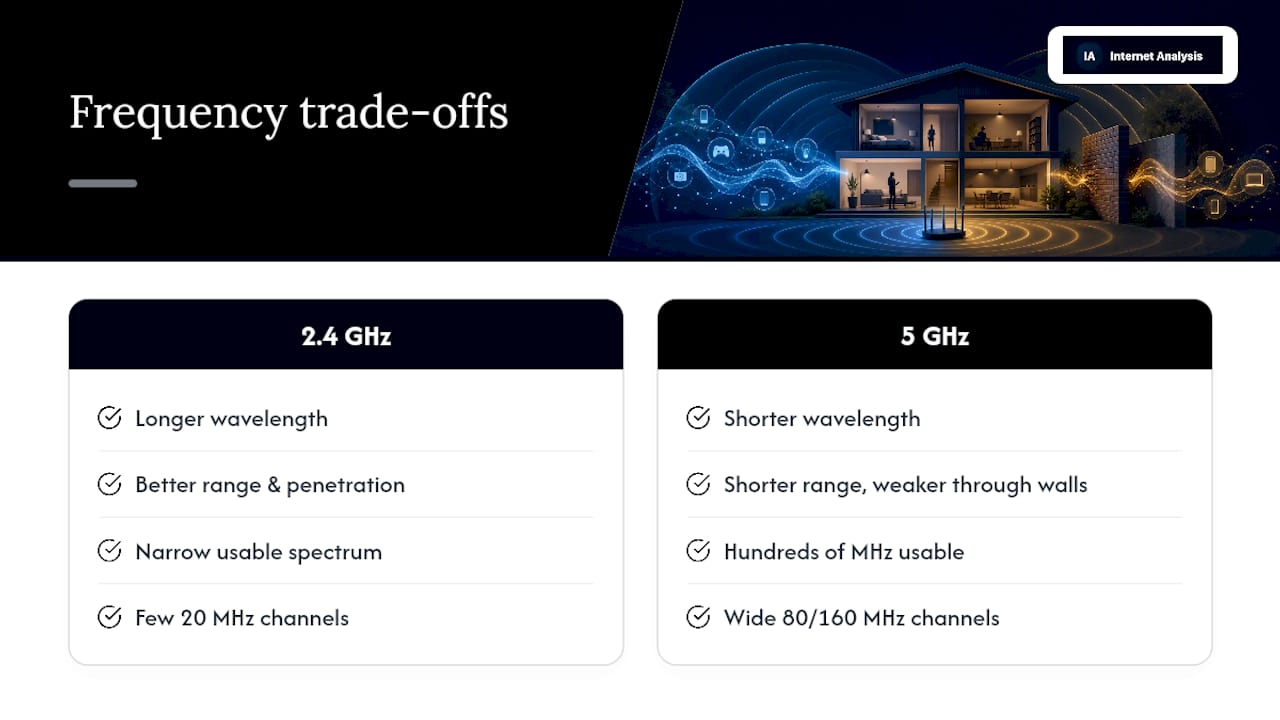
Radio waves at 2.4 GHz have a longer wavelength than those at 5 GHz, and that physical difference explains almost everything about how the two bands behave. Longer wavelengths travel farther and bend around obstacles more easily, which is why 2.4 GHz reaches into basements and upper floors that 5 GHz can't touch. Shorter 5 GHz wavelengths carry more data per second but lose strength faster over distance and get absorbed more readily by walls, especially masonry, and by materials like metal ductwork or large mirrors.
Capacity follows the same pattern. The 5 GHz band spans roughly a few hundred MHz of usable spectrum, enough room for multiple wide 80 MHz or 160 MHz channels. The 2.4 GHz band has a relatively narrow spectrum split into a few usable 20 MHz channels. More spectrum means more room to move data without waiting in line behind other traffic.
Real-world speed gap: Devices on 2.4 GHz commonly max out somewhere under 450 Mbps depending on the Wi-Fi standard in use, while 5 GHz connections can reach hundreds of Mbps and, under ideal conditions, approach 1 Gbps.
Picture a two-story house. A router in the living room might deliver full 5 GHz speed to a laptop ten feet away, but drop to a fraction of that in an upstairs bedroom behind two drywall layers and a floor joist. The same device on 2.4 GHz would likely hold a steadier, if slower, connection in that same bedroom. Neither band is "better" in the abstract. They're built for different distances.
Why 2.4GHz Gets Congested and How to Fix It
The 2.4 GHz band's biggest problem isn't distance; it's crowding. With only a limited number of non-overlapping channels, every router, baby monitor, cordless phone, and neighbor's network within reach is often fighting for the same narrow lanes. In an apartment building, dozens of routers can end up stacked on the same handful of channels, and that congestion frequently does more damage to performance than the band's range limitations. The 5 GHz band avoids most of this because it offers many more non-overlapping channels, giving your router room to pick a clear lane instead of merging into traffic.
Common sources of 2.4 GHz interference include:
- Microwave ovens, which operate in nearly the same frequency range
- Bluetooth speakers, headphones, and fitness trackers
- Cordless phones and older baby monitors
- Neighboring Wi-Fi networks on overlapping channels
- Some video doorbells and security cameras
Pro Tip: If your 2.4 GHz connection slows down every afternoon around the same time, check what's running nearby. A microwave, an old cordless phone, or a neighbor's router switching channels can all cause a predictable dip.
If you're dealing with a crowded 2.4 GHz band, the fix usually isn't a new router. Try switching your router to a less-crowded channel (1, 6, or 11 are the standard non-overlapping choices), moving bandwidth-heavy devices to 5 GHz, or adding a mesh extender if your home has dead zones that neither band reaches well on its own.
Which Devices Actually Support Each Band?
Not every device gives you a choice. Older or cheaper hardware, particularly smart plugs, budget security cameras, and some thermostats, often ships with 2.4 GHz-only radios because it's less expensive to manufacture and easier to keep connected at a distance. Separating these devices onto 2.4 GHz is one of the simplest ways to keep your faster band free for things that actually need the speed.
Here's a general breakdown of what you'll typically find:
- 2.4 GHz only: most smart plugs, older smart bulbs, budget cameras, some printers, older game consoles
- 5 GHz capable: modern phones and laptops, current-generation game consoles, smart TVs, streaming boxes
- 6 GHz capable: only devices explicitly labeled Wi-Fi 6E or Wi-Fi 7
One point trips up a lot of people: the Wi-Fi generation number on a device (Wi-Fi 4, 5, 6) doesn't automatically tell you which band it supports. Wi-Fi 5 devices are 5 GHz only by definition, but Wi-Fi 4 and Wi-Fi 6 devices can support either band depending on the specific hardware. Only Wi-Fi 6E and newer devices add access to 6 GHz. If you're not sure what your device supports, check its settings menu or search its model number alongside "specifications" to find its exact radio capabilities.
When to Choose Each Band for Your Home
The right band depends less on the device itself and more on where that device sits and what it's doing.
- Default to 5 GHz for anything doing heavy lifting: video calls, 4K streaming, online gaming, or large file transfers. Lower latency and higher throughput matter most here.
- Move to 2.4 GHz for smart-home devices, sensors, or anything more than one or two rooms from the router, especially through multiple walls.
- In an apartment, expect more 2.4 GHz congestion from neighboring networks. Lean harder on 5 GHz and consider channel changes if it still lags.
- In a multi-floor house, don't fight physics. Devices far from the router may perform better on 2.4 GHz even if they support 5 GHz.
- Use a mesh system with band steering if your home has both dead zones and high-bandwidth needs. Band steering automatically shifts devices to whichever band performs best at their location, which removes most of the guesswork.
A single "smart" SSID that merges both bands works fine for most households and lets your devices sort it out automatically. If you want manual control, though, separate SSIDs for 2.4 GHz and 5 GHz let you assign devices by hand.
How to Check and Switch Your Wi-Fi Band
Most operating systems make this easy to check:
- Windows: Click the Wi-Fi icon, select your network, then "Properties" to see the band listed under network settings.
- macOS: Hold Option and click the Wi-Fi icon in the menu bar to see the connected band and channel.
- iPhone: Go to Settings, then Wi-Fi, then tap the info icon next to your network to view band details.
- Android: Open Settings, then Network & Internet, then Wi-Fi, and tap your connected network.
To switch bands, most routers let you either connect directly to a band-specific SSID (like "HomeNetwork_5G") or rely on automatic band steering if you're using a single merged SSID. If a device doesn't connect to the band you want, check your router's admin panel to confirm both bands are enabled, since some ISP-issued routers disable 5 GHz by default on certain models.
Pro Tip: If band steering keeps pushing a device to 2.4 GHz when you want it on 5 GHz, temporarily disable 2.4 GHz on that SSID, connect the device manually, then turn 2.4 GHz back on.
If changing settings doesn't help, a firmware update or a router reboot solves most oddities. Persistent problems, especially a band that never appears at all, are worth a call to your ISP or router vendor.
Testing Both Bands in Your Own Home
Guessing which band performs better in your specific home is unreliable. Testing it takes ten minutes.
Run these checks:
- Test download speed, upload speed, ping, and jitter on 5 GHz standing near the router
- Repeat the same test on 2.4 GHz from the same spot
- Move to your actual usage spot (bedroom, home office, backyard) and repeat both
- Compare the median of three runs per band, not a single result, since Wi-Fi speeds fluctuate
Latency differences matter more than raw speed for anything real-time. A 15 millisecond jump in ping can be the difference between a smooth video call and one that stutters, even if the download number looks fine. Internet Diagnostics has run more than 25 million tests across 180-plus countries, and that same measurement approach, comparing download, upload, ping, jitter, and packet loss side by side, is exactly what tells you which band actually wins in your house rather than which one wins in a lab.
A Practical Note on Making This Decision
Most guidance still treats 2.4 GHz and 5 GHz as roughly equal choices, but that framing is outdated for most homes built or renovated in the last decade. Router hardware has improved enough that 5 GHz should be your starting point, not a fallback for tech enthusiasts. The exception is IoT: those devices genuinely benefit from 2.4 GHz's range and don't need the speed anyway, so there's no downside to keeping them there.
Three moves cover almost every household: push your fast devices to 5 GHz, park your low-bandwidth gadgets on 2.4 GHz, and run a quick test at your actual usage spot before assuming either band is underperforming.
— Tomasz
Confirm It Yourself With a Real Speed Test
Reading about wavelengths and channel widths only gets you so far. The band that wins on paper isn't always the one that wins in your specific bedroom, home office, or backyard, and the only way to know for sure is to measure it. This test protocol (download, upload, ping, and jitter, compared across locations) uses real-world measurement data instead of lab estimates, so the results reflect what you'll actually experience, not a manufacturer's best-case number.
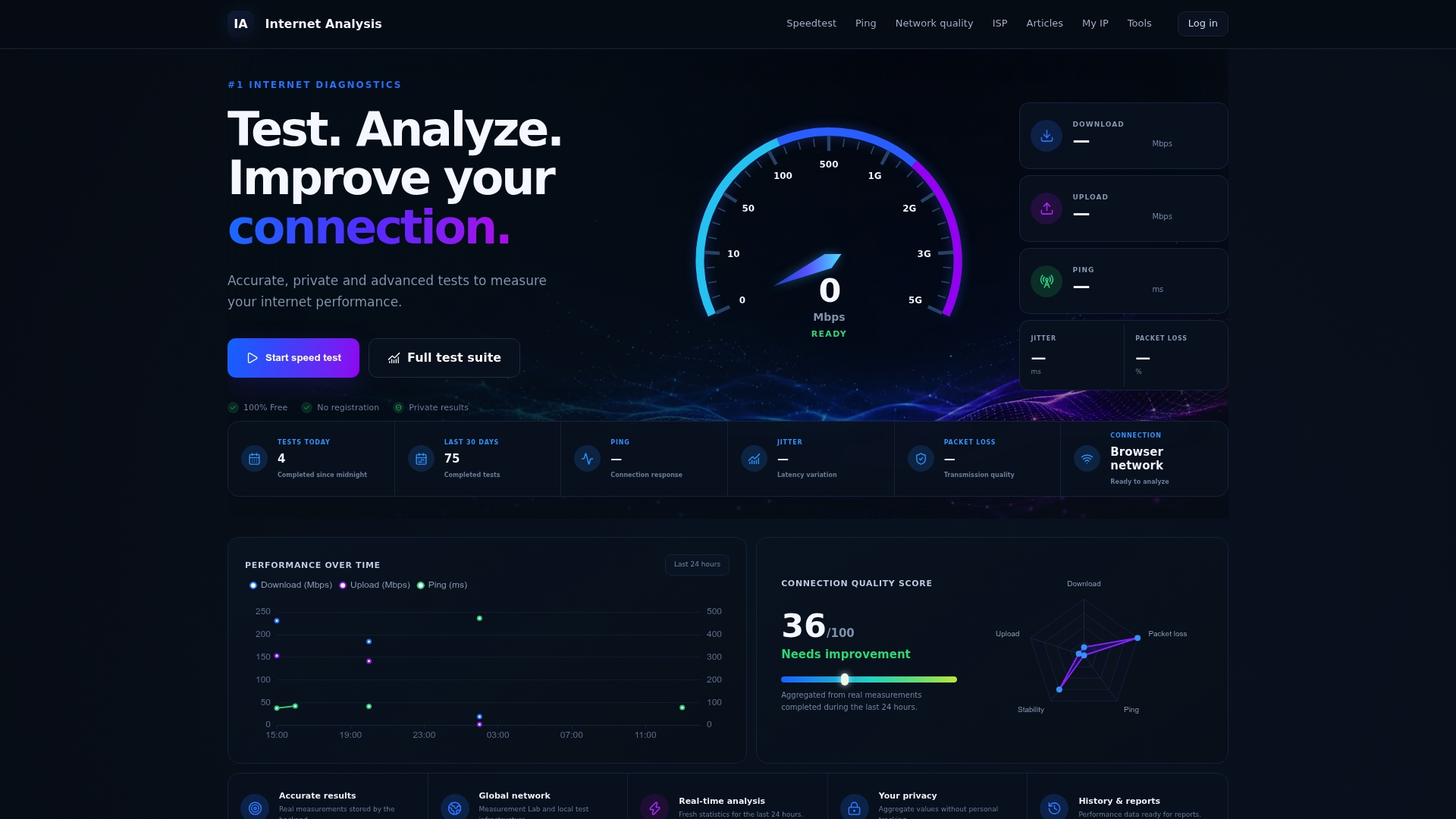
If your download numbers look fine but video calls still stutter or games still lag, the culprit is often latency rather than raw bandwidth. Run a free speed test on both bands from your usual spot, then check latency separately to see if jitter or ping is the real issue. It takes a few minutes and tells you exactly which band deserves your fast devices.
Sources
These sources back the technical claims throughout this guide: Intel on channel width and spectrum capacity, CenturyLink on the core range-versus-speed trade-off, Netgear on channel counts and congestion, BroadbandNow on how modern routers shift the default recommendation, and L-Com on real-world throughput figures.
FAQ
Do devices automatically switch between 2.4 GHz and 5 GHz?
Yes, many modern routers with band steering enabled allow compatible devices to switch automatically based on signal strength and network load. Otherwise, devices remain connected to the chosen band.
How do I know if my Wi-Fi is 2.4 GHz or 5 GHz?
Check your device's Wi-Fi settings: Windows shows it under network Properties, macOS shows it when you Option-click the Wi-Fi icon, and both iPhone and Android display it in the network details screen.
Should I choose 2.4 GHz or 5 GHz?
Choose 5 GHz for most phones, laptops, streaming devices, and consoles, and reserve 2.4 GHz for devices that sit far from the router or don't need much bandwidth, like smart plugs and sensors.
How do I change my router from 5 GHz to 2.4 GHz?
Log into your router's admin panel and either connect to the 2.4 GHz-specific SSID if you have separate networks, or manually select 2.4 GHz within your device's Wi-Fi settings if your router uses a combined SSID with band steering.