

For HD cloud gaming, aim for download speeds matching platform recommendations, with latency ideally under 40 milliseconds. Full HD generally requires higher speeds around the platform minimums, and 4K play demands even more bandwidth, all while maintaining round-trip latency below 40 milliseconds for best experience. Upload speed generally does not need to exceed moderate levels but should remain free from competing traffic to ensure responsiveness. Run a full speed, latency, jitter, and packet-loss check before assuming your plan is the problem.
TL;DR:
- For HD cloud gaming, aim for download speeds of at least 15 to 25 Mbps for 1080p at 60 FPS, with higher requirements for 4K at 120 FPS.
- Keep round-trip latency below 40 milliseconds for the best experience, as higher latency significantly degrades input responsiveness.
- Conduct comprehensive network tests during peak hours and monitor jitter and packet loss to identify issues beyond just download speed.
- Use wired Ethernet connections, prioritize traffic, and reduce background activities to improve stability, since Wi-Fi interference and upload saturation often cause problems.
- Upgrading your internet plan is rarely necessary unless your current Mbps and latency are consistently unmanageable, as local network fixes often resolve cloud gaming issues.
Table of Contents
- Recommended Cloud Gaming Bandwidth by Resolution and Frame Rate
- Why Latency and Packet Loss Matter More Than Raw Speed
- Choosing a Connection That Stays Consistent, Not Just Fast
- How to Test Your Network for Cloud Gaming
- Fixes That Improve Cloud Gaming Without a New Plan
- Why Longitudinal Diagnostics Catch What One Test Misses
- What Actually Trips Up Cloud Gaming Setups
- Run These Checks Before You Upgrade Anything
- Sources
Recommended Cloud Gaming Bandwidth by Resolution and Frame Rate
Cloud gaming inverts a rule most gamers already know: for local or traditional online multiplayer titles, 5 to 10 Mbps with a decent ping is usually enough for smooth play. Cloud gaming streams a live video feed of the game running on a remote server, so it behaves more like video conferencing under a hard latency deadline than like a typical multiplayer session.
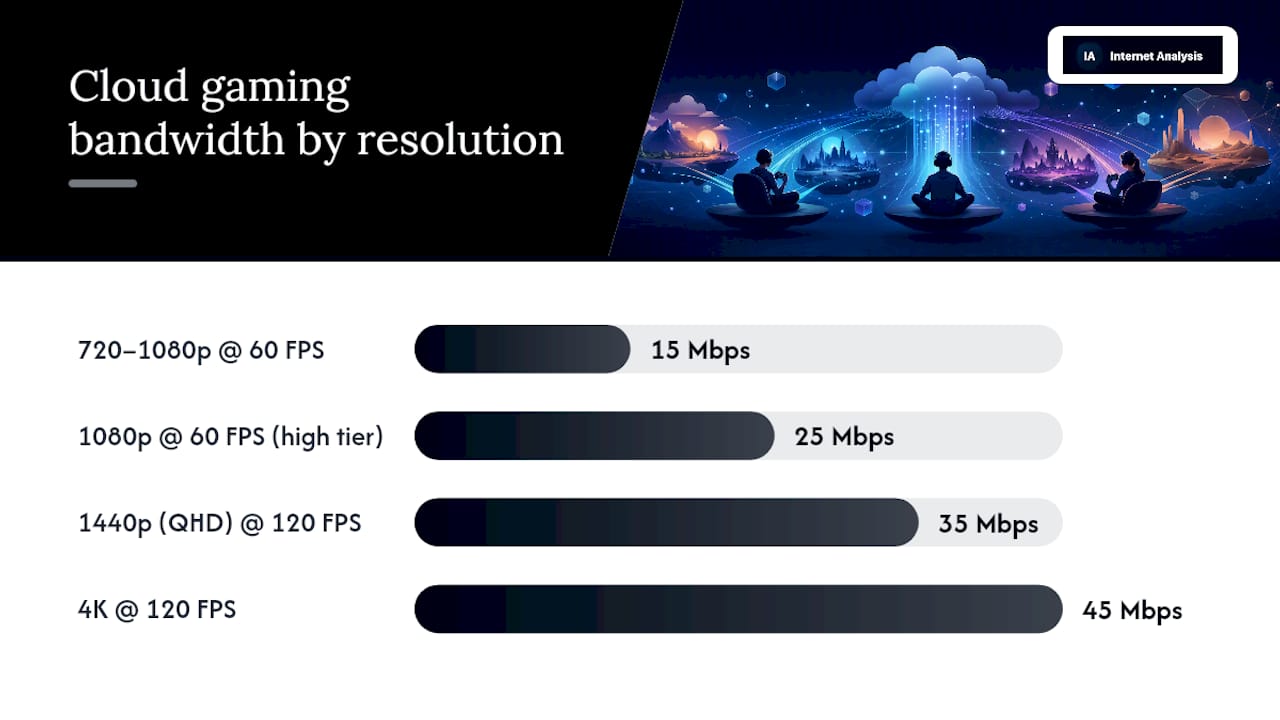
NVIDIA's published GeForce NOW bandwidth requirements give the clearest resolution-to-speed mapping available from any major platform:
- 720p to 1080p at 60 FPS: 15 Mbps minimum
- 1080p at 60 FPS (higher bitrate tier): 25 Mbps
- 1440p (QHD) at 120 FPS: 35 Mbps
- 4K at 120 FPS: 45 Mbps
Xbox Cloud Gaming publishes less granular numbers but follows the same logic: Microsoft recommends a minimum of 10 Mbps for streaming and notes that quality scales up with available bandwidth, with a stronger connection unlocking higher resolution and frame rate rather than just faster load times.
Statistic to remember: a 45 Mbps connection sounds like overkill until you realize that's the floor for 4K at 120 FPS, not the ceiling. Push past that resolution or add a second streaming device in the house, and headroom disappears fast.
That headroom matters more than the raw numbers suggest. A single gamer streaming 1080p on a phone during a commute has very different needs than a household where one person plays on a living-room TV while someone else streams video and a third device runs background updates. The platform minimums assume a mostly idle network at the moment of play. In practice, most cloud gaming guides recommend booking 1.5 to 2 times the minimum Mbps to leave margin for overhead, other devices, and momentary throughput dips.
A few concrete scenarios illustrate how this plays out:
- Single-player on a phone or tablet: 15 to 25 Mbps is typically sufficient for 720p to 1080p streaming, since mobile displays mask minor bitrate drops.
- Living-room TV with a controller: budget 35 to 50 Mbps for consistent 1080p to 1440p, especially if the TV supports higher frame rates.
- Multi-device households: plans in the 100 to 300 Mbps range give enough shared capacity for one 4K cloud session alongside normal browsing, streaming, and smart-home traffic.
Upload speed matters far less for the video feed itself, since your outbound data is mostly controller input, a tiny stream compared to the incoming video. Where upload becomes a problem is contention: a large cloud backup or video call running in the background can crowd out the acknowledgment packets your cloud session needs to stay responsive, even on a connection with plenty of download capacity.
Why Latency and Packet Loss Matter More Than Raw Speed
Bandwidth tells you whether the pipe is wide enough. Latency and packet loss tell you whether the pipe is clean. For cloud gaming, the second question usually decides whether the experience feels playable.
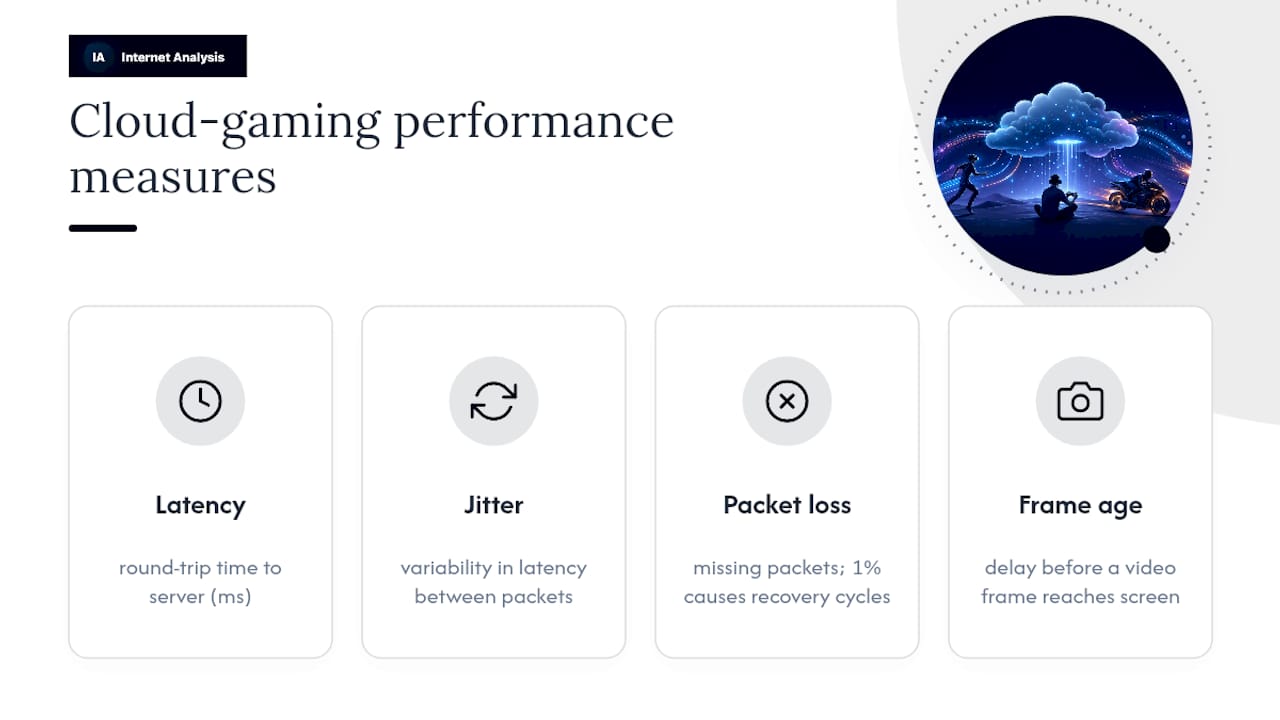
Latency, or round-trip time, measures the signal travel time to the game server and back. Jitter indicates variability in latency, and packet loss reflects missing data packets. Cloud gaming performance also depends on frame age, the delay before a video frame reaches your screen, where excessive age causes noticeable input lag.
An academic study of cloud gaming quality of experience found that end-to-end latency around 200 milliseconds degraded player performance more than moderate increases in packet loss did, and that frame age correlated strongly with how players rated their sessions. Latency doesn't just delay the picture. It delays the moment your input registers, which is why a "fast enough" connection can still feel sluggish in a fast-paced shooter.
Packet loss compounds the problem rather than acting independently. Production measurements from large-scale cloud gaming systems show that loss recovery, the retransmission or error correction needed after a packet goes missing, contributes heavily to frame delays exceeding 100 milliseconds. A 1% packet loss rate sounds trivial until each lost packet forces a recovery cycle that stacks on top of your existing latency.
Loss recovery, not the loss event itself, is often what turns a minor network hiccup into a frame delay a player actually notices. Fixing the recovery path (better routing, congestion control, forward error correction) can cut severe frame delays dramatically even when the underlying loss rate barely changes.
NVIDIA recommends keeping round-trip time under 80 milliseconds, with under 40 milliseconds as the target for the best experience. Cross 80 milliseconds consistently, and most players start noticing input lag even at high resolution and full bitrate.
Choosing a Connection That Stays Consistent, Not Just Fast
Access type sets your latency floor before your Wi-Fi setup even enters the picture. Fiber typically delivers the lowest and most stable latency, often in the single digits to low teens of milliseconds to a local node, because it doesn't share bandwidth the way cable does during peak hours. Cable connections perform well most of the time but can show latency spikes during evening congestion when many households on the same node are active simultaneously. Fixed wireless and 5G home internet vary widely by tower load and distance, and while modern 5G can hit respectable speeds, latency tends to run higher and less predictable than wired options. Satellite internet, even newer low-orbit services, still carries enough baseline delay to make it the riskiest choice for fast-paced titles.
Once the signal reaches your home, Wi-Fi is usually where consistency breaks down. A few adjustments make an outsized difference:
- Connect the streaming device to the 5 GHz or 6 GHz band instead of 2.4 GHz, which is slower and more prone to interference from neighboring networks.
- If you use a mesh system, check the backhaul connection between nodes. Wireless backhaul adds latency at every hop; a wired backhaul between mesh points avoids that penalty entirely.
- Place the router or nearest mesh node with a clear line of sight to your gaming device, since walls and floors degrade signal more than most people expect.
Pro Tip: Before blaming your ISP, connect your gaming device directly to the router with an Ethernet cable for one session. If latency and stability improve dramatically, the issue was your Wi-Fi setup, not your internet plan.
Switching access types is a bigger decision than fixing local network issues, so it's worth ruling out the cheaper fix first. If a wired test still shows high or unstable latency, that points toward your ISP's network or routing rather than anything in your home.
How to Test Your Network for Cloud Gaming
Diagnosing a cloud gaming problem takes more than one quick speed test. A single snapshot can look fine while missing the peak-hour congestion or routing issue that's actually ruining your sessions.
- Run a wired baseline test. Connect directly to your router with Ethernet and test speed, latency, and jitter. This isolates your ISP connection from any Wi-Fi interference.
- Repeat the test during peak hours, typically evenings between 7 and 11 PM, when neighborhood congestion is highest on shared infrastructure like cable networks.
- Check latency to the platform's server region specifically, not just a generic speed test server, since NVIDIA and other platforms recommend testing RTT to the actual data center you'll be streaming from.
- Monitor jitter and packet loss over several minutes, not just an instant reading, since intermittent loss and latency spikes often only show up in longer samples.
- Run a stability test over 30 to 60 minutes during a normal usage window to catch throttling, temporary congestion, or thermal issues in your router.
A network quality test or a dedicated latency check covers most of this in a few minutes, and repeating it across different times of day builds a picture no single test can show.
| Metric | Passing range for cloud gaming | What it reveals |
|---|---|---|
| Download speed | Meets or exceeds resolution tier (15 to 45 Mbps) | Whether you have enough throughput for the video stream |
| Latency (RTT) | Under 40 ms ideal, under 80 ms acceptable | Input responsiveness and lag |
| Jitter | Under 5 to 10 ms | Whether latency stays consistent frame to frame |
If you're contacting your ISP or researching a new plan, bring the wired baseline numbers, the peak-hour results, and the jitter and packet-loss figures rather than a single speed test screenshot. Specific numbers get faster, more useful responses than a vague complaint about lag.
Fixes That Improve Cloud Gaming Without a New Plan
Most cloud gaming problems get solved on the home-network side, not by paying for more Mbps.
- Switch to Ethernet for your streaming device whenever possible. This alone resolves a large share of jitter and packet-loss complaints.
- Pause background uploads like cloud backups, large file syncs, or video uploads before starting a session, since they compete for the same connection.
- Update your router's firmware. Outdated firmware can mishandle traffic prioritization and miss bug fixes for exactly the kind of congestion issues that cause packet loss.
- Select the least congested Wi-Fi channel using your router's admin panel, especially in apartments where dozens of networks overlap.
- Enable basic QoS or traffic prioritization if your router supports it, giving your gaming device priority over other traffic on the network.
Pro Tip: If wired Ethernet and a fresh router restart both fail to fix persistent high ping, the issue is likely on your ISP's side, in routing or peering, not in your home.
Escalate to your ISP when a wired baseline test still shows latency spikes or packet loss above 1% consistently across multiple times of day. A plan upgrade is justified when your current tier genuinely can't meet the Mbps floor for your target resolution. It's rarely justified as a fix for latency problems, since latency is a function of routing and distance, not raw throughput.
Why Longitudinal Diagnostics Catch What One Test Misses
A single speed test tells you what your connection can do at that exact second. It won't tell you that your latency spikes every evening at 8 PM, or that packet loss climbs specifically during your ISP's peak congestion window. Aggregated historical testing, run across different hours and days, reveals those patterns in a way a one-off check never will.
Advanced diagnostics look past averages toward the tail end of your results: the 95th or 99th percentile frame delay, not just the mean. Production research on cloud gaming systems shows that optimizing these tail delays matters as much as improving average latency, since a handful of bad frames per minute is often what a player actually notices as stutter.
The average round-trip time on your connection can look perfectly healthy while the worst 1% of frames still arrive late enough to ruin a competitive match. Tail behavior, not the mean, is usually what separates a smooth cloud gaming session from a frustrating one.
When you bring data to an ISP conversation or a plan decision, include peak-hour results, packet-loss patterns over time, and jitter trends, not just a single best-case number.
What Actually Trips Up Cloud Gaming Setups
Three root causes account for most cloud gaming complaints I see discussed: Wi-Fi interference masquerading as an ISP problem, upload saturation from background apps stealing capacity at the worst moment, and ISP-side congestion that only shows up during specific hours. None of these get fixed by blindly upgrading to a faster plan.
The one-minute triage: test wired, test during peak hours, and check packet loss before you check price. A gaming speed test done twice, once wired and once on Wi-Fi, tells you more than any marketing page from an ISP ever will. Make the decision with evidence, not guesswork about what "should" be enough.
— Tomasz
Run These Checks Before You Upgrade Anything
Skip the guesswork and go straight to the numbers. Internet-analysis built a cloud gaming use-case test specifically to check the metrics that matter for streamed play: download throughput against the resolution tiers covered above, round-trip latency to nearby test points, jitter stability, and packet loss, all from real measurements rather than a single idealized speed number.
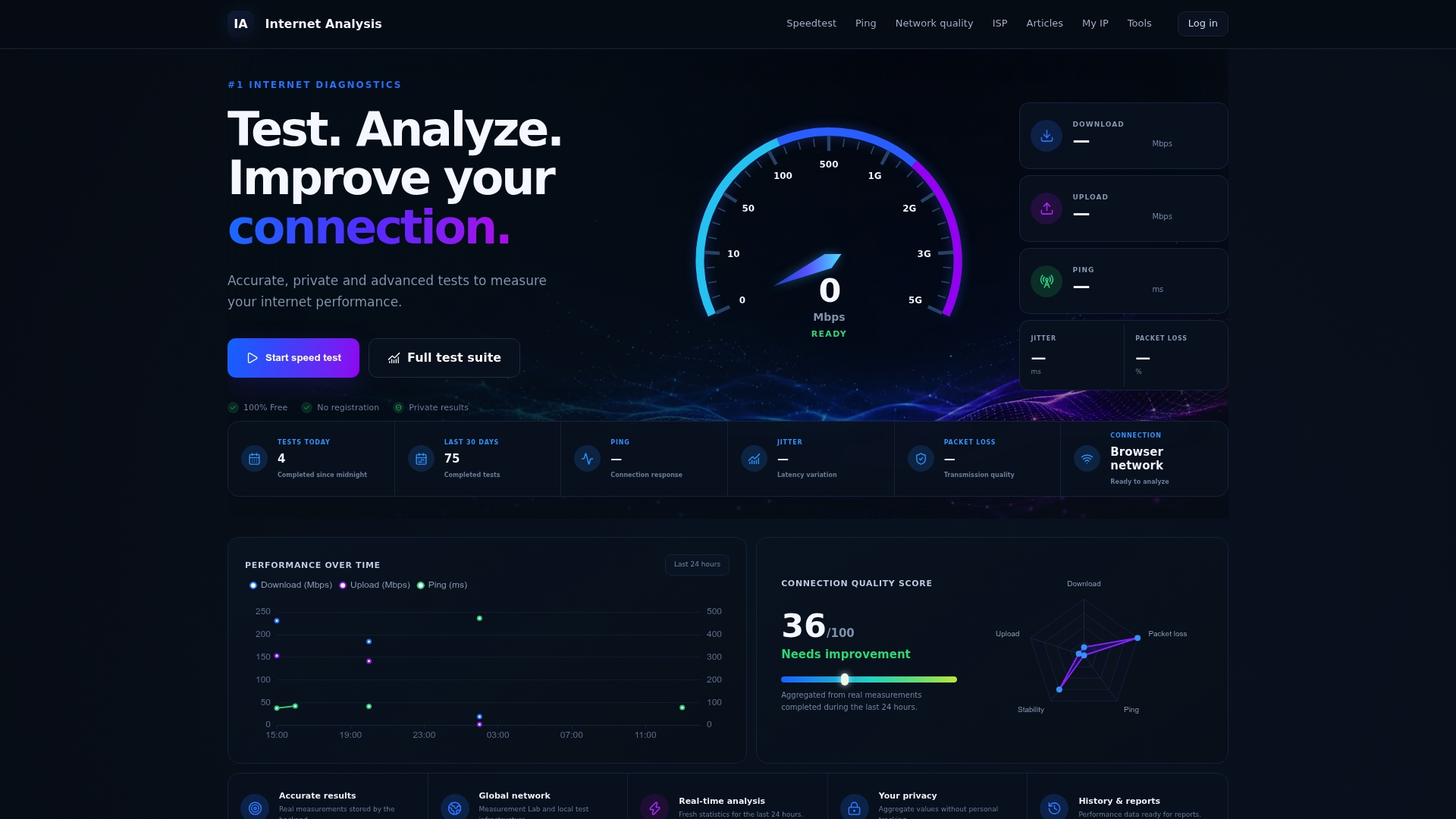
Run the packet-loss test if you suspect stutter during specific hours, and the latency check if input lag is your main complaint. Each result points to a specific next step: a jitter problem usually means adjusting your Wi-Fi setup or switching to Ethernet, while consistent high latency across multiple tests points toward contacting your ISP with real numbers in hand. Start with the cloud gaming diagnostic and know exactly what to fix before you spend a dollar on a faster plan.
Sources
- System Requirements for GeForce NOW | NVIDIA
- What Is the Best Internet Speed for Online Gaming? | HP
- Cloud Gaming: A QoE Study of Fast-paced Single-player and Multiplayer Gaming
- From Source to Solution: Tackling Packet Losses in Large-scale Cloud Gaming Systematically and Precisely