

A "DNS server not responding" error means your device sent a name lookup request and got no reply before timing out. The fix, in order, is almost always the same: restart your router and device, flush the DNS cache, then switch to a public resolver like Google's 8.8.8.8 or Cloudflare's 1.1.1.1. Most cases clear up after following one of those basic steps.
TL;DR:
- Restarting and flushing the DNS cache often resolves "DNS server not responding" errors without further troubleshooting.
- Switching to public DNS services like Google or Cloudflare typically fixes resolver-specific outages or overload issues.
- Running multiple nslookup tests can identify flaky or overloaded resolvers, indicating whether the problem is with your device, network, or ISP.
- Router firmware bugs, misconfigured DNS settings, or malware in hosts files are common local causes that should be addressed before ISP contact.
- Using diagnostic tools such as traceroute and latency measurements provides concrete evidence for support and ensures targeted troubleshooting.
Table of Contents
- How to confirm DNS is actually the problem
- Common causes that trigger this error
- Step-by-step fixes, from simplest to advanced
- How to change your DNS settings on every major platform
- When the router or ISP is the real culprit
- Keeping DNS problems from coming back
- Getting hard evidence before you call your ISP
- A disciplined order beats guesswork every time
- Test your connection before you troubleshoot blind
- Where to go for deeper reference material
- Sources
How to confirm DNS is actually the problem
Before touching any settings, figure out whether DNS is the real culprit or just the messenger. The fastest test: type a raw IP address into your browser, like 142.250.190.78 (one of Google's), instead of a domain name. If that page loads but google.com does not, DNS is broken while your actual internet connection is fine.
Next, run a direct query against your resolver. Open a terminal or Command Prompt and try:
nslookup google.com(tests your currently configured DNS server)nslookup google.com 8.8.8.8(tests the same lookup against Google's public resolver)ping 8.8.8.8followed bytracert 8.8.8.8on Windows, ortraceroute 8.8.8.8on macOS and Linux, to check for packet loss on the way to a known resolver
Three outcomes tend to show up:
- Both nslookup commands fail — the problem is likely local: your device, router, or network settings.
- The first fails but the second succeeds — your configured resolver (usually your ISP's) is down or unreachable, and switching DNS servers will probably fix it.
- Both fail even against 8.8.8.8 — you may have a firewall, VPN, or ISP-level block on port 53, or a deeper routing issue worth tracing further.
Pro Tip: Run nslookup five or six times in a row against the same resolver. If it succeeds sometimes and fails other times, you are dealing with a flaky or overloaded resolver, not a total outage.
Common causes that trigger this error
DNS failures rarely have one single cause, but a handful of culprits show up over and over. A step-by-step troubleshooting guide from TP-Link points to a corrupted local cache or a misconfigured client setting as the most frequent triggers, but a few others deserve equal attention:
- Corrupted local DNS cache on your operating system or inside a specific browser
- Router DNS proxy hang or firmware bug that stops the router from relaying lookups correctly
- ISP resolver outage or overload, especially during peak evening hours
- VPN or firewall interference blocking DNS traffic on port 53, sometimes only for split-tunnel configurations
- Misconfigured DNS settings or an outdated network adapter driver
- Authoritative nameserver problems tied to one specific domain rather than your whole connection
That last one is easy to misdiagnose. If only one website fails while everything else works, the trouble often sits with that site's own DNS hosting, not your network at all.
Step-by-step fixes, from simplest to advanced
Work through these in order. Most people never need to go past step three.
-
Restart your modem, router, and the affected device by checking recommended modem and mesh options to ensure your hardware isn't causing DNS issues. Unplug the modem and router for 30 seconds, plug the modem back in first, wait for it to sync, then power the router. This clears volatile memory and forces a fresh DHCP and DNS handshake, which resolves a large share of intermittent, multi-device failures.
-
Test a second device on the same network. If your phone loads sites fine over Wi-Fi but your laptop does not, the problem is local to that laptop, not your router or ISP. This single check saves you from chasing the wrong fix.
-
Flush the DNS cache. On Windows, open Command Prompt as administrator and run:
ipconfig /flushdnsA successful flush reports "Successfully flushed the DNS Resolver Cache." PowerShell users can run
Clear-DnsClientCacheinstead. On macOS, open Terminal and runsudo dscacheutil -flushcache; sudo killall -HUP mDNSResponder. On Linux with systemd-resolved, usesudo systemd-resolve --flush-caches.Flushing the cache is completely safe to run as often as you like. It only clears temporary hostname-to-IP mappings, so your system simply asks the resolver again from scratch.
Don't stop at the OS level. Firefox and some other browsers keep their own internal DNS cache separate from Windows or macOS, so a stubborn single-browser failure often needs a browser restart or its own cache clear even after
ipconfig /flushdnsreports success. -
Switch to a public DNS server and test again. Set your DNS to Google (8.8.8.8 and 8.8.4.4) or Cloudflare (1.1.1.1 and 1.0.0.1), then rerun
nslookup google.com. If pages start loading immediately, your original resolver, usually your ISP's, was the point of failure. -
Disconnect any VPN and temporarily disable third-party firewall or antivirus software. VPNs frequently route DNS through their own resolvers, and split-tunnel setups can produce lookups that fail inconsistently depending on which app you're using. Test with the VPN fully off before blaming your router.
-
Release and renew your IP address. On Windows, run
ipconfig /releasefollowed byipconfig /renew. On macOS, toggle Wi-Fi off and on, or remove and re-add the network under System Settings. This forces a fresh lease and often clears a stuck configuration. -
Reset the network adapter and update its driver. Run
netsh winsock resetandnetsh int ip reset, then reboot. If the error persists, check Device Manager for an outdated network adapter driver and update it directly from the manufacturer's site. -
Check your hosts file for suspicious entries. On Windows, it lives at
C:\Windows\System32\drivers\etc\hosts. Unexpected redirects here can point to malware. Run a scan if anything looks off. -
Update your router's firmware, then reboot it again. Firmware bugs are a documented cause of DNS proxy failures on consumer routers. Log into the admin panel, check for updates, and apply them.
-
Factory reset the router as a last resort. This wipes custom settings, so only do it after confirming nothing else worked, and be ready to re-enter your Wi-Fi password and any port forwarding rules afterward.
After each major step, rerun nslookup google.com and reload a website you know is normally reliable. If it works, stop there. No need to work through the entire list every time.
How to change your DNS settings on every major platform
Once you know a public resolver fixes the problem, set it permanently rather than reverting to automatic each time.
Windows 10 and 11:
- Open Settings > Network & Internet > Change adapter options, right-click your active connection, and select Properties.
- Double-click Internet Protocol Version 4 (TCP/IPv4), choose "Use the following DNS server addresses," and enter 8.8.8.8 and 8.8.4.4 (or 1.1.1.1 and 1.0.0.1).
- Verify with
ipconfig /displaydnsand confirm resolution withnslookup.
macOS:
- Go to System Settings > Wi-Fi > Details > DNS, click the plus sign, and add your chosen servers.
- To clear the local cache after switching, run
sudo dscacheutil -flushcachein Terminal.
Android:
- Under Settings > Network & Internet > Private DNS, select "Private DNS provider hostname" and enter something like
dns.googleor1dot1dot1dot1.cloudflare-dns.com. Menu names shift slightly between Android versions, but the setting lives in the same general area.
iOS:
- Go to Settings > Wi-Fi, tap the (i) next to your network, scroll to Configure DNS, switch to Manual, and add the server addresses. Private DNS on iOS applies system-wide under Settings > General > VPN & Device Management > DNS.
After changing DNS on any device, reload a few different websites and rerun a lookup command to confirm the new resolver is actually answering.
When the router or ISP is the real culprit

If DNS fails on every device on your network at once, look past your laptop and straight at the router. Routers commonly act as a DNS proxy for every connected device; when that proxy service hangs, name resolution breaks network-wide even though basic IP connectivity still works fine.
A quick way to isolate router versus ISP: switch a phone to cellular data and try the same website. If it loads instantly on cellular, the trouble sits somewhere between your router and your ISP's resolvers, not out on the open internet.
- Check the router's DNS settings under its admin panel; make sure it isn't pointing to a dead or misconfigured server.
- Update the router's firmware, since older builds carry documented DNS proxy bugs.
- Reboot the router before reaching for a factory reset.
- Factory reset only if firmware updates and reboots don't resolve it, and expect to reconfigure Wi-Fi credentials afterward.
Pro Tip: If you've replaced firmware, rebooted, and factory reset a router more than once for the same recurring DNS issue, that's usually a sign the hardware itself has aged out, not that you're missing a setting.
Keeping DNS problems from coming back
A little router-level consistency prevents most repeat failures. Set your preferred public DNS servers directly in the router rather than on each device individually, so every phone, laptop, and smart TV on the network inherits the same reliable resolver automatically.
- Choose a dependable public DNS provider (Google, Cloudflare, or another established resolver) and set it at the router.
- If you manage your own domain, look into DNSSEC to protect against certain nameserver-level attacks.
- Keep router firmware and network adapter drivers current; outdated firmware is a repeat offender.
- Run a quick DNS check periodically and jot down a short log if problems recur, since a documented pattern speeds up any later ISP conversation.
Rebooting a router regularly also clears volatile memory that can otherwise accumulate glitches over weeks of uptime, according to TP-Link's troubleshooting research.
Getting hard evidence before you call your ISP
A support call goes faster when you show up with numbers instead of "the internet's broken." Internet Analysis's DNS diagnostic tools measure resolution latency, success rate, and how your ISP's resolver compares against public alternatives, which turns a vague complaint into a specific, provable failure.
- Resolution latency and success rate show whether your resolver is slow, flaky, or fully unresponsive.
- A traceroute test shows exactly which hop between you and the resolver is dropping queries.
- Packet loss results help you tell a local hiccup apart from an ISP-side routing problem.
| What the report shows | What it likely means |
|---|---|
| High latency, low success rate on your ISP's DNS only | Resolver-side issue, worth reporting to your ISP |
| Failures on every resolver tested | Local network, firewall, or router problem |
| Packet loss appearing mid-route | Backbone or ISP routing issue, not your equipment |
Screenshot the results and keep the timestamp. A tech support agent can act on specific numbers far faster than a description of symptoms.
A disciplined order beats guesswork every time
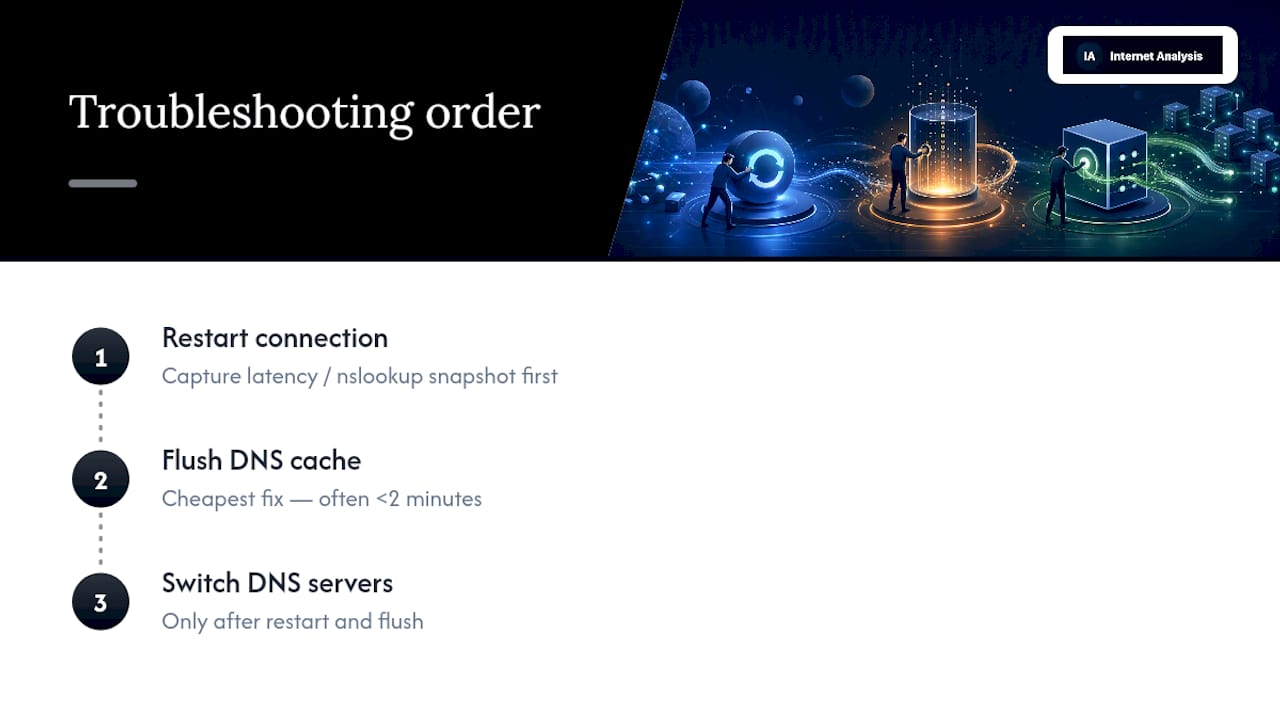
The instinct when DNS breaks is to jump straight to the router reset or, worse, call the ISP first. That's backward. The cheapest, fastest fixes, restart and flush, solve the majority of cases in under two minutes, and skipping them just means redoing the same steps later after wasting time on something bigger.
The habit worth building is capturing a diagnostic snapshot before making any change, not after. A saved latency reading or a failed nslookup output turns a vague "it's slow" into evidence, and it's the difference between an ISP call that gets resolved in one conversation and one that drags on for a week. If a router needs a firmware update or a factory reset more than once for the same fault, it's telling you something about its age, not your settings.
— Tomasz
Test your connection before you troubleshoot blind
Guessing which fix to try wastes time you don't have when a site won't load. Internet-analysis gives you the objective read you need in under a minute: a DNS performance check that measures resolver latency and success rate side by side, a traceroute to find exactly where a query stalls, and packet-loss detection to rule out your equipment entirely.
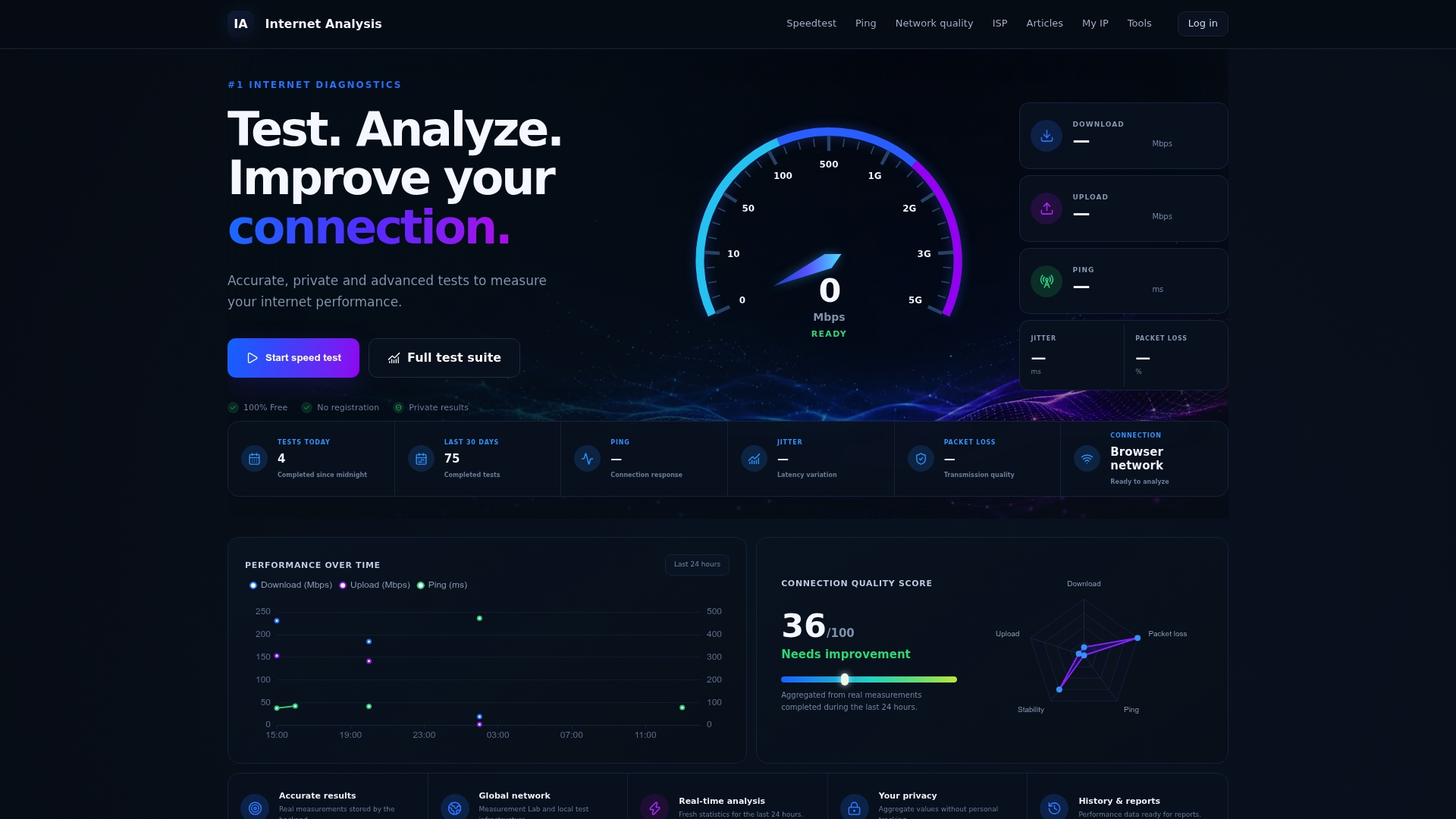
Run the test, and you'll get a clear report showing whether the fault sits with your device, your router, or your ISP's resolver, the same kind of evidence that turns a frustrating support call into a five-minute fix. Start with a full connection check at Internet-analysis and know exactly what you're dealing with before you touch another setting.
Where to go for deeper reference material
For OS-specific commands and edge cases beyond what's covered here, these references are worth bookmarking:
- TP-Link's DNS server not responding guide for router-focused troubleshooting steps
- HowToGeek's Windows DNS fix walkthrough for detailed Windows screenshots
- HowToGeek's flush DNS guide for the full command syntax across Windows versions