
No, Ethernet should not run slower than Wi-Fi under normal conditions. When it does, the cause is almost always a specific hardware or configuration problem, not bad luck. Start by running a controlled speed test on both interfaces, back to back, using the same server. The gap between the two numbers tells you where to look next.
TL;DR:
- A wired Ethernet connection should match or exceed Wi-Fi speeds, but hardware or configuration issues often cause Ethernet to underperform.
- Testing both interfaces with the same server and disabling one connection during each test helps identify the true cause of speed discrepancies.
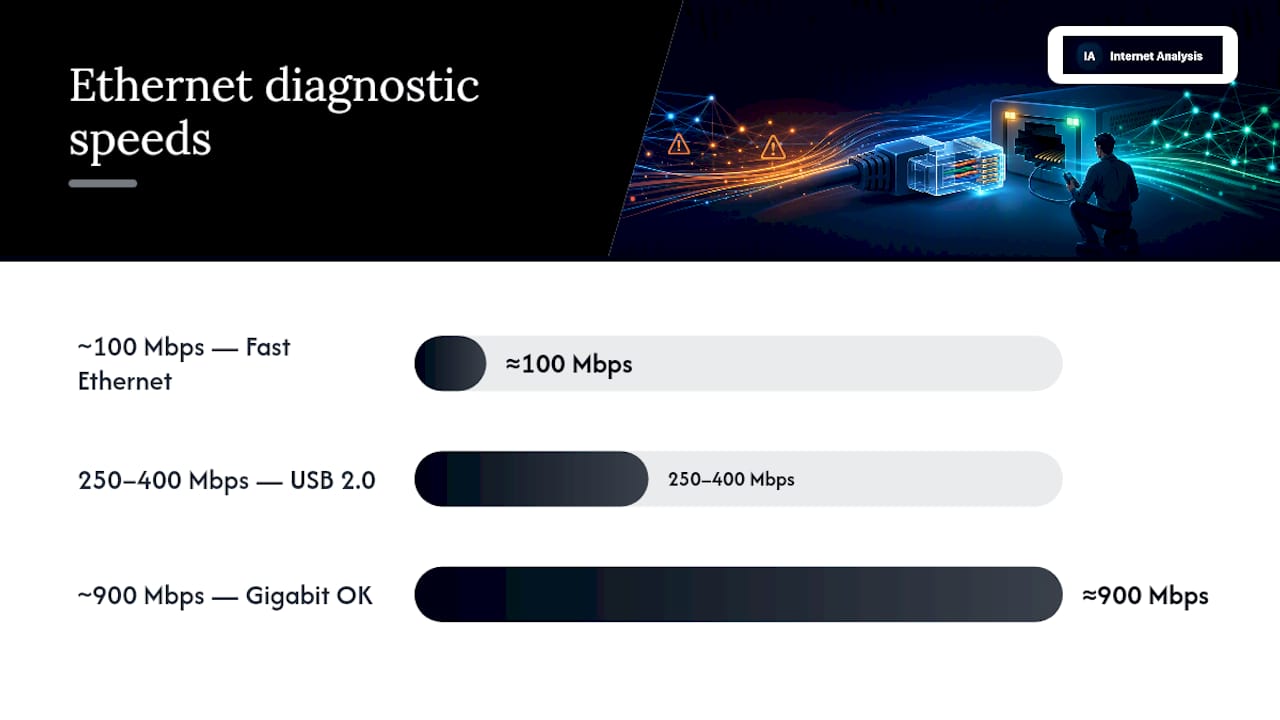
- Typical speed results near 95 Mbps indicate a 100 Mbps port limit, while 250-400 Mbps suggests a USB 2.0 adapter bottleneck; near 900 Mbps indicates a healthy gigabit link.
- Common causes of slow Ethernet include duplex mismatches, outdated cables, inadequate adapters, energy-saving settings, faulty ports, or background bandwidth use.
- Following a step-by-step troubleshooting sequence, including swapping cables, ports, and adapters, and verifying driver settings, usually resolves the issue within ten minutes.
Table of Contents
- Why Is Ethernet Slower Than Wi-Fi in the First Place?
- Quick Troubleshooting Checklist (10 Minutes or Less)
- Common Causes, Diagnostic Signs, and Exact Fixes
- How Do You Isolate the Exact Cause?
- When Should You Replace Hardware or Call Your ISP?
- What Speed Ranges Usually Point to What Cause?
- What Should You Fix First?
- Verify Every Fix With a Real Test, Not a Guess
- Sources
Why Is Ethernet Slower Than Wi-Fi in the First Place?
A wired connection should match or beat a wireless one in every meaningful measure: throughput, latency, and consistency. When Ethernet falls behind, the wiring or the network hardware between your device and your router is holding it back, not some inherent weakness in wired internet.
Run two or three speed tests on Ethernet and two or three on Wi-Fi, disabling one connection while testing the other so they can't interfere with each other. Average each set of results. If both numbers land close to your internet service provider's advertised plan speed, both connections are performing fine and you're simply bumping into your plan's cap. If Ethernet consistently underperforms Wi-Fi by a wide margin, the numbers themselves usually hint at the cause. A result consistently near the speed limit of a 100 Mbps port points to a port somewhere in the chain with that speed limitation. A result stuck between 250 and 400 Mbps points to a USB 2.0 adapter. Anything close to 900 Mbps on a gigabit plan means the wired link is healthy.
Quick Troubleshooting Checklist (10 Minutes or Less)
Before digging into settings menus, run through this fast sequence. Most cases of wired internet slower than Wi-Fi trace back to one of these five things.
- Test both connections properly. Turn off Wi-Fi on your device while testing Ethernet, and unplug the Ethernet cable while testing Wi-Fi, so neither connection competes with the other.
- Swap the cable and the port. Grab a known-good Cat5e or Cat6 cable and plug into a different port on your router or switch.
- Check your adapter's negotiated link speed. On Windows, open Network Connections and check adapter status; on macOS, check Network settings under System Settings.
- Confirm your dock or USB adapter is USB 3.x. A USB 2.0 Ethernet adapter physically cannot exceed roughly 300 to 400 Mbps, no matter how fast your plan is.
- Pause background downloads and OS updates. Windows Delivery Optimization and macOS software updates can quietly eat bandwidth during a test.
Common Causes, Diagnostic Signs, and Exact Fixes
Once the quick checklist rules out the obvious, the remaining causes fall into a short, well-documented list. Each one leaves a distinct fingerprint in your test results.
- Duplex mismatch. Symptom: speeds cut roughly in half, or a connection that stutters instead of holding steady. A duplex mismatch happens when your adapter and the switch or router disagree on how to send and receive data, forcing half-duplex behavior. Fix: open your adapter's advanced settings and manually set the speed and duplex to "1.0 Gbps Full Duplex" instead of leaving it on auto-negotiate.
- Port limited to 100 Mbps. Symptom: results parked almost exactly at 95 Mbps no matter what you try. Older routers, switches, and even some wall jacks still carry Fast Ethernet ports rated for 100 Mbps instead of gigabit. Check the label on the port or the spec sheet for your router model.
- Bad or wrong cable. A damaged cable or an old Cat5 cable (not Cat5e or better) can't reliably carry gigabit speeds. Swap it for a fresh Cat5e or Cat6 cable and retest.
- USB adapter bottleneck. Docks and USB Ethernet adapters built on USB 2.0 cap out around 250 to 400 Mbps even when everything else on the network supports gigabit. Test with a USB 3.x Gigabit adapter to confirm.
- Energy Efficient Ethernet and power-saving drivers. Some network adapters dip into low-power states that cause bursty, inconsistent throughput rather than a hard cap. Disabling EEE in your adapter's advanced settings, along with any "allow the computer to turn off this device to save power" option, often clears it up.
- Faulty switch port or aggressive VLAN/QoS rules. If you're running traffic through a managed switch, bypass it and plug straight into the router to test. Overzealous QoS or VLAN tagging can throttle wired traffic without any obvious warning.
- Background processes hogging bandwidth. Check Task Manager or Activity Monitor for anything syncing, backing up, or updating during your test.
Pro Tip: Reinstalling or updating your network adapter driver fixes a surprising share of these cases on its own. Community troubleshooting threads on issues like this consistently point to driver resets and forced duplex settings as the fastest resolution, often before anyone touches a cable.
How Do You Isolate the Exact Cause?
Work through this sequence in order. Each step eliminates one variable, so you'll know exactly where the problem lives by the time you finish.
- Restart your router and your device, turn off Wi-Fi and any VPN, then run three to five speed tests to the same server and average the results.
- If speeds are still low, swap in a known-good cable and a different port, then retest and write down the new numbers.
- If the problem persists, test Ethernet on a second device. If only one device runs slow, the adapter is the likely culprit. Confirming this with a USB 3.x Gigabit adapter resolves the majority of adapter-related cases reported in troubleshooting forums.
- Run ping, jitter, and packet loss tests, not just throughput tests. A stable but slow connection points to a hardware cap; an unstable one points to a duplex or interference problem.
- If hardware checks out clean, run the same tests at different times of day. A gap that only appears during peak hours points toward ISP congestion rather than anything in your home.
When Should You Replace Hardware or Call Your ISP?
Some problems can't be fixed with a setting change. Here's how to know you've reached that point:
- Confirmed bad NIC: if a USB 3.x Gigabit adapter still underperforms on a device where other hardware tests clean, the built-in network card is likely failing and needs replacement.
- Router or LAN port bottleneck: if every device plugged into a specific port runs slow regardless of cable or adapter, that port, or the router itself, is the limit. Consider a port upgrade or a new router.
- Aging managed switch: if bypassing your switch fixes the problem, the switch's VLAN or QoS configuration is likely misconfigured or the hardware is outdated.
- Calling your ISP: bring repeated test numbers from multiple times of day, along with traceroute output, so support can see a pattern instead of a one-off complaint.
What Speed Ranges Usually Point to What Cause?
Certain speed bands show up again and again in wired connection troubleshooting, and they're worth memorizing because they save you a lot of guesswork.
A result sitting right around 95 Mbps almost always means a 100 Mbps port somewhere in the chain. A result stuck between 250 and 400 Mbps almost always means a USB 2.0 adapter or bus limit. A result near 900 to 950 Mbps on a gigabit connection means your wired link is healthy and any remaining gap is elsewhere on the network.
Disabling Energy Efficient Ethernet and reinstalling the network driver resolves a meaningful share of the cases that don't fit neatly into a hardware cap, according to Ethernet Alliance documentation on EEE behavior. Running your own tests with Internet-analysis after each change gives you a reproducible before-and-after comparison instead of a guess.
What Should You Fix First?
If you only have ten minutes, test both connections properly, then swap the cable, then swap the port, then swap the adapter. That order solves most cases I've seen described in troubleshooting threads and vendor documentation, in that exact priority. Even when Wi-Fi tests a little faster on paper, I'd still keep Ethernet on anything latency-sensitive, like a work laptop or a game console, since wired connections hold latency and jitter steadier than wireless ever will. My one piece of home network hygiene advice: label your cables and ports now, before you're troubleshooting at midnight.
— Tomasz
Verify Every Fix With a Real Test, Not a Guess
Once you've forced full duplex, swapped a cable, or disabled Energy Efficient Ethernet, you need proof it actually worked, not just a feeling that things seem faster. That's where running a full diagnostic pass pays off: speed, ping, packet loss, and traceroute together tell you whether a fix actually closed the gap or just moved the bottleneck somewhere else.
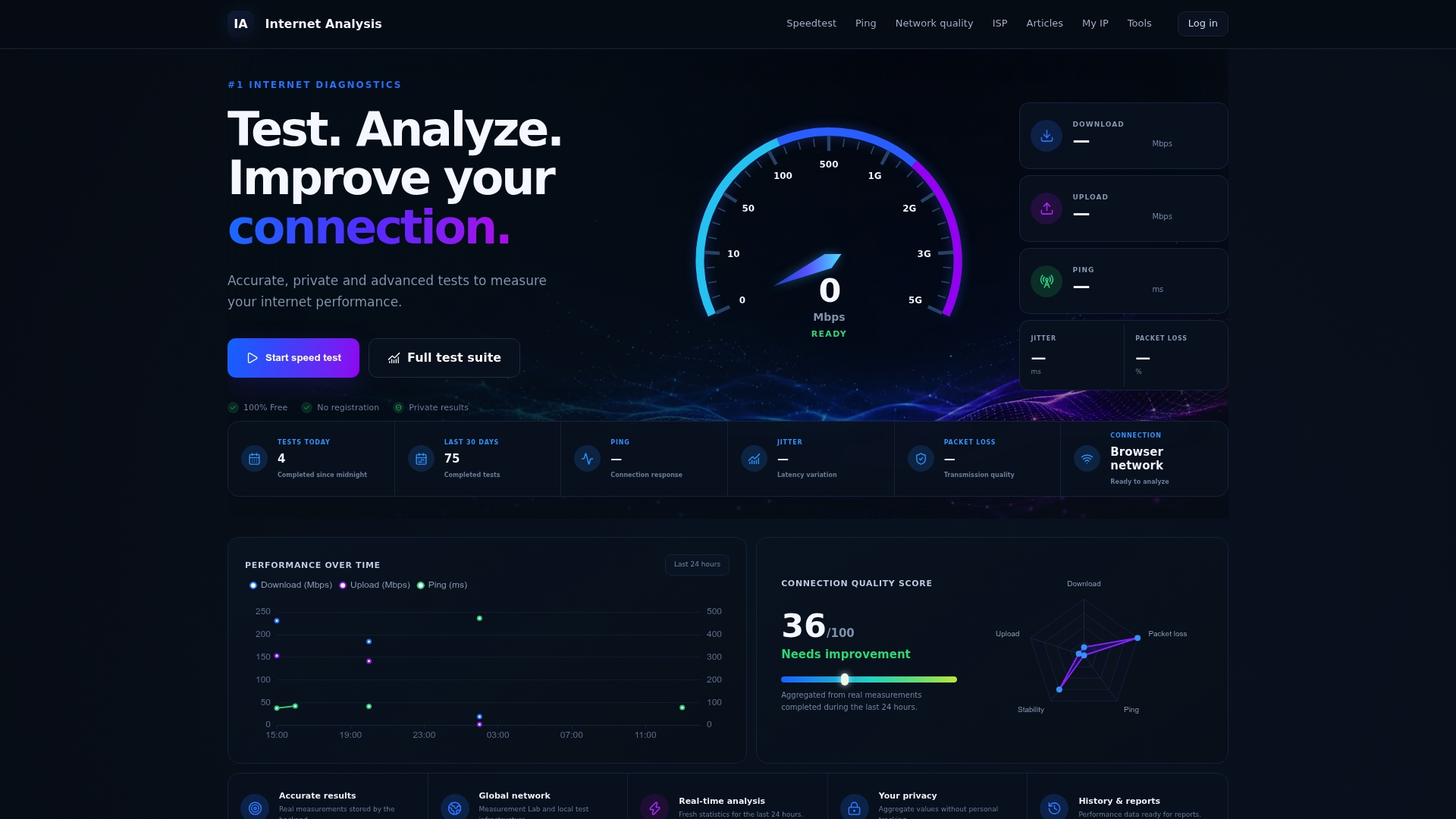
Internet-analysis runs these checks using real measurements from a global test network, with results aggregated privately and no personal tracking attached. After each change you make, from a new cable to a driver reinstall, run the Fast Speed Test but Slow Internet? Test the Cause tool to compare your before-and-after numbers side by side. If the gap between Ethernet and Wi-Fi won't close no matter what you try, that same test output gives your ISP the exact evidence they need to help. Run it now and see where your connection actually stands.
Sources
- FCC — Broadband speed guide
- Meraki documentation — Duplex mismatches affecting physical link speed
- Ethernet slower Than Wi‑Fi: Tracking Down the Speed Gap — SolveTechToday
- How-To Geek — Wi‑Fi vs. Ethernet: how much better is a wired connection?