
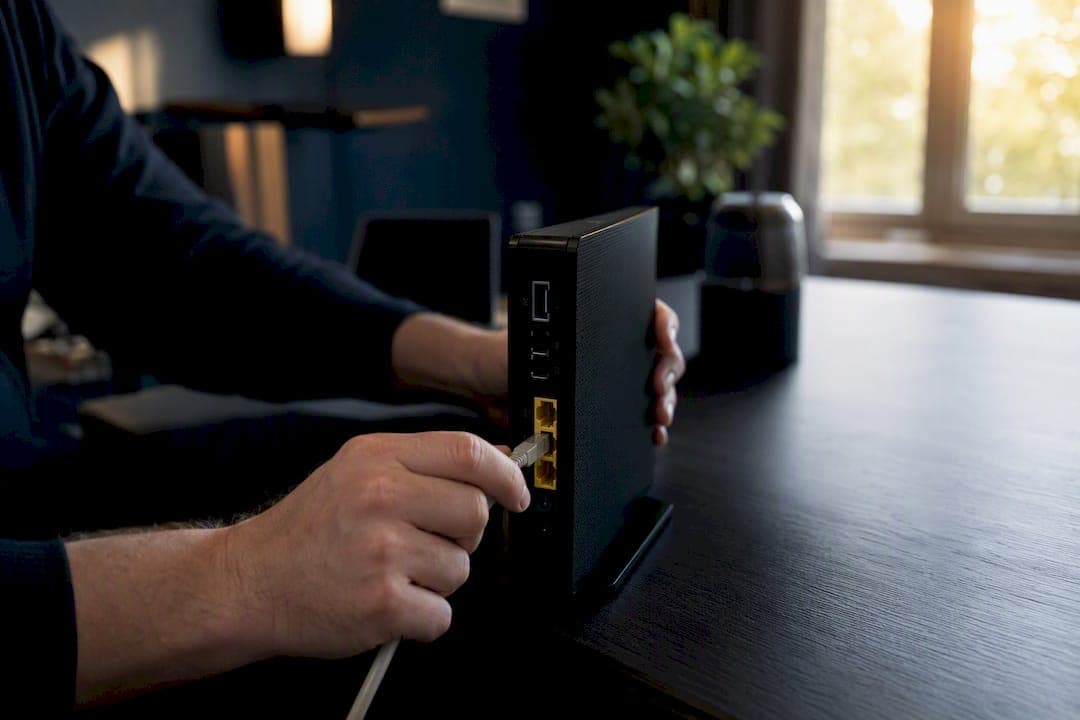
If your internet keeps dropping, start by checking whether wired devices also lose connection. That single test tells you whether the problem sits in your Wi‑Fi or upstream with your ISP. The likely cause falls into one of three buckets: a Wi‑Fi signal issue, a failing router or modem, or an ISP line problem outside your home.
Before calling anyone, take these three steps in order:
- Check the modem/router "Internet" light. A red, blinking, or off light points to a line or ISP problem, not your Wi‑Fi.
- Power-cycle correctly. Unplug the modem, wait 30 seconds, plug it back in, wait for it to fully sync, then restart the router.
- Plug a laptop directly into the router with an Ethernet cable and run a quick ping to 8.8.8.8. Steady replies mean your wiring is fine and the culprit is Wi‑Fi.
Pro Tip: Write down the exact time each drop happens, whether wired devices were affected, and anything the modem's event log shows. That log is the evidence that gets an ISP to send a technician instead of reading you a script.
Key Takeaways
Frequent internet outages usually trace to one of three sources: home Wi‑Fi interference, aging or overheating hardware, or an ISP-side line and congestion problem, and a five-minute wired test tells you which.
| Point | Details |
|---|---|
| Test wired first | Plug into the router directly; stable wired means the issue is Wi‑Fi, not the ISP. |
| Log everything | Save timestamps, ping output, and modem event log lines before calling support. |
| Watch for T3/T4 timeouts | Repeated timeout entries in the modem log are strong evidence of a line fault. |
| Match the pattern to the cause | Fixed-interval drops point to DHCP; random all-device drops point to the ISP. |
| Monitor over time | Saved historical tests turn a single complaint into documented proof for escalation. |
Table of Contents
- How to Tell if the Outage Is Widespread or Just Your Home Network
- Common Causes of Frequent, Intermittent Internet Outages
- Step-by-Step Diagnostics to Isolate the Problem
- Immediate Fixes and Longer-Term Prevention
- What to Tell Your ISP and When to Escalate
- Why Major, Multi-Site Outages Happen
- Using Measurement Tools and Continuous Monitoring
- The Diagnosis-First Approach That Actually Works
- Frequently Asked Questions
- Sources
How to Tell if the Outage Is Widespread or Just Your Home Network
Random internet disconnects that hit your whole neighborhood look different from a problem isolated to your router. Outage-tracking services like ThousandEyes' outage map refresh every few minutes and show detection timelines, but they rely on crowd-sourced reports and network telemetry, so a spike in complaints doesn't always mean a confirmed outage. Treat a sudden cluster of reports as a strong hint, not proof.
To confirm what you're seeing:
- Check your ISP's official status page and its social media accounts. Companies usually post real incidents faster than they update automated status pages.
- Switch your phone to mobile data for a minute. If sites load fine there but not on your home network, the fault is local.
- Text a neighbor on the same provider. If their connection is also down, it's almost certainly not your equipment.
- If every wired device in the house loses connection at the same second, that pattern points to the ISP or the line, not your Wi‑Fi settings.
Network-monitoring firms track dozens to hundreds of discrete outage events weekly across ISPs, cloud networks, and DNS providers in the U.S. alone, so an outage on any given day is common enough that checking first saves you a wasted troubleshooting session.
Common Causes of Frequent, Intermittent Internet Outages
Network instability problems tend to fall into a handful of repeatable patterns, and matching your symptoms to one of them saves hours of guesswork.
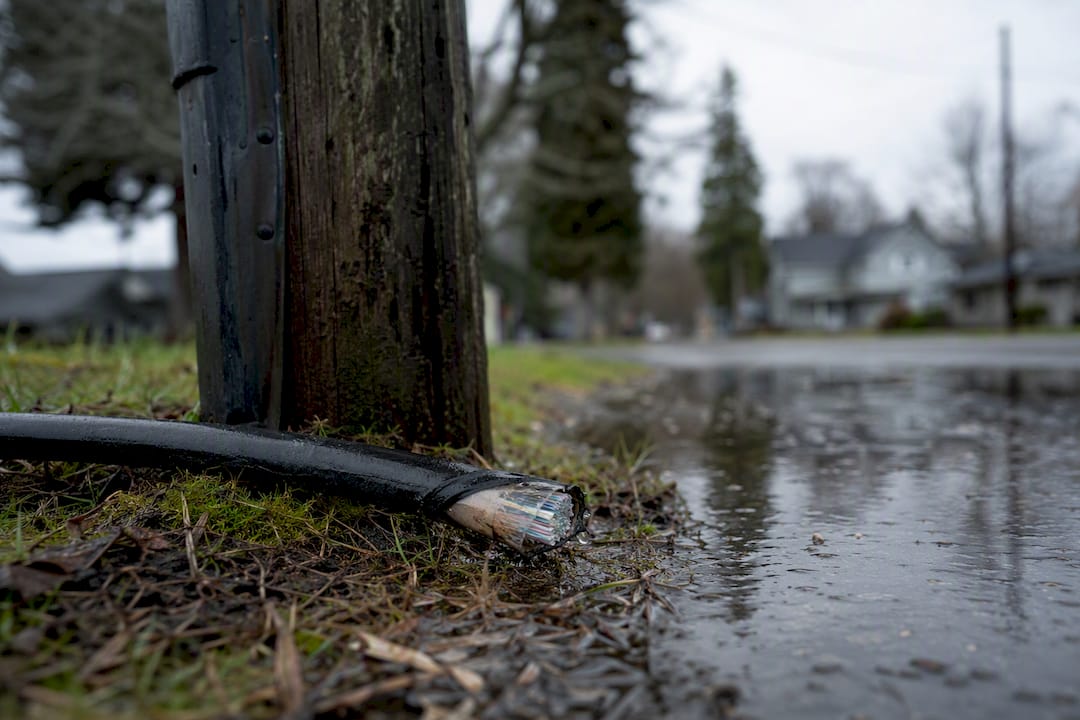
- Physical line damage. Coax and fiber lines degrade from weather, age, or nearby construction. If your drops line up with storms, high wind, or a utility crew working outside, suspect the line before anything else.
- ISP-side events. Congestion during peak hours, scheduled maintenance, or a DNS or cloud-provider incident can all masquerade as "your internet is broken." Status pages often use phrases like "investigating" or "degraded performance" during these windows.
- Home hardware failure. An aging modem or gateway that overheats, or one running outdated firmware, will disconnect randomly, especially after hours of continuous use.
- Wi‑Fi interference and mesh handoffs. Microwaves, baby monitors, neighboring networks, and band-steering between 2.4GHz and 5GHz can cause short, repeated drops that never show up on wired devices.
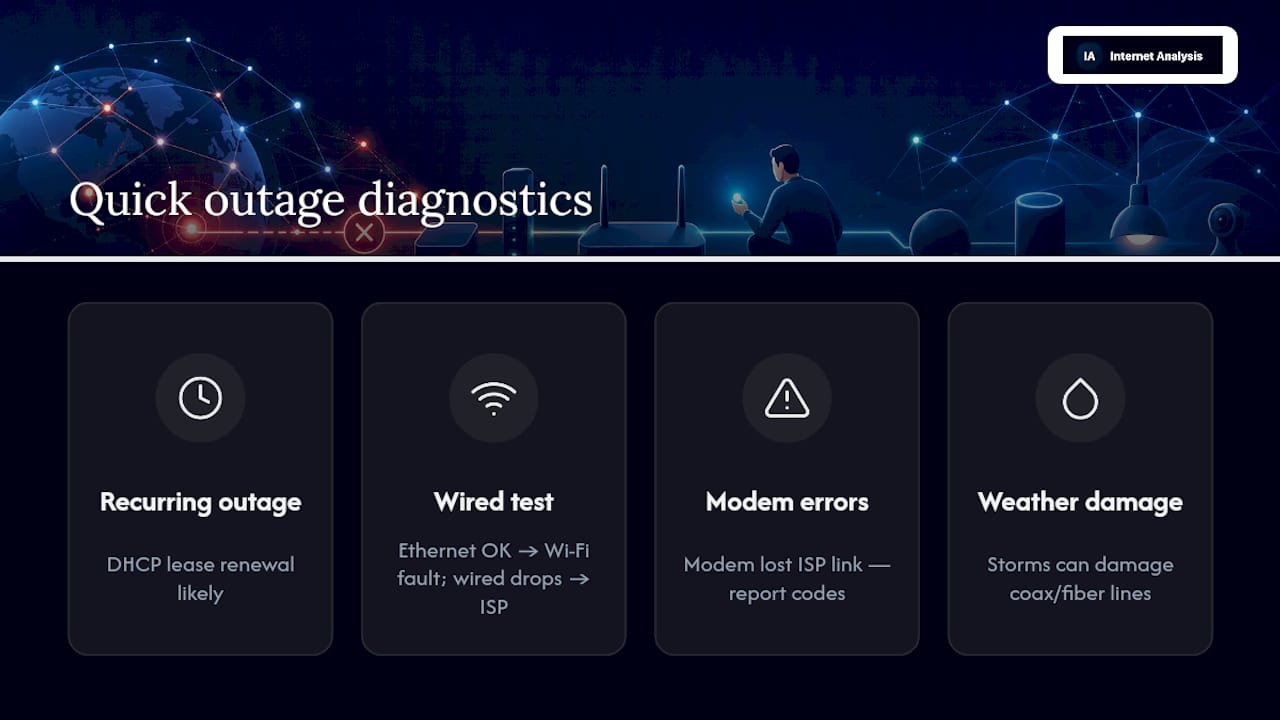
- DHCP lease expiration. If your connection drops every few minutes or hours on a near-identical schedule, your router's DHCP lease renewal cycle, or a scheduled backup task on one of your devices, is a common overlooked cause.
Step-by-Step Diagnostics to Isolate the Problem
Run these in order. Each test narrows down where the fault actually lives.
- Ethernet test. Connect a laptop directly to the router or modem with a cable and use it normally for 15 to 30 minutes. If it stays stable while Wi‑Fi devices still drop, the problem is your wireless setup, not your connection.
- Continuous ping. Open a terminal and run a continuous ping to 8.8.8.8. Steady replies with occasional latency spikes suggest congestion; repeated timeouts or "Request timed out" lines during a drop suggest an upstream fault. Solve Tech Today notes this simple test quickly separates local Wi‑Fi issues from ISP or line faults.
- Traceroute during a drop. If pings fail past your router's own address (the first hop), the fault is inside your home. If they fail several hops out, it's on your ISP's network.
- Modem event log. Log into your modem's admin page and look for repeated T3 or T4 timeout entries, or "lost MDD" messages. These almost always mean a line or signal problem worth reporting.
- DHCP lease check. If drops happen on a near-fixed interval, extend the lease time or set a static DHCP reservation for your main devices.
- Device-only checks. Update Wi‑Fi drivers, disable adapter power-saving mode, and temporarily turn off VPN or security software to rule out software conflicts.
| Symptom | Likely Cause | Next Step |
|---|---|---|
| Wired stable, Wi‑Fi drops | Interference or mesh handoff | Change channel, check band steering |
| All devices drop at once | ISP or line fault | Check modem log, call ISP with evidence |
| Drops every fixed interval | DHCP lease renewal | Extend lease or set reservation |
| Random pings time out | Congestion or line noise | Run traceroute, note times, monitor pattern |
Pro Tip: Let a continuous ping run in the background for a few hours and save the raw output to a text file. Many ISP support teams accept a pasted ping log and modem event lines as proof, which can skip the scripted "unplug it and wait" loop entirely.
For a deeper look at routing behavior, Internet-analysis's advanced network testing tools run traceroute and packet-loss analysis side by side.
Immediate Fixes and Longer-Term Prevention
Some fixes solve the problem tonight. Others keep it from coming back.
- Reboot in the right order. Unplug the modem first, wait a full 30 seconds, plug it back in and let it fully sync, then power-cycle the router. Doing it in reverse can leave the modem stuck on a stale connection.
- Update firmware separately. Your ISP pushes updates to its own gateway automatically in most cases, but a personal router behind it needs manual firmware updates through its admin page.
- Replace aging equipment. A modem or router older than five years, one that runs hot to the touch, or one that doesn't support current DOCSIS or Wi‑Fi 6 standards is a frequent source of random drops.
- Add power protection. A basic UPS keeps your modem and router running through brief power flickers that would otherwise force a full reboot cycle.
- Fix your Wi‑Fi layout. Split your 2.4GHz and 5GHz networks into separate SSIDs if devices keep bouncing between bands, and place mesh nodes with a clear line of sight to reduce handoff drops. The Wi‑Fi Alliance's security guidance also covers configuration settings that improve overall stability, not just security.
Practical fixes like hand-tightening coax connections and bypassing unnecessary splitters solve more intermittent-drop cases than people expect, and they cost nothing.
Pro Tip: If you live somewhere prone to extended outages from storms or wildfires, Ready covers broader continuity planning worth reviewing alongside your home network fixes.
What to Tell Your ISP and When to Escalate
A call that starts with the right evidence gets a technician dispatched instead of a scripted reset.
- Have your timestamps ready, along with your ping/traceroute output and any modem log lines showing repeated errors.
- Say specifically: "My modem event log shows repeated T3 and T4 timeouts" or "wired Ethernet also lost connectivity at these exact times." Both phrases signal a line issue that a remote reset won't fix.
- Ask directly for a line test on their end, not just a modem reboot.
- Request a technician visit if the line test comes back abnormal or if the same pattern repeats after a first call.
- If the first representative can't help, ask to escalate to technical support or a field-dispatch team rather than repeating the same troubleshooting script twice.
Why Major, Multi-Site Outages Happen
Some outages have nothing to do with your home setup at all. A large share of the internet's traffic and services now run through a small number of cloud and DNS providers, so a single misconfiguration at one of them can knock out services that seem completely unrelated.
Reporting on outages at AWS, Microsoft Azure, and Cloudflare found that software and configuration issues at concentrated providers cascaded into disruptions affecting large numbers of unrelated services at once.
Undersea cable breaks, construction crews cutting fiber lines, and severe weather add another layer of physical risk that no amount of home troubleshooting can fix. When a routing or DNS error propagates across a major provider's network, the fix has to happen at their level, not yours. Weekly monitoring data regularly counts outage events numbering in the dozens to hundreds across ISPs and cloud networks in a single week, which is a useful reminder that not every disruption is a sign your home network needs fixing.
Using Measurement Tools and Continuous Monitoring
Guessing wastes time. Measuring gives you proof.
Run a full diagnostic pass with Internet-analysis's suite: a speed test for download and upload throughput, a ping and jitter check for latency stability, a packet loss test to catch dropped data before it causes buffering, and a DNS check to rule out slow name resolution.
Each result points somewhere specific. High packet loss with normal latency usually means a congested or damaged line. Rising latency with no packet loss points to congestion rather than a hardware fault. A steady download speed that suddenly craters during peak hours suggests network congestion at the ISP level rather than anything wrong in your house.
Running these tests once tells you today's story. Saving them over time tells your ISP a pattern they can't dismiss.
| What to Run | What It Reveals |
|---|---|
| Speed test | Confirms actual throughput against your plan |
| Ping and jitter | Flags connection instability during calls or gaming |
| Packet loss | Points to line or congestion problems |
| DNS check | Rules out slow lookups mimicking a dead connection |
Monitoring your connection in real time with saved historical tests turns a one-off complaint into documented proof of a repeat incident, which is exactly what gets ISPs to act faster.
The Diagnosis-First Approach That Actually Works
Most advice on frequent internet outages jumps straight to buying new equipment. That's backward. The router replacement market thrives on people never running a single ping test before spending $150 on a new mesh system that doesn't fix an ISP line problem.
The pattern worth trusting is simple: isolate before you spend. A wired Ethernet test and a saved ping log cost nothing and tell you more in fifteen minutes than a support call usually does in an hour. What's overrated is the reflexive "just restart everything" advice, which works often enough to feel true but does nothing when the fault is a degraded coax line or a congested ISP node three hops away.
What deserves more attention is the modem event log. It's the one piece of evidence that consistently gets ISPs to send a technician instead of reading a script, yet most people never open it. If frequent internet outages are wearing you down, start there before anything else.
Frequently Asked Questions
Why does my internet keep going out at the same time every day? A recurring schedule usually points to a DHCP lease renewal, a scheduled backup or update job on a connected device, or peak-hour congestion on your ISP's network. Check the timing against your router's DHCP lease duration first.
How can I tell if an outage is on my end or my ISP's? Plug a device directly into your modem with an Ethernet cable. If it stays connected while Wi‑Fi devices drop, the fault is local. If wired devices drop too, it's almost certainly the ISP or the line.
What does a T3 or T4 timeout in my modem log mean? Both indicate the modem lost communication with the ISP's network equipment, usually because of a signal or line problem. Reporting these specific error codes to your ISP speeds up getting a technician dispatched.
Can weather really cause frequent internet outages? Yes. Storms, high wind, and temperature swings stress coax and fiber lines, and drops that consistently line up with bad weather point to physical line damage rather than a hardware or Wi‑Fi issue.
Is it normal for internet outages to happen this often? Weekly monitoring data shows dozens to hundreds of discrete outage events across U.S. ISPs and cloud networks in any given week, so occasional disruptions are common. Frequent drops in your own home specifically, though, usually point to a fixable local or line issue.
Sources
- 2026 network outage report and internet health check
- Internet Cutting Out Repeatedly: Diagnosing Every Cause
- Internet Drops Every Few Minutes? 9 Fixes That Actually Work