
Run a browser-based WebRTC/UDP test, then follow it with one command-line check: ping 1.1.1.1 (or 8.8.8.8) for a suitable number of pings for statistical reliability. Note the percent lost and jitter from both. That combination tells you within five minutes whether packet loss is real, how bad it is, and whether it lives inside your home network or somewhere upstream.
Here's the order to run it in:
- Open a browser packet loss test and run it for a short duration of about half a minute to one minute.
- Run a ping test to a public resolver like 1.1.1.1.
- Switch to a wired connection and repeat both tests.
- Write down the timestamp, target IP, and connection type for each run.
What to hand off if you need to escalate:
- Test time and duration
- Target host (IP or hostname)
- Packet loss percentage and jitter
- Sample command output
- Whether you were on Wi-Fi or Ethernet
Pro Tip: Test against both a public resolver (1.1.1.1 or 8.8.8.8) and your router's local IP. If loss shows up only on the public target, the problem is likely outside your home; if it shows up on your router too, start troubleshooting locally.
Key Takeaways
Checking packet loss reliably means combining a no-install browser test with a command-line ping test to a known target, then isolating the fault before you fix or escalate anything.
| Point | Details |
|---|---|
| Start with a browser test | Run a WebRTC/UDP test for an instant, no-install read on upload and download loss. |
| Confirm with ping | Send a suitable number of pings for statistical reliability to 1.1.1.1 or 8.8.8.8 for a statistically reliable percentage. |
| Isolate before you fix | Test wired versus Wi-Fi and try a mobile hotspot to separate local issues from ISP problems. |
| Know your thresholds | Treat loss above 5% as likely to cause visible call or gaming problems. |
| Use Internet-analysis to start | Run the packet loss test first for a fast, privacy-preserving baseline before deeper command-line diagnosis. |
Table of Contents
- How Do You Test for Packet Loss in a Browser?
- What Commands Show You Packet Loss on Your Network?
- How Do You Isolate Where Packet Loss Is Coming From?
- What Percentage of Packet Loss Is Considered Bad?
- What Fixes Should You Try Before Calling Your ISP?
- What Evidence Should You Give Your ISP?
- How Does This Site's Packet Loss Test Work?
- Get an Instant Packet Loss Reading Right in Your Browser
- Sources
How Do You Test for Packet Loss in a Browser?
A browser-based WebRTC/UDP test is the fastest way to check network packet loss without installing anything. These tests simulate the kind of unreliable, real-time traffic that games and video calls actually use, which makes them a more honest stand-in for "will my Zoom call drop" than a plain download speed check.
Running one takes three steps: open the packet loss test page, allow microphone or connection permissions if prompted, and let it run for 30 to 60 seconds in UDP or WebRTC mode. The result shows upload loss, download loss, and jitter, usually in under a minute.
The catch: some networks and browsers block WebRTC outright, and locked-down corporate firewalls sometimes kill the WebSocket fallback too. If the test won't load or returns nothing, that's itself a data point, not a failure. Move to command-line tools next.
- No install, works on phones and laptops alike
- Best first check for gaming or video call complaints
- Can be blocked by strict firewalls or disabled WebRTC settings
- Doesn't show you where in the path loss is happening
Pro Tip: If you're troubleshooting a gaming or cloud gaming connection, run the browser test first. It mimics the UDP traffic pattern those apps actually use, so a clean result there is meaningful evidence.
Browser tests report results in under a minute with no download required, which makes them the right starting point for anyone who isn't comfortable opening a terminal.
What Commands Show You Packet Loss on Your Network?
Command-line tools give you something a browser test can't: visibility into exactly which hop on the route is dropping packets. This is where "test for packet loss" turns into "diagnose packet loss."
On Windows:
ping with a command that runs multiple requests to 1.1.1.1
pathping 1.1.1.1
On macOS/Linux:
ping -c 100 1.1.1.1
traceroute 1.1.1.1
For continuous hop-by-hop monitoring, WinMTR combines ping and traceroute into one running view, updating every second and reporting loss percentage per hop. Run it for 1 to 2 minutes minimum. Shorter windows on bursty networks can produce misleading numbers.
Reading the output matters more than running the command. If WinMTR shows loss only at hop 1, that's often your own router deprioritizing ICMP replies, not a real problem. Loss that persists from hop 2 onward and stays consistent through to the destination usually points to your ISP or a network segment outside your control.
| Test Tool | Best For | Platform |
|---|---|---|
| ping | Quick loss percentage to one target | Windows, macOS, Linux |
| pathping | Loss stats per hop over time | Windows |
| traceroute | Path mapping, one pass | macOS, Linux |
| WinMTR | Continuous hop-by-hop loss tracking | Windows |
Pro Tip: *Always run at least a suitable number of pings for statistical reliability before drawing a conclusion.
How Do You Isolate Where Packet Loss Is Coming From?
Once you've confirmed loss exists, the next job is narrowing down whether it's your device, your Wi-Fi, your router, or something upstream that your ISP controls.
- Switch from Wi-Fi to a wired Ethernet connection and re-run the same ping test.
- Reboot your modem and router, then retest.
- Run the same test from a second device on the same network.
- Test using a mobile hotspot instead of your home connection.
- Temporarily disable any VPN or firewall software and retest.
- Loss disappears on wired: Wi-Fi interference or a weak signal is the cause.
- Loss disappears on hotspot: your home ISP connection is the problem.
- Loss persists everywhere, every device: likely an ISP or external network issue.
- Loss only on one device: check that device's network adapter or drivers.
Pro Tip: A mobile hotspot test is the cleanest way to separate "my ISP" from "my house." If packet loss vanishes on hotspot data, you have strong evidence to bring to your provider.
What Percentage of Packet Loss Is Considered Bad?
Not all packet loss breaks something. The impact depends heavily on what you're doing when it happens.
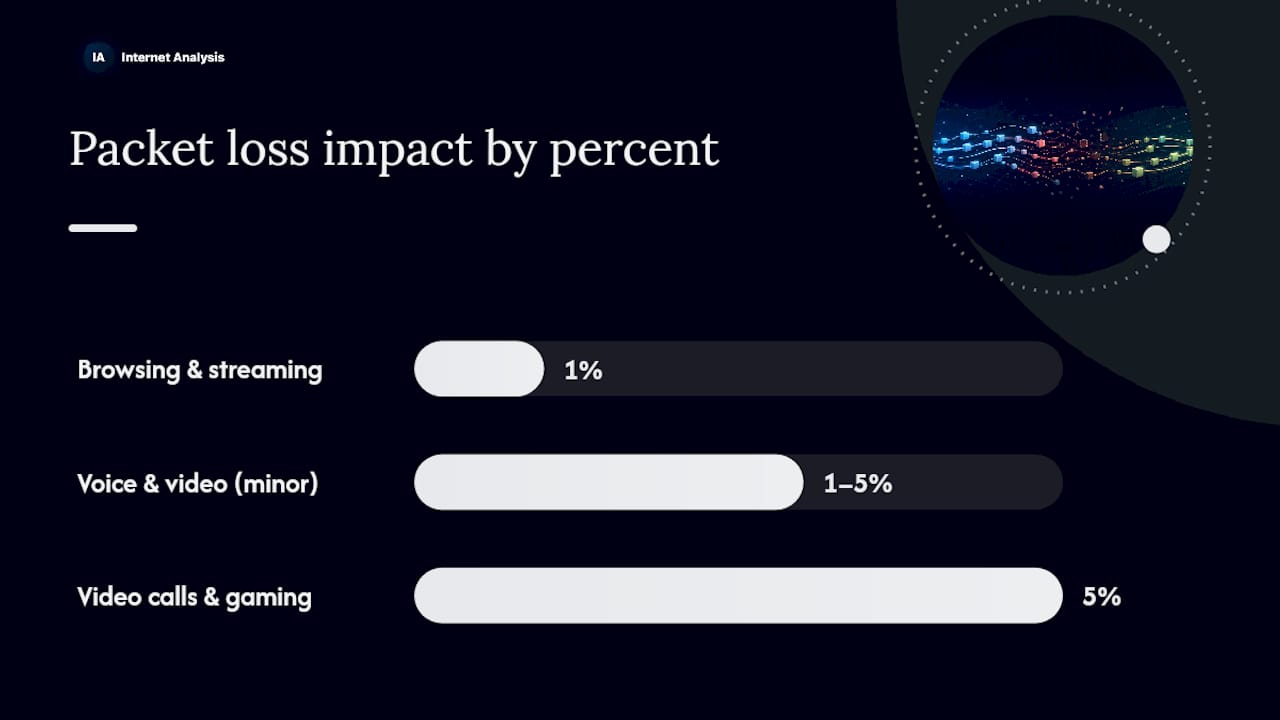
| Packet Loss Range | Likely Impact | Recommended Action |
|---|---|---|
| 1% | Usually unnoticeable for browsing and streaming | No action needed |
| 1-5% | Minor call artifacts, occasional buffering | Monitor, retest later |
| 5% | Visible video call glitches, gaming lag spikes | Start troubleshooting now |
| high loss percentages | Dropped calls, failed streams, disconnects | Escalate after basic fixes |
Jitter compounds the problem. That's why voice and video apps degrade faster than a simple file download under the same loss percentage. Packet loss itself typically stems from network congestion, faulty hardware, wireless interference, or routing problems somewhere between you and the destination.
- 1% loss: rarely noticeable on web browsing or downloads
- 3-a moderate loss percentage: video calls start showing frozen frames or robotic audio
- high loss percentages: streaming stalls repeatedly, calls disconnect
Common question: Does packet loss go away on its own? Sometimes, if it's caused by temporary congestion or interference. Persistent loss across multiple tests and time windows usually needs action rather than waiting.
Understanding how packet loss interacts with overall network quality helps you judge whether a fix is urgent or something to keep an eye on.
What Fixes Should You Try Before Calling Your ISP?
Work through these in order, changing one thing at a time so you know what actually worked.
- Reboot your modem and router (power off 30 seconds, then back on).
- Swap to a wired Ethernet connection if you were on Wi-Fi.
- Replace or reseat the Ethernet cable; damaged cables cause intermittent loss that's easy to miss.
- Update your network adapter drivers.
- Check for and install router firmware updates.
- Temporarily disable QoS rules that might be throttling traffic.
- Toggle any active VPN off and retest.
Vendor troubleshooting guidance consistently points to cables, wired connections, and driver or firmware updates as the highest-value first steps, ahead of anything more advanced.
A factory reset on your router is a legitimate last resort, but write down your Wi-Fi name, password, and any port forwarding rules first. You'll need to rebuild them.
Changing DNS servers or adjusting MTU size can help in specific cases, mostly ones involving fragmented packets on certain connection types, but these are secondary moves. Try them only after the basics are exhausted.
Pro Tip: Never change two settings at once. Swap the cable, retest. Update the driver, retest. That's the only way to know which change actually fixed it.
What Evidence Should You Give Your ISP?
Collect this before you call:
- Timestamps for every test you ran
- Target IPs used (1.1.1.1, 8.8.8.8, your router)
- Ping or browser test results, including percent loss and jitter
- Traceroute or WinMTR output showing hop-by-hop loss
- Device and connection type for each test
- Steps you've already tried
When you call, ask directly: request a line test, ask for the issue to be escalated past first-tier support, and ask whether they can run a packet capture on their end. If the first agent won't escalate, note the date, time, and agent name, then ask for a scheduled follow-up testing window or a supervisor callback.
How Does This Site's Packet Loss Test Work?
Internet-analysis runs its packet loss test using WebRTC and WebSocket fallback methods, measuring upload and download loss, latency, and jitter directly from your browser.
- Global test nodes for real-world measurement accuracy
- Real-time analytics you can read instantly
- Anonymized result aggregation, no personal tracking
- Historical tracking to spot recurring issues over time
Internet Diagnostics has run tests across more than 180 countries, using real measurements from a global network rather than simulated data, with results aggregated anonymously to protect user privacy.
Why Starting With a Browser Test Makes Sense
A browser WebRTC test is the fastest way to know if your calls or games are actually affected right now. It's low-friction evidence you can gather before touching a terminal.
Get an Instant Packet Loss Reading Right in Your Browser
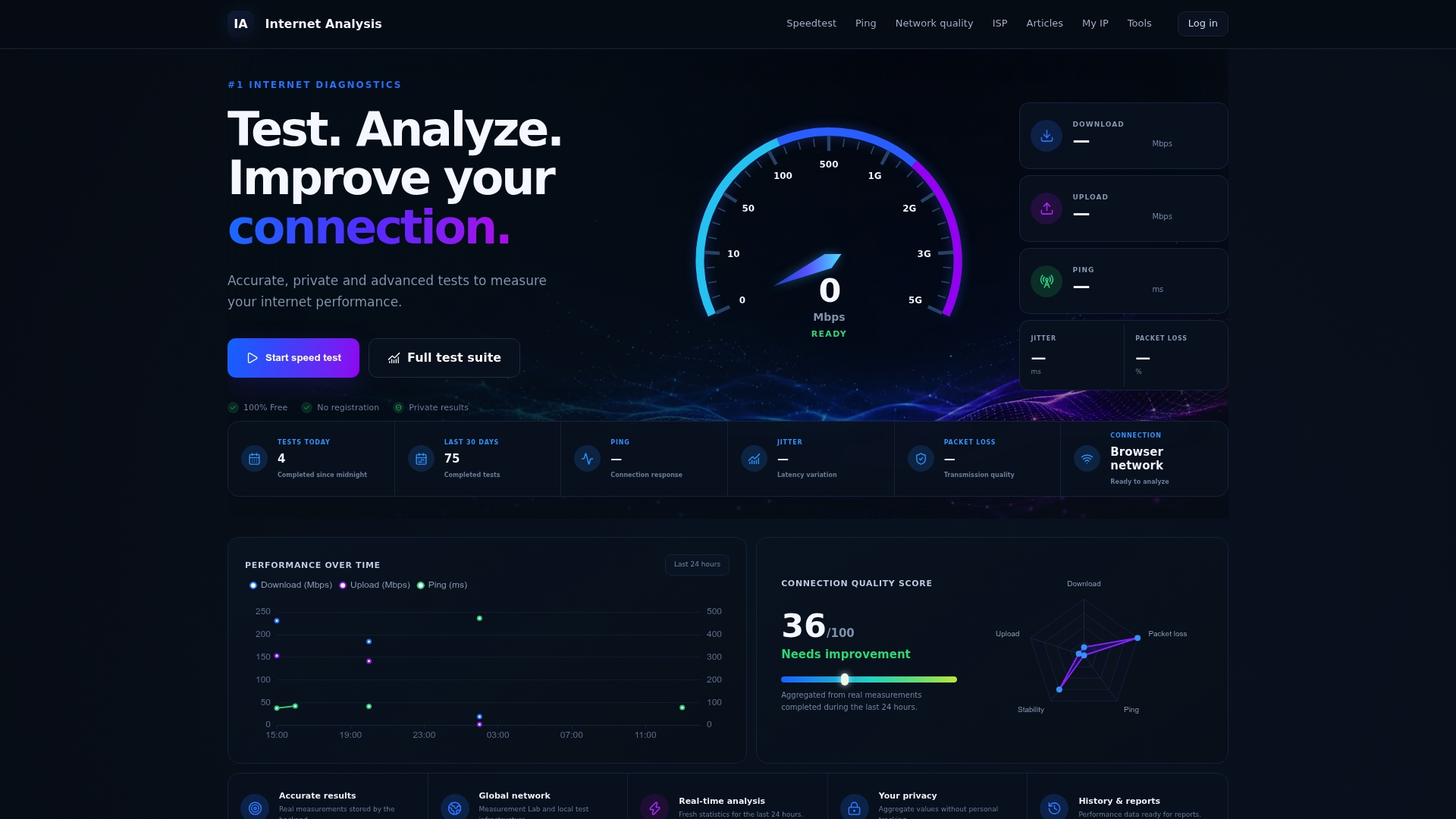
Running the command-line tests above gives you precision, but you don't need a terminal open to get your first real answer. Internet-analysis's packet loss test gives you upload and download loss plus jitter in one pass, with no download required.
What you get:
- A real-time graph instead of a wall of text
- Recommended follow-up commands based on your result
- Privacy-preserving result aggregation, no personal tracking tied to your test
- A baseline reading you can compare against later if the problem returns
If you want the fuller picture, pair it with a network quality check to see how loss relates to your latency and jitter over time. Run the packet loss test now, then move into the ping and traceroute commands above if the number looks high.