
Open a reputable browser-based speed test right now, make sure nothing else is using your network, and run it. Record the download speed, upload speed, and latency it reports. That single reading, taken with no other activity competing for bandwidth, is the fastest way to know how to test internet speed accurately and get a number you can actually trust.
TL;DR:
- Running a speed test on a quiet network using a nearby server provides the most accurate snapshot of your connection's capacity.
- Testing over Ethernet typically yields higher results than Wi-Fi, indicating potential Wi-Fi bottlenecks rather than issues with your ISP.
- Low latency under 50 ms supports responsive gaming and calls, while jitter above 30 ms or packet loss over 2% causes noticeable quality issues.
- Conducting multiple tests at different times helps distinguish persistent issues from temporary congestion or peak-hour slowdowns.
- Advanced diagnostics, including traceroute and historical data, reveal specific problem points and long-term trends beyond what a single speed number shows.
Table of Contents
- Quick step-by-step: how to test internet speed accurately
- How to prepare your device and network for an accurate test
- What do download, upload, latency, jitter, and packet loss mean?
- Why one test isn't enough: comparing results across the day
- What to do when your speed test comes back low
- When advanced diagnostics like traceroute actually matter
- A quick guide from a network diagnostics practitioner
- Get a fuller picture with advanced diagnostics and history
- Sources
Quick step-by-step: how to test internet speed accurately
A valid speed test takes less than a minute once your network is quiet. You don't need to install anything. A browser-based test gets you a result faster than downloading an app, and it's accurate enough for almost every practical purpose.
- Open a browser-based speed test and let it auto-select the nearest server, or choose one manually if you know your ISP's regional hub.
- Click "Go" (or the equivalent start button) and let the test run through its full download, upload, and ping sequence without switching tabs or opening other programs.
- Write down the test server's location and the timestamp. If you end up disputing results with your ISP later, that detail matters.
Testing near a low-latency server matters more than most people realize. A server three states away adds travel time to every packet, which can drag your ping and even your throughput numbers down for reasons that have nothing to do with your actual connection.
How to prepare your device and network for an accurate test
A speed test only measures what's happening on your network at that exact moment. If your roommate is uploading vacation photos or your laptop is mid-backup, the number you get reflects that traffic, not your connection's real capacity.
Before you test, take a few minutes to clear the field:
- Pause streaming, cloud backups, and downloads on every device on your network.
- Disconnect or pause other devices, especially smart TVs and game consoles that update in the background.
- Test over a wired Ethernet connection when you can. If you're stuck on Wi‑Fi, move closer to the router.
- Turn off any VPN or proxy, since both add processing overhead and route traffic through extra servers.
- Close background apps on your computer or phone, and temporarily disable unusual router features like guest networks or QoS limits that might throttle your test traffic.
Pro Tip: Run one test on Wi‑Fi and one on Ethernet, back to back. If the wired result is noticeably higher, your bottleneck is probably your Wi‑Fi setup, not your ISP.
What do download, upload, latency, jitter, and packet loss mean?
Every speed test reports the same core set of numbers, but they measure completely different things.
- Download speed (Mbps): how fast data flows to you, which governs streaming quality, page loads, and how fast files download.
- Upload speed (Mbps): how fast data leaves your device, which matters for video calls, cloud backups, and livestreaming.
- Latency or ping (ms): the round-trip delay between your device and the server. Low latency is critical for gaming and real-time calls, even when download speed looks fine.
- Jitter: how much your latency varies from one moment to the next. High jitter causes choppy audio and stuttering video even on a fast connection.
- Packet loss: data that never arrives at all. Even small amounts cause dropped calls, frozen video, and disconnects in online games.
Speed test tools report all five of these figures in a single run, which is why a single number rarely tells the whole story. As a rough guide, ping under 50 ms feels responsive for gaming and calls, while anything above 100 ms tends to introduce noticeable lag. Jitter above 30 ms and packet loss above 1 or 2 percent are usually where people start noticing real problems, not just theoretical ones.
Why one test isn't enough: comparing results across the day
A single test tells you what your connection looked like for thirty seconds. Comparing results across a full day tells you whether that moment was normal or a fluke.
- Run tests at three or four points, morning, midday, and evening, since local congestion tends to peak in the evening when everyone in your neighborhood is streaming or gaming at once.
- Look for patterns rather than single bad readings. Consistently low numbers at every hour point to a real ISP or equipment issue. Occasional dips that recover point to temporary congestion.
- Save timestamps, server names, and screenshots as you go. This becomes your evidence if you need to escalate to your provider.
This kind of repeated testing is what separates a real problem from a bad five minutes on a busy Tuesday night.
What to do when your speed test comes back low
Slow results don't always mean your ISP is at fault. Work through this checklist before you call anyone:
- Restart your modem and router, and check that every cable is fully seated. A loose coax or Ethernet connector causes more slowdowns than people expect.
- Test the same connection on a different device, and compare a wired result against Wi‑Fi to isolate whether the problem is your router or the broader connection.
- Check for outdated router firmware, disable any active VPN, and run a malware scan. Malicious background processes can quietly eat bandwidth.
- If speeds are still low after all of that, run several more tests across different times, and bring that data to your ISP as evidence rather than a single complaint.
If your speed test numbers look fine but your actual browsing still feels sluggish, the mismatch between speed test results and real-world performance usually points to something local, like router congestion or a bad DNS setup, rather than your plan itself.
Pro Tip: If you suspect your ISP is deliberately slowing certain traffic types, testing for throttling is a more targeted next step than repeating the same basic speed test over and over.
When advanced diagnostics like traceroute actually matter
A standard speed test tells you what's happening. It doesn't tell you where a problem is happening along the path between your device and the server.
- Traceroute maps every network hop your data passes through, which pinpoints exactly where delay or packet loss gets introduced, whether that's your router, your ISP's local node, or somewhere farther upstream.
- Dedicated jitter and packet-loss tests diagnose issues that hurt real-time apps, like video calls, well before download speed alone would flag anything.
- Archiving results over time reveals slow degradation that a single test would never catch. Tools built for this, including advanced diagnostics that aggregate history without personal tracking, give you that longer view.
Router configuration and device limits also shape these results more than most people assume, which is worth keeping in mind before you blame the ISP outright.
A quick guide from a network diagnostics practitioner
Test idle, test wired, repeat at different times. That's the entire reliable protocol, and most people skip at least one step. Aggregated, privacy-first test history makes troubleshooting easier without anyone needing to hand over personal data to get there.
— Tomasz
Get a fuller picture with advanced diagnostics and history
A single download number rarely explains why a call kept freezing last Tuesday. Some services run a fuller diagnostic set, speed, latency, jitter, packet loss, DNS performance, and traceroute, so you can see not just how fast your connection is, but where it's actually breaking down.
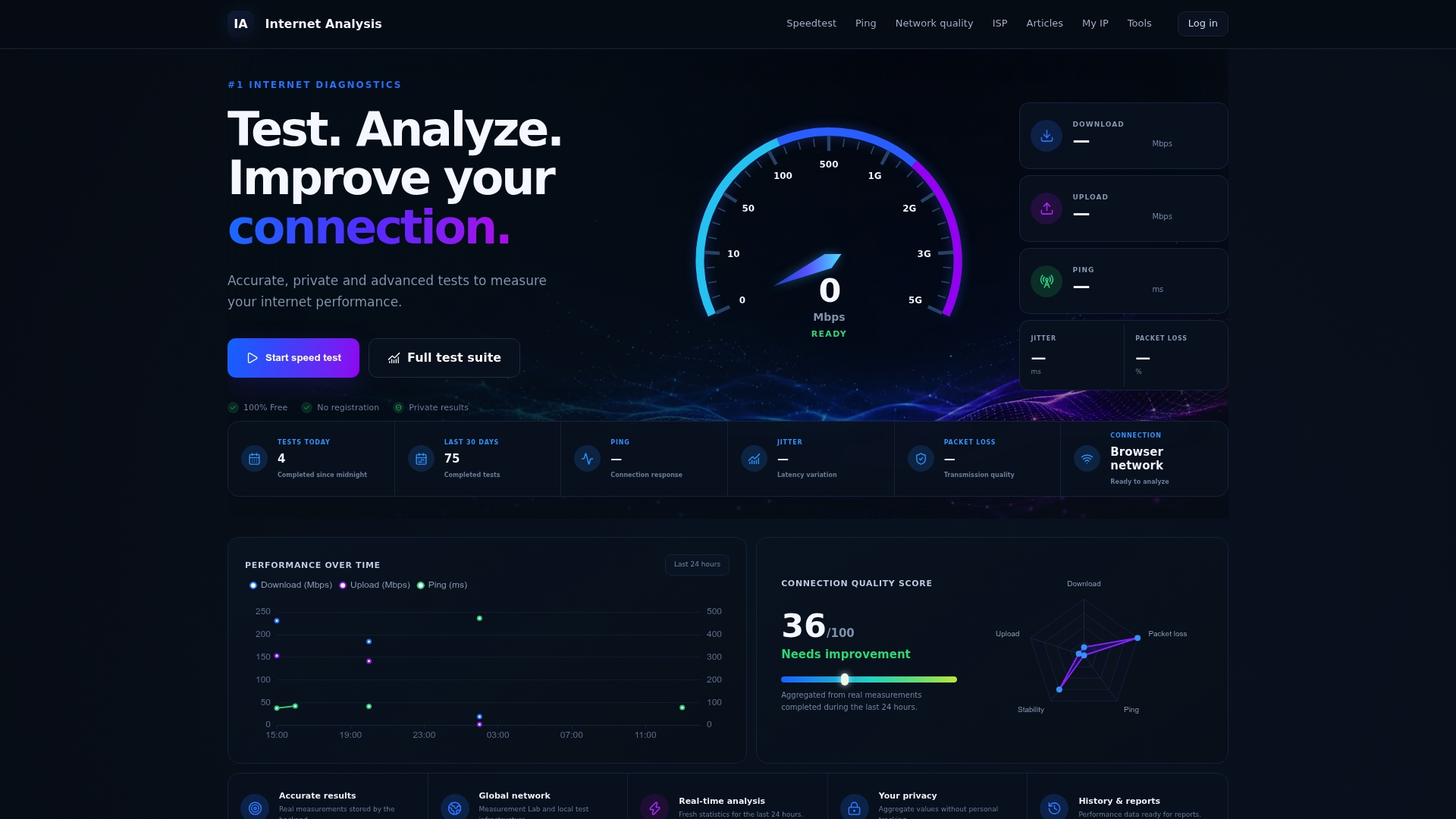
Every test result feeds into aggregated, anonymized data rather than a personal profile, so you get the benefit of real-world benchmarks without handing over identifying information. Comparisons seen in some platforms may reflect broader patterns. If you want to move past a single Mbps number and actually track your connection's network quality over time, run the advanced speed test and start building that history today.
Sources
- The right way to run an internet speed test (and how I use the results for better Wi‑Fi) | ZDNET
- Free Internet Speed Test Tool - Check Upload & Download Speeds - BroadbandNow