
If IPv6 shows "no internet access," check whether your device has a global IPv6 address (not just a link-local one starting with fe80) and run an explicit IPv6-only test like ping -6 against a known public address. If that address is missing or the ping fails everywhere, the fault usually sits at the router or ISP level, not your laptop. A successful IPv6-only connection, paired with a browser that still seems broken, points instead to DNS or an application quirk. Reboot the router before you dig further.
TL;DR:
- Most IPv6 connectivity issues are caused by misconfigured routers, missing address delegation, or outdated firmware, which typically require router resets or firmware updates.
- Checking for a global IPv6 address, proper route setup, and successful
ping -6tests to public addresses confirms if the problem is local or provider-related.- If only one device experiences issues, it usually involves local settings like disabled adapters, driver problems, or conflicting software, not the ISP setup.
- Confirming that your ISP has active IPv6 prefix delegation and proper Router Advertisements is key to ruling out upstream provisioning faults.
- Running a dedicated IPv6 test and sharing traceroute and diagnosis results with your ISP streamlines troubleshooting and avoids unnecessary delays.
Table of Contents
- IPv6 Troubleshooting Steps: Quick Checks Before You Dig Deeper
- Is the Problem Your Router or Your ISP's IPv6 Setup?
- How Do You Check IPv6 Settings on Windows, macOS, and Linux?
- What Commands Prove Whether IPv6 Actually Works?
- Could a Firewall Be Blocking Your IPv6 Traffic?
- When Should You Call Your ISP About IPv6?
- How Internet-Analysis Helps You Pinpoint the Fault
- When Do You Stop Troubleshooting and Just Call Support?
- Run a Free IPv6 Test to Confirm the Fault Before You Call Support
- Sources
- FAQ
IPv6 Troubleshooting Steps: Quick Checks Before You Dig Deeper
Most cases of "ipv6 not working" trace back to something mundane. Before you touch a command line, figure out whether the problem is isolated to one device or hitting your whole network. That single distinction saves an enormous amount of wasted effort.
If every device on your network loses IPv6 at once, the problem lives upstream, in your router or your ISP's provisioning. If only one laptop or phone struggles, the fault is local: a stale driver, a disabled adapter setting, or a misconfigured OS flag.
Start with the boring stuff, in order:
- Reboot the affected device first, then the modem, then the router. This order matters because it lets each layer re-request addressing fresh from the layer above it once it comes back online.
- Update your router's firmware and your network adapter driver. Outdated NIC drivers and firmware are recurring, well-documented causes of IPv6 dropping out on Windows machines, according to Microsoft's own support community.
- Confirm IPv6 is actually enabled on the adapter. Windows can silently disable IPv6 components through a registry value called
DisabledComponents, and Linux systems sometimes carry asysctlflag (disable_ipv6) set to 1 from an old troubleshooting session or a hardening script somebody ran years ago. - Check for conflicting software: VPN clients, some antivirus suites, and browser security extensions can intercept or silently block IPv6 traffic without any obvious error message.
If you need internet access immediately and don't have time to debug, you can temporarily deprioritize IPv6 in favor of IPv4 rather than disabling it outright. On Windows, this is done through adapter binding order in Network Connections; on most routers, there's a toggle to disable IPv6 distribution network-wide as a stopgap.
Pro Tip: Don't disable IPv6 entirely and forget about it. A growing share of content delivery networks and mobile carriers now prefer IPv6 paths, so a "temporary" fix left in place for months can quietly cost you performance on IPv6-optimized services.
Community reports back this up: rebooting, updating drivers and firmware, and confirming the router is issuing IPv6 addresses correctly resolve the majority of no internet access complaints without needing anything more advanced.
Is the Problem Your Router or Your ISP's IPv6 Setup?
When quick checks don't fix it, the next layer to inspect is how your router assigns addresses in the first place. IPv6 doesn't rely on DHCP the way IPv4 usually does. Instead, routers send out Router Advertisements (RAs), periodic broadcasts that tell devices on the network what prefix to use and whether to self-assign an address through SLAAC (Stateless Address Autoconfiguration) or request one via DHCPv6.
If a device shows only a link-local address (fe80::/10) and nothing else, it never received a usable RA. That's the single clearest sign of a local router misconfiguration or an upstream provisioning failure.
Run through this sequence:
- Log into your router's admin panel and confirm IPv6 is enabled and set to distribute addresses, not just "passthrough" mode.
- Check whether your ISP is delegating a prefix to your router. Prefix delegation (PD) is how your ISP hands your router a block of addresses to distribute to devices behind it. If PD isn't active, your router has nothing to advertise.
- Look for firmware bugs. Some consumer routers have shipped with known SLAAC or RA timing issues that get fixed in later firmware releases. Vendor documentation from projects like OpenWRT walks through checking RA behavior directly and recommends packet capture when the issue is intermittent rather than constant.
- If none of that resolves it, try a factory reset before assuming the hardware itself is bad, especially on routers older than three or four years.
When you do call your ISP, bring evidence rather than a vague "IPv6 doesn't work" complaint. RIPE NCC's troubleshooting guidance recommends testing from multiple devices and comparing results against known-good IPv6-only endpoints, since that's the fastest way to prove whether the fault is local configuration or provisioning on their end. Share your traceroute -6 output, confirm whether the issue affects every device, and ask directly whether IPv6 prefix delegation is active on your line.
How Do You Check IPv6 Settings on Windows, macOS, and Linux?
Each operating system exposes IPv6 status a little differently, but the goal is the same everywhere: confirm you have a global address, a default route, and a working stack.
Windows
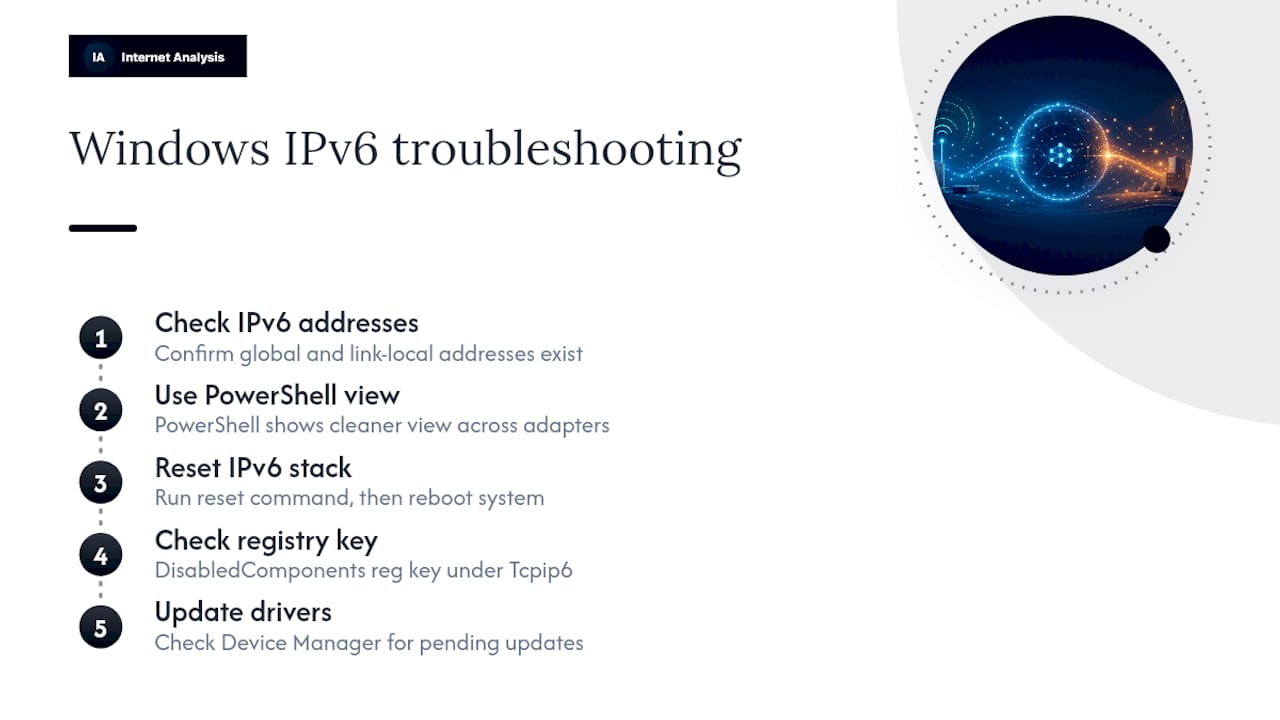
Open a command prompt or PowerShell window and run ipconfig /all to see whether your adapter lists a global IPv6 address alongside the link-local one. Get-NetIPAddress -AddressFamily IPv6 in PowerShell gives a cleaner view across all adapters.
If addressing looks fine but connectivity still fails, run netsh interface ipv6 reset to reset the IPv6 stack, then reboot, since this command requires a restart to take effect. Also check the registry key DisabledComponents under HKLM\SYSTEM\CurrentControlSet\Services\TCPIP6\Parameters, a value that's been flagged repeatedly in Microsoft Q&A threads as a hidden cause of the "IPv6: No network access" message. Outdated network drivers show up in that same discussion just as often, so check Device Manager for pending updates before you assume it's a router problem.
macOS
Run ifconfig to check for a global address, or use System Settings under Network to inspect the active interface's IPv6 configuration directly. The networksetup -getinfo Wi-Fi command (substitute your interface name) shows current IPv6 mode, whether it's set to Automatic, Link-local only, or Off. Route information is visible with netstat -rn -f inet6.
Linux
ip -6 addr shows assigned addresses per interface; look for a scope global entry, not just scope link. ip -6 route show confirms whether a default route exists. If you suspect the kernel itself has IPv6 disabled, check sysctl net.ipv6.conf.all.disable_ipv6, a value of 1 means it's off system-wide. Requesting a fresh address manually is possible with dhclient -6 <interface>, and you can add a temporary default route for testing with ip -6 route add default via <gateway>.
Pro Tip: After any stack reset on Windows or a sysctl change on Linux, reboot before concluding the fix didn't work. Both platforms cache stale IPv6 state that a simple service restart won't clear.
What Commands Prove Whether IPv6 Actually Works?
Guessing wastes time. A layered test sequence, moving from your own machine outward, isolates exactly where the failure sits. This mirrors the diagnostic order recommended in OneUpTime's IPv6 troubleshooting guide: address, then route, then ping, then DNS, then application.
- Confirm you have a global address (
ip -6 addron Linux,ipconfig /allon Windows). - Ping your router's link-local gateway address to confirm the local link is healthy.
- Ping a known public IPv6 address, such as Google's
2001:4860:4860::8888, usingping -6(Windows/macOS) orping6(Linux). - Test an IPv6-only web endpoint like test-ipv6.com to confirm real-world reachability, since dual-stack fallbacks can otherwise hide a broken connection entirely.
- Check DNS separately: run
Resolve-DnsName -Type AAAA example.comon Windows ordig AAAA example.comon Linux/macOS to confirm your resolver is actually returning IPv6 records. - Force an application to use IPv6 directly with
curl -6 https://example.com, since browsers won't reliably tell you the truth on their own.
That last point matters more than most people realize. Browsers use an algorithm called Happy Eyeballs, which tries IPv6 and IPv4 simultaneously and silently accepts whichever responds first. That means your browser can look perfectly normal while IPv6 is completely broken underneath, because it just falls back to IPv4 without telling you.
| Test layer | Command example | What failure indicates |
|---|---|---|
| Address | ip -6 addr / ipconfig /all | No global address, RA or SLAAC failure |
| Route | ip -6 route show | Missing default route, router misconfig |
| Ping | ping -6 / ping6 | Local link or upstream reachability issue |
| DNS | dig AAAA / Resolve-DnsName | Resolver not serving AAAA records |
| Application | curl -6 | App-layer or Happy Eyeballs masking |
If the ping tests succeed but intermittent drops persist, that's when packet capture earns its keep. Look specifically for missing or malformed Router Advertisements and failed Neighbor Discovery exchanges, the signatures of an unstable RA source or a firewall quietly filtering multicast traffic.
Could a Firewall Be Blocking Your IPv6 Traffic?
IPv6 depends on a handful of ICMPv6 message types that IPv4 never needed, and a firewall rule copied over from an IPv4 configuration often forgets them entirely. Neighbor Solicitation and Neighbor Advertisement handle address resolution on the local link. Router Advertisement carries prefix and route information. Packet Too Big messages let hosts adjust for path MTU without fragmentation, since IPv6 routers don't fragment packets in transit the way IPv4 routers sometimes do. Block any of these, and IPv6 connectivity degrades or fails outright, even though the interface still shows "connected."
Check your host firewall directly:
- On Windows, inspect Windows Defender Firewall's inbound/outbound rules for ICMPv6 and temporarily allow it to test.
- On Linux, check
ip6tables -Lorufw statusfor rules blocking ICMPv6 traffic. - On the router side, confirm any custom access control lists mirror the IPv6 equivalents of your existing IPv4 allow rules, since it's easy to configure one stack and forget the other.
Treat any firewall change as a test, not a permanent fix. Re-enable protections once you've confirmed the cause, and never leave ICMPv6 or NDP traffic wide open indefinitely just because it solved a one-time problem.
When Should You Call Your ISP About IPv6?
Once local and router checks come up clean, it's time to escalate, and having the right evidence ready cuts resolution time dramatically.
- Gather
traceroute -6output, yourip -6 addrandip -6 routeresults, and screenshots or logs of any missing Router Advertisements. - Test on at least two separate devices and note whether the problem is consistent across all of them, since this is exactly the comparison RIPE NCC's guidance recommends for separating local faults from provisioning issues.
- Ask your ISP directly: is IPv6 prefix delegation active on this line? Has there been a recent provisioning change? Do they have a recommended router model or firmware version for IPv6 support?
If your ISP confirms PD is active and the problem persists only on your end, a factory reset or a router replacement is the reasonable next move, particularly on hardware more than a few years old.
How Internet-Analysis Helps You Pinpoint the Fault
Running the checks above manually works, but confirming results with a dedicated IPv6 test gives you a clean, shareable snapshot instead of a screen full of command output. Internet-analysis's connectivity checks map directly onto the same layers this guide walks through: address assignment, routing, and resolution.
- The IPv6 test confirms whether your connection reaches an IPv6-only endpoint, the same verification
test-ipv6.comprovides, without requiring a terminal. - The DNS test checks whether your resolver is actually returning AAAA records, isolating resolver problems from routing problems.
- Traceroute results show exactly where an IPv6 path breaks down between your device and the wider internet.
Every test draws on real measurements from a large global network, aggregated without personal tracking. That means you get a result reflecting actual network conditions, not a simulated benchmark, and nothing tied back to your identity. Copy the output directly into an ISP support ticket instead of retyping command results by hand.
When Do You Stop Troubleshooting and Just Call Support?
Home users should stop after the quick checks and router verification. If IPv6 still won't connect once you've rebooted, updated firmware, and confirmed RA is active, that's the natural point to call your ISP with evidence in hand rather than keep guessing.
Power users have more room to go deeper: capturing packets, inspecting RA timing, and testing DHCPv6 lease behavior directly. Just document your firewall and router settings before any reset. It's easy to fix one problem and quietly create another by forgetting what you changed.
— Tomasz
Run a Free IPv6 Test to Confirm the Fault Before You Call Support
Guesswork wastes time on hold with ISP support lines. Internet-analysis gives you a direct, no-login way to confirm exactly what's broken, address assignment, routing, or DNS, using real measurements instead of a browser that's silently falling back to IPv4.
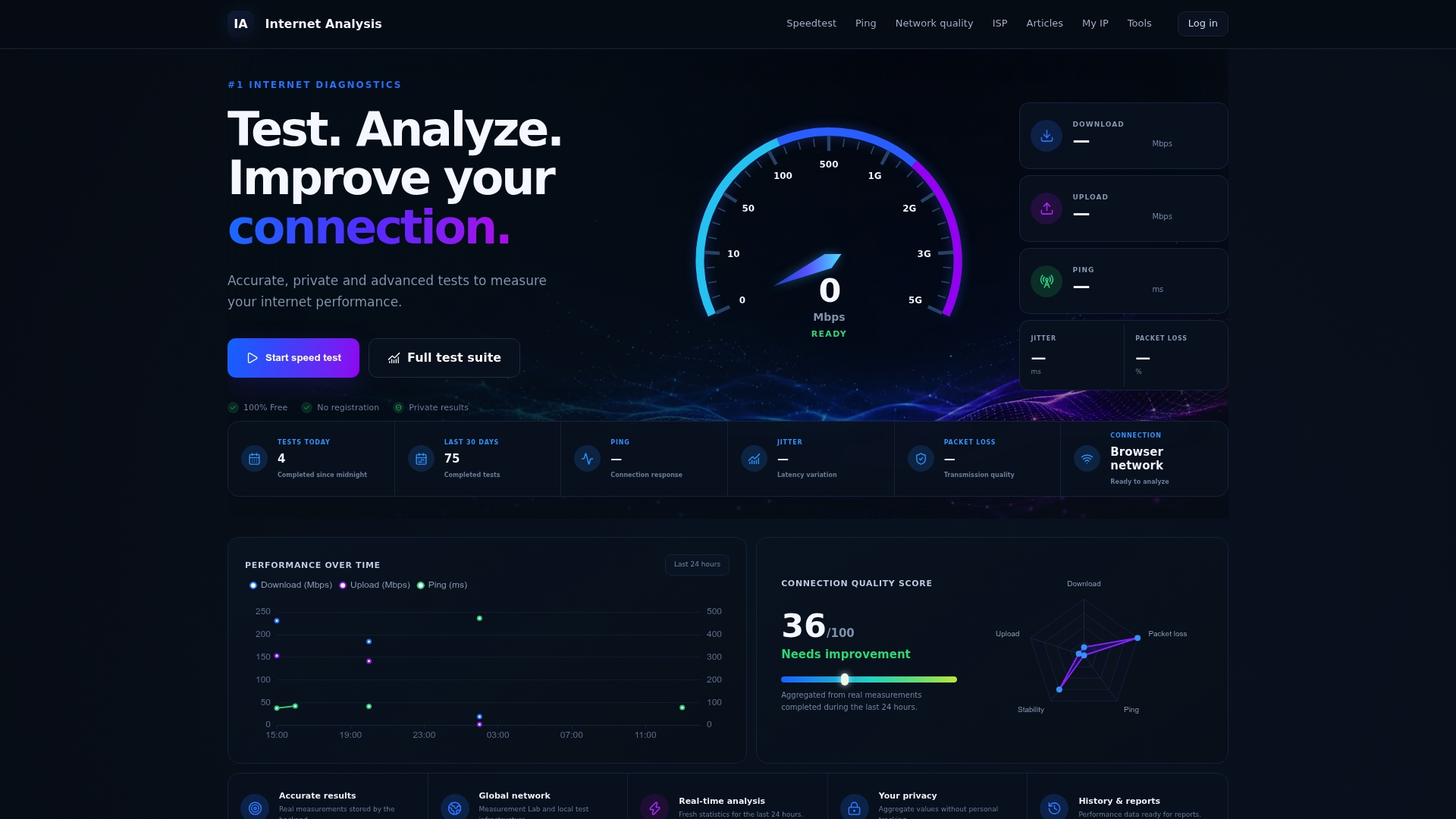
Run the IPv6 connectivity test first to see whether your connection reaches an IPv6-only endpoint, then check DNS resolution if the connection passes but sites still misbehave. Both tools pull from Internet-analysis's global measurement network and aggregate results without personal tracking, so you get an accurate read without handing over your browsing history. If the results point to something deeper than IPv6 alone, the network quality diagnostics page breaks down router versus ISP issues in more detail. Export whichever result applies and attach it directly to your ISP support ticket. It saves you from re-explaining the problem from scratch.
Sources
For deeper platform-specific guidance, see RIPE NCC's IPv6 troubleshooting documentation, Microsoft's Q&A on IPv6 no network access, OpenWRT's router troubleshooting guide, and for Windows-specific repair workflows, Bootable USBs' guide to common tech fixes.
- Happy Eyeballs — Wikipedia
- IPv6 Troubleshooting — RIPE NCC
- How to Troubleshoot IPv4 Works but IPv6 Doesn't — OneUpTime
- IPV6 : No Network Access — Microsoft Q&A
- OpenWrt IPv6 troubleshooting — OpenWRT
FAQ
Why Is IPv6 Not Detected on My Device?
Your device most likely never received a valid Router Advertisement, leaving it with only a link-local address instead of a global one. Check your router's IPv6 distribution settings and confirm your ISP has prefix delegation active.
How Do I Test if IPv6 Is Actually Working?
Run a layered check: confirm a global address, ping a known public IPv6 address with ping -6 or ping6, then visit an IPv6-only test site or use Internet-analysis's IPv6 test to confirm real reachability rather than trusting your browser.
Why Does My IPv4 Work but My IPv6 Doesn't?
This usually means one specific layer is broken: a missing global IPv6 address, a missing default route, blocked ICMPv6 traffic, or a DNS resolver that isn't returning AAAA records. Testing each layer separately shows exactly which one failed.
Why Does My IPv6 Connection Say "No Internet Access"?
On Windows, this message frequently traces back to outdated network drivers or the DisabledComponents registry setting silently limiting IPv6 functionality. Updating your driver and checking that registry value resolves it in most reported cases.