
Bandwidth is how much data your connection can carry at once; latency is how long each bit of data takes to get there and back. Bandwidth matters most for downloads and streaming quality, while latency drives how responsive gaming, video calls, and browsing feel. If your video calls lag but your download speed looks fine, you don't have a bandwidth problem. Run both a speed test and a ping test before you touch your router or call your ISP.
TL;DR:
- A high bandwidth connection improves download and streaming speeds but does not necessarily reduce latency or improve responsiveness for real-time activities.
- Latency, measured in milliseconds, affects response times and is influenced by physical distance, routing, and network congestion, not just bandwidth.
- Running both speed tests and ping/traceroute diagnostics at different times helps identify whether issues stem from congestion, distance, or hardware interference.
- Gaming and video calls require low latency and jitter more than high bandwidth, making these the critical metrics to optimize for real-time performance.
- Upgrading to a faster plan does little to fix latency issues unless the problem is related to bandwidth congestion or hardware bottlenecks.
Table of Contents
- Latency vs Bandwidth Explained: What Bandwidth Actually Measures
- What Latency Really Measures (And Why Ping Numbers Confuse People)
- How Bandwidth, Latency, and Throughput Actually Interact
- How to Measure Latency and Bandwidth Yourself
- Which Metric Actually Ruins Your Experience, By Activity
- Fixing the Problem: What to Try Before You Call Your ISP
- Running a Reliable Diagnostic With Internet-Analysis
- The Bottom Line: Test First, Fix Second
- Why Most People Fix the Wrong Metric First
- Sources
Latency vs Bandwidth Explained: What Bandwidth Actually Measures
Bandwidth is the maximum theoretical capacity of your connection, expressed in megabits per second (Mbps) or gigabits per second (Gbps). It describes the width of the pipe, not the speed of any single packet moving through it, which is a distinction most speed-test marketing glosses over.
Think of it as lanes on a highway. A 25 Mbps connection is a narrow two-lane road; a 500 Mbps fiber line is a ten-lane freeway. More lanes mean more cars can travel simultaneously, but a single car doesn't arrive any faster just because the road is wider. That's why doubling your bandwidth rarely fixes a laggy video call.
The math matters when you're moving large files:
- At 25 Mbps, a 10 GB file takes roughly an extended amount of time to download.
- At 100 Mbps, that same file takes about a moderate amount of time to download.
- At 500 Mbps, you're looking at a short amount of time to download.
Here's the catch: bandwidth is a ceiling, not a guarantee. Throughput is what you actually get once overhead, network congestion, and shared connections take their cut. A Bandwidth vs. Latency: We Chatted With an Internet Connectivity Expert to Understand the Difference - CNET breakdown confirms this: bandwidth sets the limit, but real-world throughput almost always lands below it. If your speed test looks fast but your internet still feels slow, this gap between advertised bandwidth and delivered throughput is usually why.
What Latency Really Measures (And Why Ping Numbers Confuse People)
Latency is the round-trip time, or RTT, measured in milliseconds, between sending a request and getting a response back. It's what ping tests report, and it's the number that determines whether an action feels instant or sluggish, regardless of how much bandwidth you have.
Four things stack up to create that delay:
- Propagation delay: how far the signal physically travels, limited by the speed of light through fiber or copper.
- Transmission delay: how long it takes to push all the bits of a packet onto the wire.
- Processing delay: the time routers and switches spend reading headers and deciding where to send a packet next.
- Queuing delay: how long a packet waits in line behind other traffic on a congested link.
According to CNET's connectivity expert interview, latency is fundamentally about delay, not volume, which is why a gigabit connection can still feel choppy in a video call.
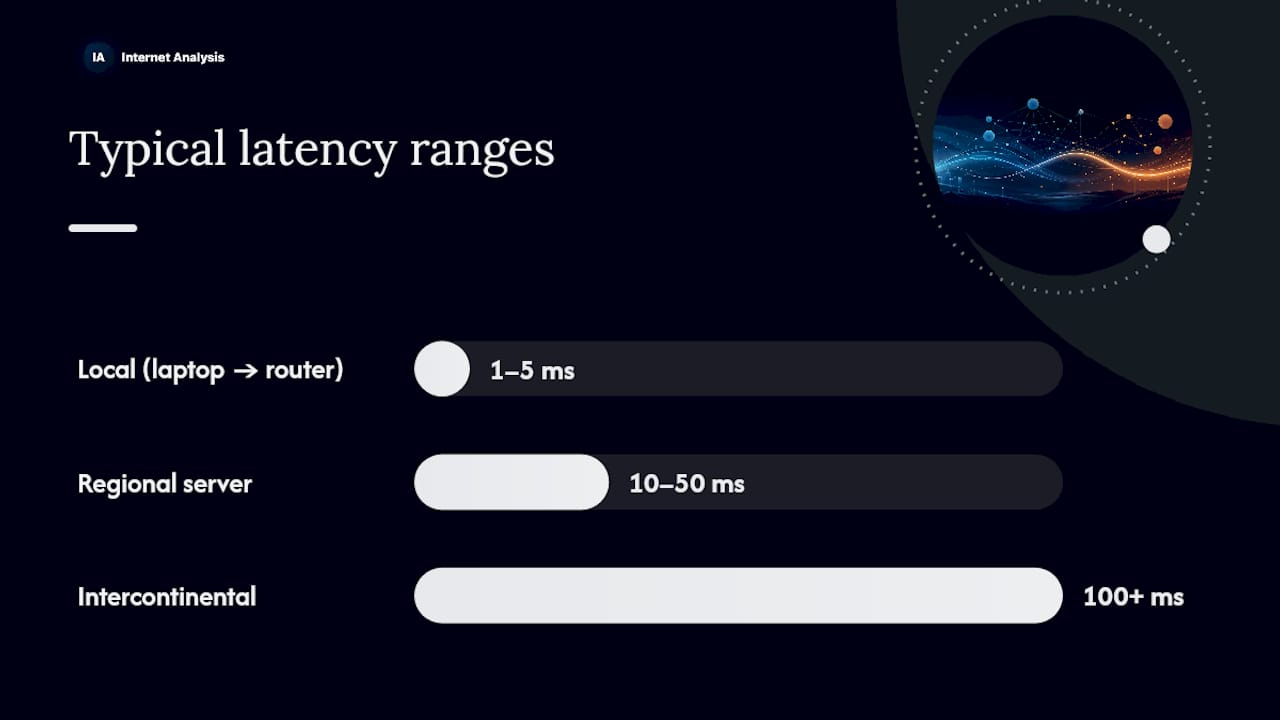
Typical latency ranges tell a clear story: local network traffic (your laptop to your router) usually runs under 1 to 5 milliseconds. A connection to a regional server lands around 10 to 50 ms. Intercontinental traffic, say a US player connecting to a server in Europe or Asia, commonly sits at 100 ms or higher. Once you cross that 100 ms mark, humans start perceiving lag consciously rather than just feeling "something's off."
How Bandwidth, Latency, and Throughput Actually Interact
Bandwidth, latency, and throughput aren't three separate stats. They're linked through queuing, and understanding that link is the difference between fixing your connection and wasting money on an upgrade that does nothing.
Little's Law, a foundational concept in queuing theory, offers a useful shortcut: the number of requests waiting in a system equals the arrival rate multiplied by the average time each request spends there. Applied to your home network, this means that if packets arrive faster than your router or your ISP's link can process them, they queue up. That queue adds latency even when your bandwidth number looks perfectly healthy.
When a link gets congested, packets don't disappear, they wait. That waiting is queuing delay, and it's why a "fast" connection with a full buffer can feel slower than a modest connection with an empty one. The real question isn't how big the pipe is; it's who's waiting on the other end and what they're doing while they wait.
This is also why packet loss and bandwidth don't move together: a saturated link starts dropping packets before it runs out of raw capacity, tanking your effective throughput even though the advertised bandwidth hasn't changed. Upgrading your plan from 200 Mbps to 1 Gbps won't shrink propagation delay, because that delay is set by physical distance and the speed of light through your cable, not by how much data your ISP lets you push per second. According to High Performance Browser Networking, fixing latency usually requires architectural changes, fewer round trips, caching, servers placed closer to users, not a bigger pipe. Bandwidth upgrades help when your problem is genuinely about volume: 4K streaming, large uploads, or multiple devices competing for the same connection. They do nothing when your problem is distance or congestion-driven queuing.
How to Measure Latency and Bandwidth Yourself
You don't need specialized equipment to diagnose most connection problems. You need three tests, run in the right order, and the patience to read the results correctly.
- Run a speed test first. Note your download and upload Mbps, which server you connected to, and run it two or three times at different points in the day. A single test is a snapshot; three tests are a pattern.
- Run a ping test to two destinations, one nearby (your ISP's local server or a regional site) and one far away (a server on another continent). Record the minimum, average, and maximum RTT, plus any packet loss percentage.
- Run a traceroute to see which hop between you and the destination is adding the most delay. A sudden jump in latency at one hop usually points to a congested or misconfigured router along the path, not your home network.
- Check jitter, the variation between consecutive ping times. High jitter (anything above 20 to 30 ms of variation) causes choppy audio and stuttering video even when average latency looks fine.
Reading the combinations matters more than reading any single number. High bandwidth paired with high latency usually means a distant server or a congested route, not a problem with your plan. Low bandwidth with low latency means your connection is fast to respond but limited in volume, fine for browsing, tight for 4K streaming. Packet loss showing up alongside normal-looking bandwidth almost always points to a hardware or wireless interference issue rather than your ISP's backbone.
Pro Tip: Ping (ICMP) results can be misleading on the public internet because some routers deprioritize ICMP traffic entirely. If your ping looks unusually high but everything else feels fine, confirm with an application-layer test before assuming there's a real problem.
Which Metric Actually Ruins Your Experience, By Activity
Different tasks punish different weaknesses, and knowing which one applies to your situation saves you from fixing the wrong thing.
- Gaming lives and dies by latency. Competitive play generally needs ping under 40 to 60 ms, and jitter or packet loss causes rubber-banding and hit-registration problems that bandwidth can't touch. Kentik's research on latency, throughput, and bandwidth puts that threshold in concrete terms for anyone chasing responsiveness. If competitive shooters or cloud gaming are your priority, check the ping and packet-loss requirements for gaming before assuming you need more Mbps.
- Video calls need enough bandwidth to sustain HD or 4K resolution, but latency and jitter control whether audio stays in sync with video. A call with plenty of bandwidth but high jitter still produces that awkward talking-over-each-other lag. Specific Zoom bandwidth and jitter benchmarks make this easier to diagnose at home.
- Streaming and large downloads are almost entirely a bandwidth story. More Mbps means faster completion and higher sustainable resolution, though buffering can still occur if latency spikes interrupt the steady data flow a streaming service expects.
- Browsing and interactive apps are more latency-sensitive than most people assume. A page can load on a modest connection just fine, but if every click has a 300 ms delay before anything happens, the experience feels broken even with bandwidth to spare.
Fixing the Problem: What to Try Before You Call Your ISP
Start local before you start spending. Most connection problems get solved with configuration changes, not new hardware or a bigger plan.
- Switch to a wired connection if you're troubleshooting on Wi-Fi. Wireless interference from neighboring networks, microwaves, and even Bluetooth devices adds latency and jitter that a cable simply doesn't have.
- Reboot your router and modem, then check for firmware updates. Outdated firmware is a surprisingly common source of intermittent latency spikes that look mysterious until you check the version number.
- Enable Quality of Service (QoS) on your router if you have several devices competing for bandwidth. QoS prioritizes latency-sensitive traffic like video calls and gaming over background downloads and uploads.
- Change your Wi-Fi channel if you're in a crowded apartment building, and consider switching to the 5GHz band for less interference, accepting the shorter range trade-off.
- Try a different DNS provider if page loads feel slow. DNS lookup delay is often mistaken for a bandwidth problem when it's really an added round trip before your request even starts.
If local fixes don't move the needle, the next step depends on what your tests showed. High packet loss or consistently high latency on a specific hop, confirmed with traceroute, is a routing or peering issue your ISP needs to address, not something an upgrade fixes. Low bandwidth ceilings that can't handle your household's simultaneous streaming, gaming, and video calls are the actual case for paying more. For services you control, like a home server or small business site, moving to a provider with better peering, or putting content behind a CDN, cuts latency in ways a bandwidth upgrade never will.
Pro Tip: Before contacting your ISP about latency or packet loss, run tests at three different times: morning, peak evening hours, and late night. If the problem only shows up during peak hours, it's likely network congestion your ISP can address, not a fault in your home setup.

Running a Reliable Diagnostic With Internet-Analysis
A single test tells you almost nothing. Connections fluctuate by time of day, by server load, and by what else is happening on your network, so the workflow matters as much as the tools.
Start with a speed test to establish your baseline Mbps, then move to latency and ping checks, followed by jitter and packet loss to catch the problems a raw speed number hides. Internet-analysis pulls these measurements from a global testing network with over 25 million tests run across 180-plus countries, and every result is aggregated without personal tracking, so you're comparing your connection against real-world performance data, not a marketing benchmark.
- Run the full sequence at three different times of day to catch peak-hour congestion.
- Save screenshots or export logs from each test if you plan to escalate to your ISP.
- Compare today's results against a baseline from a week or a month ago to spot gradual degradation.
That kind of documented, repeatable evidence is exactly what turns a vague "my internet feels slow" complaint into a specific case your provider can actually investigate.
The Bottom Line: Test First, Fix Second
Don't guess. Run a speed test alongside a ping and traceroute check, and let the numbers tell you whether you're dealing with a capacity problem or a delay problem. Apply local fixes first (wired connection, router reboot, QoS), escalate to your ISP with saved logs if a specific hop shows the fault, and upgrade your plan only when the data shows your bandwidth ceiling is the actual bottleneck.
Why Most People Fix the Wrong Metric First
The instinct to blame bandwidth is almost universal, and it's almost always wrong. Someone's video call stutters, so they upgrade to a bigger internet plan, and nothing changes. That's not bad luck. It's a fundamental misreading of what the symptom was telling them.
The conventional advice, "just get faster internet," survives because bandwidth is the number ISPs sell and the number that's easy to compare on a bill. Latency doesn't fit on a marketing page as cleanly, so it gets ignored until someone is deep in a support call, frustrated, still lagging.
What the evidence actually supports is a boring but effective discipline: test before you spend. A five-minute diagnostic that separates bandwidth from latency from packet loss will tell you more than any amount of guessing based on symptoms alone. Most home connection problems trace back to Wi-Fi interference, router configuration, or a congested hop somewhere between you and the destination server, not a fundamental lack of capacity.
If there's one thing worth prioritizing, it's building the habit of testing both metrics together, every time, before assuming you know the cause.
— Tomasz
Sources
- Bandwidth vs. Latency: We Chatted With an Internet Connectivity Expert to Understand the Difference - CNET
- Latency and Throughput: The Two Numbers That Matter - The HLD Handbook
- A Primer on Latency and Bandwidth - High Performance Browser Networking