
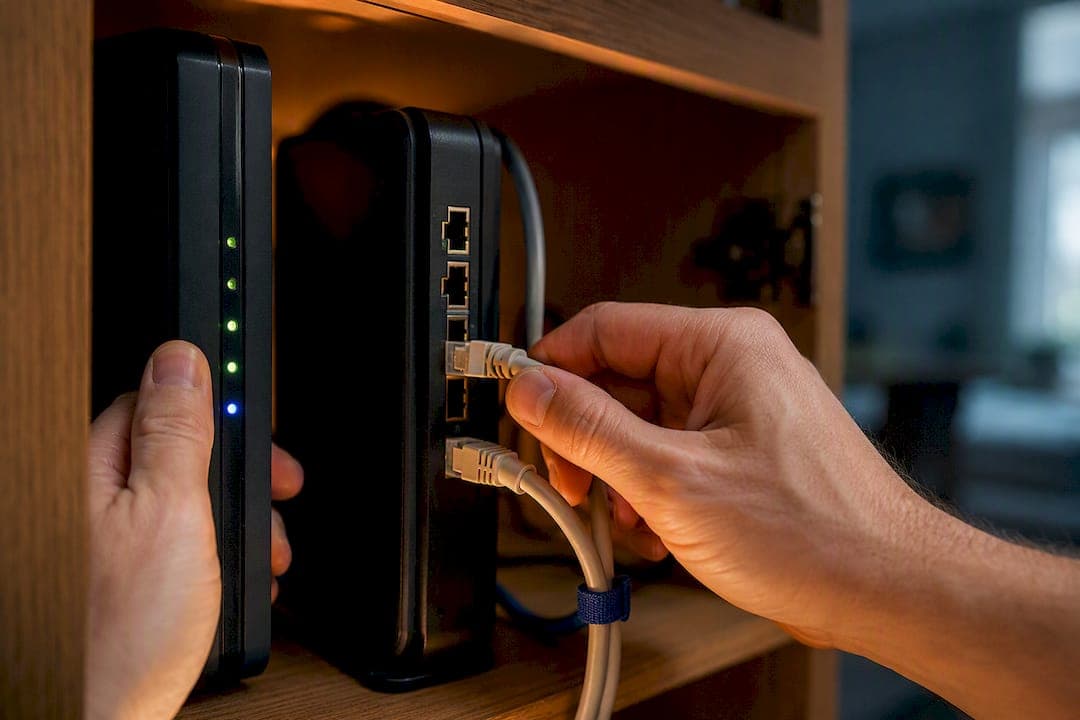
A modem connects your home to your internet service provider; a router takes that connection and shares it with your devices over Wi-Fi or Ethernet. Most households need both, whether as two separate boxes or one combo unit. The only exception is a single computer plugged directly into the modem with a cable, since that setup skips Wi-Fi and multi-device sharing entirely.
TL;DR:
- Running a wired speed test from the modem can identify if the issue lies with the modem or the Wi-Fi network, with a large gap indicating router problems.
- Upgrading to Wi-Fi 6 or Wi-Fi 6E routers improves congestion management and speed, especially in households with many connected devices.
- Compatibility with your ISP is mandatory; a non-approved modem or one not supporting DOCSIS 3.1 could prevent connection or cause bottlenecks on gigabit plans.
- Using your ISP's gateway in bridge mode and adding a personal router prevents double NAT issues that disrupt VPNs and online gaming.
- Most Wi-Fi "slow internet" issues are caused by Wi-Fi congestion, placement, or outdated firmware rather than the actual hardware standard or ISP throttling.
Table of Contents
- Modem vs Router: How a Modem Connects You to the Internet
- Router Functionality Explained: What Happens After the Signal Arrives
- Modem vs Router: A Side-by-Side Breakdown
- Do You Need Both a Modem and a Router?
- How to Tell Which Device Is Causing Your Problem
- Buying and Upgrading: What Actually Matters
- What Diagnostic Testing Reveals About Modem and Router Problems
- Why Most People Blame the Wrong Device
- Test Your Connection Before You Buy New Hardware
- Sources
Modem vs Router: How a Modem Connects You to the Internet
A modem, short for modulator-demodulator, translates the signal coming from your internet service provider into data your home network can use. Without it, nothing else in your setup matters. It's the single point of contact between your house and the outside internet.
The physical connection type tells you a lot about what kind of modem you need:
- Cable modems connect through a coax cable, the same round, screw-on connector used for cable TV.
- DSL modems plug into a phone line jack and pull data over the same copper wiring used for landline calls.
- Fiber connections use an ONT (optical network terminal), which converts light signals from fiber-optic cable into an Ethernet connection your router can use.
You can't just buy any modem and expect it to work. Every internet service provider maintains a list of approved modems, and yours has to be on it. This isn't a formality. Cable modems in particular depend on a technical standard called DOCSIS, and your ISP's network equipment has to recognize your modem's specific model and firmware before it will authenticate your connection. Skip this check and you could buy a modem that simply never connects, no matter how correctly you wire it up.
If you're on cable internet with a gigabit-tier plan, matching your modem to DOCSIS 3.1 rather than the older DOCSIS 3.0 standard matters. A DOCSIS 3.0 modem can bottleneck a faster plan even when everything else in your network is working fine.
Router Functionality Explained: What Happens After the Signal Arrives
Once the modem hands off a working internet connection, the router takes over. It creates your local area network, often shortened to LAN, and decides where every bit of data goes from there. Think of the modem as the pipe bringing water into your house and the router as the plumbing system that sends it to every faucet.
Routers handle two jobs at once: managing the WAN connection coming in from the modem, and directing traffic across the LAN connections going out to your phone, laptop, smart TV, and everything else. Wi-Fi itself comes entirely from the router, not the modem. If a device is broadcasting a wireless signal in your home, it either is a router or has one built in.
The Wi-Fi standard your router supports directly affects speed and how many devices it can handle well at once. Older routers running Wi-Fi 5 struggle in homes with a dozen connected devices, while Wi-Fi 6 and the newer Wi-Fi 6E and Wi-Fi 7 standards manage congestion far better and support faster peak speeds, especially in crowded households.
Beyond raw speed, a handful of router features make a real difference day to day:
- Guest networks keep visitors off your main network without sharing your primary password.
- Parental controls let you restrict content or schedule downtime for kids' devices.
- Quality of Service (QoS) settings prioritize traffic, so a video call doesn't stutter while someone else streams 4K.
- Firmware updates patch security holes, which matters more than most people realize since routers are a common target for attacks.
A stronger router can't increase the speed your ISP delivers, but it can meaningfully improve stability, range, and security even when the modem behind it is perfectly adequate.
Modem vs Router: A Side-by-Side Breakdown
The two devices split the job cleanly. The modem's entire purpose is translating the ISP's incoming signal into usable internet. The router's job is distributing that internet to every device in your home and managing how those devices talk to each other.
Here's how the roles and physical clues line up:
| Modem | Router | |
|---|---|---|
| Main job | Connects to the ISP | Creates and manages the home network |
| Wi-Fi | Never broadcasts it | Always the Wi-Fi source |
| Physical clue | Coax, DSL, or fiber/ONT input | WAN port in, multiple LAN (Ethernet) ports out |
| Multiple devices | Not supported | Core function |
| Can work alone | Yes, for one wired device | No, needs a modem or internet feed upstream |
Many ISPs skip the two-box setup entirely and hand out a combo gateway, one unit doing both jobs. It's simpler to set up and takes up less space on a shelf, but it locks you into whatever hardware the ISP chose. If you want a better router without paying for a second modem, you can put the gateway into bridge mode, which switches off its routing function and lets it act purely as a modem while your own router handles the network. Skipping bridge mode when adding a personal router behind a gateway causes double NAT, a network conflict that can break VPN connections, online gaming, and port forwarding.
Do You Need Both a Modem and a Router?
If you're wondering whether your house needs one box or two, the answer usually comes down to how many devices you're connecting and whether any of them need Wi-Fi.
- One computer, wired connection only. A modem alone will work, since you're plugging directly into it with an Ethernet cable and skipping Wi-Fi entirely.
- A typical household with phones, laptops, smart TVs, and speakers. You need a router, either standalone or built into a combo gateway, because only a router broadcasts Wi-Fi and manages multiple connected devices.
- Gamers and heavy streamers. A dedicated router with strong QoS controls and a newer Wi-Fi standard usually outperforms a basic ISP-issued gateway, particularly under load from multiple people using the connection at once.
- Large homes or homes with dead zones. A mesh router system, several access points working together, closes coverage gaps a single router unit can't reach. If your household fits this pattern, it's worth checking what speed you actually need for a full house of devices before shopping for hardware.
Run through this quick checklist before deciding what to buy:
- How many devices need to connect, and how many of those need Wi-Fi?
- Does your home have rooms where the signal currently drops out?
- Do you want features like parental controls, guest networks, or traffic prioritization?
- What's your budget, and would you rather pay once for hardware or keep paying a monthly rental fee?
Pro Tip: If your ISP's gateway has decent Wi-Fi but you want more control, don't throw it out. Put it in bridge mode and add your own router behind it. You get the flexibility of separate devices without paying for a second modem, and you avoid the double NAT headaches that come from running two routers at once.
How to Tell Which Device Is Causing Your Problem
Start with a visual check. The device with a coax cable, phone line, or fiber line running into it from outside is your modem. The device with several numbered Ethernet ports and a Wi-Fi antenna (internal or external) is your router. If you only see one box, check the back panel: a dedicated ISP connector alongside multiple LAN ports is a strong sign you're looking at a combo gateway, not a standalone router.
Every device has an admin page you can check for status details:
- Log into your router's admin panel (usually by typing an address like 192.168.1.1 into a browser) to see connected devices, signal strength, and error logs.
- Check your modem's status page for signal levels and sync errors, especially if you're on cable.
The fastest way to isolate the problem is a direct test: unplug the router and connect a laptop straight to the modem with an Ethernet cable. If the internet works fine that way, your router is the likely culprit. If it doesn't, the issue sits upstream with the modem or your ISP.
Buying and Upgrading: What Actually Matters
Before buying your own modem, check your ISP's approved equipment list. This isn't optional. A modem that isn't on that list may never authenticate, no matter how well it's built. Once you've confirmed compatibility, match the modem's capability to your plan speed. Cable customers on gigabit plans need DOCSIS 3.1 support to avoid bottlenecking their own connection.
The financial case for buying your own modem is usually straightforward. Rental fees typically run a small monthly fee, which adds up to a significant yearly amount for a device you could own outright for a one-time cost that often pays for itself within months..
A few signs it's time to upgrade your router instead:
- Your devices support Wi-Fi 6 or newer, but your router is still running Wi-Fi 5.
- You've got dead zones or rooms where the signal barely reaches.
- You've added enough smart home devices, laptops, and phones that the network feels congested during peak hours.
If your plan involves running your own router behind an ISP gateway, switch the gateway into bridge mode first. It's a five-minute setting change, and it prevents the double NAT issues that quietly break VPNs and game connections.
What Diagnostic Testing Reveals About Modem and Router Problems
Guessing which device is misbehaving wastes money, since it's easy to replace the wrong one and see zero improvement. Structured testing tells you where the actual problem lives.
A few tests point in specific directions:
- A speed test run directly from a wired connection to the modem shows your true baseline, separate from any Wi-Fi interference.
- Latency and jitter checks that spike only over Wi-Fi, but stay steady over Ethernet, usually point to the router or wireless congestion, not your ISP.
- Packet loss that shows up on both wired and wireless connections tends to trace back to the ISP or the modem itself.
- DNS performance issues can look like slow internet even when your raw speed is fine, and they're worth ruling out before blaming your hardware.
Patterns across aggregated diagnostic data suggest a lot of what people call "slow internet" actually traces back to Wi-Fi congestion or router settings rather than a throttled ISP connection.
Pro Tip: Run a wired test to the modem and a wireless test from the same room, back to back. A big gap between the two numbers points to the router or Wi-Fi, not your ISP.
If a test shows consistent packet loss on a wired connection, that's a modem or ISP issue worth escalating. If Wi-Fi speeds lag far behind wired speeds, a router upgrade is the more useful fix than switching internet plans.
Why Most People Blame the Wrong Device
The conventional advice on this topic treats modem and router problems as a coin flip, replace one, see if it helps, replace the other if not. That approach wastes money and time. The research is clear that these two devices fail in distinguishable ways, and a five-minute wired test almost always tells you which one is at fault before you spend a cent.
What's overrated is chasing the newest Wi-Fi standard the moment it launches. Wi-Fi 6E and Wi-Fi 7 matter if you've got a crowded house full of devices, but a lot of "slow Wi-Fi" complaints trace back to router placement or outdated firmware, not the standard itself. What's underrated is the double NAT problem. It's a boring, invisible setting, and it quietly breaks gaming and VPN connections for people who add a personal router behind an ISP gateway without ever touching bridge mode.
If you take one thing from this, test before you buy. Isolate the modem, isolate the router, and let the actual data decide instead of a guess.
— Tomasz
Test Your Connection Before You Buy New Hardware
Before spending money on a new modem or router, run a quick diagnostic to see where the actual problem lives. Some diagnostic tools measure download and upload speed, latency, jitter, packet loss, and DNS performance using real-time data pulled from a global testing network, not simulated results, to provide an accurate read on what's actually happening with your connection.
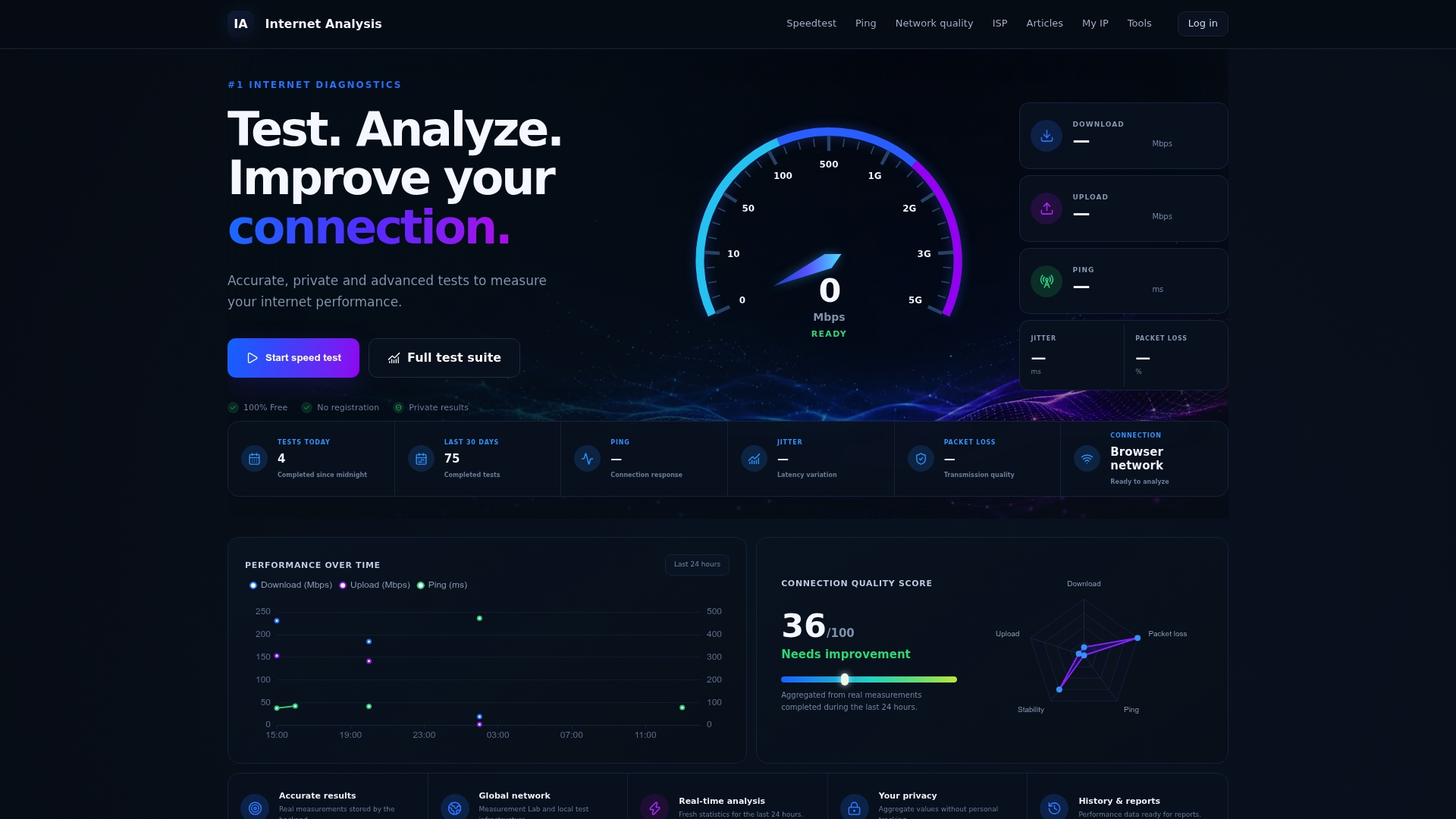
Run the speed test from a wired connection to your modem first, then again over Wi-Fi from the same spot. A big gap between the two tells you the router is the weak link, not your ISP. If packet loss or latency spikes show up on both tests, that points upstream to the modem or your provider instead. Either way, you'll know exactly what to replace before you spend a dollar on new equipment. Head to the Internet-analysis speed test and run a baseline check right now.