
The fastest working sequence is this: run your platform's network test, rule out double NAT, turn on UPnP, reserve your device's local IP, forward only the ports your game or console actually needs, then contact your ISP if your router's WAN address falls inside the shared carrier-grade NAT range. Work through those steps in that order and stop as soon as matchmaking, hosting, or party chat starts working again.
If you can't change your router settings or your ISP won't budge, a VPN or a gaming relay service can often mask the underlying NAT problem, though usually at the cost of some added latency. One more thing before you touch any settings: skip the DMZ option unless every other fix has failed, because it exposes a device to the open internet with no filtering at all.
- Run the console or PC network test and write down the exact result string.
- Check whether your setup has two NAT layers (a modem/gateway plus your own router).
- Turn on UPnP and retest before doing any manual configuration.
- Give your gaming device a fixed local IP through DHCP reservation.
- Forward only the specific ports your platform lists, nothing extra.
Pro Tip: Most Strict NAT complaints trace back to double NAT, not a missing port rule. Fix that first and you'll skip half the troubleshooting most guides suggest.
TL;DR:
- Verify your network setup by checking for double NAT, CGNAT, or local misconfigurations before attempting manual fixes.
- Use official port numbers and test results to ensure targeted port forwarding and avoid unnecessary security risks.
- Confirm if your WAN IP matches an external public address; a mismatch indicates ISP-level CGNAT, requiring ISP assistance or workaround.
- Apply fixes in order: enable UPnP, reserve your device's IP, set port forwarding, and only use DMZ temporarily for diagnostics.
- Gather timestamped network diagnostics, including IP check and traceroute, to create evidence that improves support resolution and avoids guesswork.
Table of Contents
- How to Confirm the NAT Type Strict Fix You Actually Need
- Is Your Problem Double NAT, CGNAT, or a Local Router Issue?
- Fixing NAT Type Issues on Your Router: The Safe Order
- Xbox, PlayStation, and PC Ports for Open NAT
- What to Do When the ISP Is the Problem, Not Your Router
- Your Step-by-Step Test Plan for Verifying the Fix
- The Real Security Cost of Opening Up Your Network
- Using Internet Diagnostics to Prove Where the Problem Sits
- Get a Report Your ISP Can Actually Act On
- Key Takeaways
- Sources
How to Confirm the NAT Type Strict Fix You Actually Need
You can't fix what you haven't measured. Before changing a single router setting, run the built-in network test on your console or PC and write down the exact wording it gives you, because that phrase tells you which fix applies.
Xbox reports NAT as Open, Moderate, or Strict, and it will sometimes flag "Double NAT detected" or "UPnP was not successful" directly in the test results. PlayStation uses a similar three-tier system, labeled Type 1 through Type 3, where Type 2 is the equivalent of Moderate. On PC, most game clients show a connection quality indicator in the network or multiplayer settings menu, though the exact wording varies by title. These platform labels reflect how each service judges inbound connectivity, not a universal router setting, so a PC game's connection quality reading won't always match what your console reports on the same network.
- Open your platform's network test and record the exact result (Strict, Type 3, or the equivalent) along with the date and time.
- Log into your router's admin panel and note the WAN IP address it lists under status or internet settings.
- Run an independent IP lookup from a browser on the same network and compare that address to the router's WAN IP.
- Write down which specific feature fails, matchmaking, joining a friend's party, hosting a session, or voice chat, since some NAT types allow one but block another.
- Find your gaming device's MAC address and current local IP address (usually under network settings) so you're ready to set a DHCP reservation later.
That last step matters more than it looks. If you skip recording the MAC address now, you'll be hunting for it again later when you're deep in your router's DHCP settings trying to lock in an IP reservation.
Pro Tip: Screenshot each test result as you go. If you end up calling your ISP, a timestamped screenshot is worth more than a verbal description of "it wasn't working right."
Is Your Problem Double NAT, CGNAT, or a Local Router Issue?
Three distinct problems produce the same Strict NAT symptom, and each one needs a completely different fix. Confusing them wastes time, since a fix for one does nothing for the others.
Double NAT happens when two devices on your network both perform network address translation, typically an ISP-provided modem/gateway combo sitting in front of your own router. Each device tries to manage port forwarding independently, and inbound connections get lost between them. This is the most common cause of a stubborn Strict result, and the fix doesn't involve buying new hardware.
ISP-level CGNAT (carrier-grade NAT) is different: your ISP shares one public IP address across many customers, which means no amount of port forwarding on your end will ever open a path in. You can spot this by comparing your router's WAN IP against an independent public-IP check. If the WAN address falls in the 100.64.0.0/10 range, or if it simply doesn't match what the public-IP tool shows you, your ISP is likely the bottleneck, not your router.
Local router misconfiguration covers everything else: UPnP that's disabled or broken, stale port-forwarding rules from an old game, or conflicting settings between devices competing for the same port. This category is the easiest to fix and the one most guides assume is the only possibility, which is why so many troubleshooting threads go in circles.
Here's how to tell them apart quickly:
- Two networking devices between your gaming device and the modem's internet connection: likely double NAT.
- Router WAN IP in the 100.64.0.0/10 range or mismatched against a public-IP lookup: likely CGNAT.
- UPnP shows an error, or port forwarding rules exist but nothing changed: likely a local router issue.
For double NAT, the fix is putting the upstream gateway into bridge mode, or switching your personal router to access-point mode, so only one device handles NAT duties. For CGNAT, port forwarding won't work no matter how carefully you configure it, and your only real options are calling your ISP or using a workaround covered further down. For local misconfiguration, the router-side fixes below will usually resolve things within a few reboots.
Fixing NAT Type Issues on Your Router: The Safe Order
Once you know the problem sits on your side of the connection, work through these fixes in order. Each one is progressively more invasive, and jumping straight to the last step is how people end up with security gaps they didn't need to create.
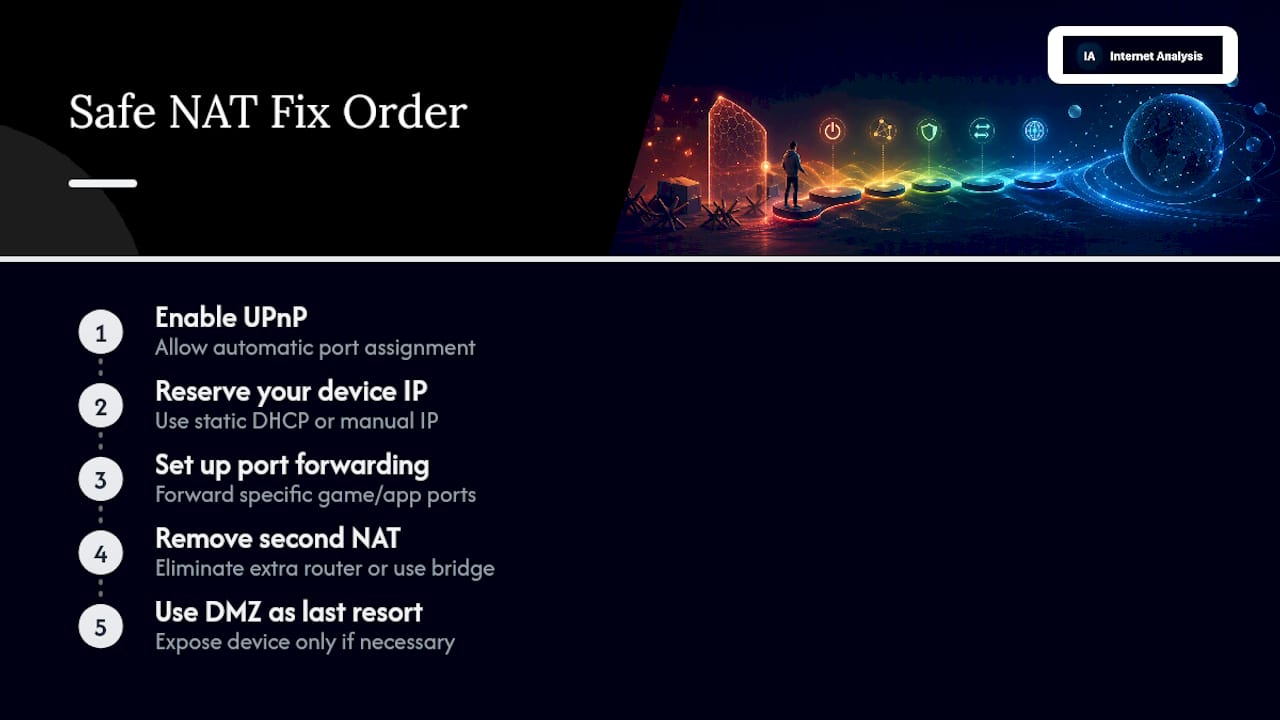
Step 1: Turn on UPnP and retest
Universal Plug and Play lets your console or game automatically request the port mappings it needs, without you touching a single manual rule. Log into your router's admin interface (usually at 192.168.1.1 or 192.168.0.1), find the UPnP setting, typically under Advanced or NAT/Gaming settings depending on the manufacturer, and enable it. Restart the router, then restart your console or game client, and run the network test again.
UPnP is usually the first router-side remedy worth trying because it requires no manual port entry and works automatically for compatible titles. It's reasonable to leave enabled on a trusted home network, though you should disable it on any guest network or shared connection where you don't control every device.
If UPnP still reports an error after a restart, that's diagnostic information, not a dead end. UPnP failures commonly trace back to buggy router firmware, a port conflict with another device on the network, or an upstream NAT layer sitting between your router and the internet. If you already ruled out double NAT in the previous section, check for a firmware update before moving to manual forwarding.
Step 2: Reserve your device's local IP address
Port forwarding rules point to a specific local IP address. If your router hands out addresses dynamically through DHCP, that address can change the next time your console reboots, silently breaking every rule you just set up. A DHCP reservation solves this permanently.
In your router's DHCP settings, find the list of connected devices and locate the MAC address you recorded earlier. Assign it a fixed IP address, usually one outside the range your router hands out automatically to avoid conflicts. Save the setting and restart the device once to confirm it picks up the reserved address.
Step 3: Add port forwarding rules for your specific service
With a locked-in local IP, manual port forwarding becomes reliable instead of a guessing game. In the router's port forwarding section, you'll typically enter four things: the external port, the internal port, the protocol (TCP, UDP, or both), and the internal IP address you just reserved.
Copy the port numbers exactly from your platform's official support page rather than a random forum post, since the specific ports required differ by platform and even by title. Section five below has the current numbers for the major platforms. Enter one rule per port range, save, and restart the router before retesting.
Step 4: Remove a second NAT layer if one exists
If your diagnosis pointed to double NAT, port forwarding on your personal router does nothing while the upstream gateway still performs its own NAT. You have two options: log into the ISP-provided gateway and switch it into bridge mode, which turns it into a simple modem and lets your personal router handle all NAT duties, or set your personal router into access-point mode so it stops doing NAT translation itself and defers to the gateway. Check your specific hardware's documentation, since the exact menu location varies widely, but the goal is the same either way: only one device on the chain should be translating addresses.
Step 5: DMZ, only as a last resort and only temporarily
If every other step failed and you need to confirm whether NAT is the actual culprit, placing a single device in the router's DMZ (demilitarized zone) removes all inbound filtering for that one device. This is diagnostic, not a permanent fix. DMZ exposes whatever device sits inside it directly to the internet, which is a real security trade-off, not a technicality. Use it only long enough to confirm your fix, then disable it and go back to targeted port forwarding.
Pro Tip: If you use a VPN on your network for anything else, disable it during NAT testing. VPN tunnels commonly report as Strict NAT no matter how your router is configured, and it's an easy false lead.
Xbox, PlayStation, and PC Ports for Open NAT
Manual port forwarding only works if the numbers are right, and generic "gaming port" lists floating around the internet are often outdated or incomplete. Use the official numbers below, and check your platform's current support page before finalizing rules, since these do occasionally change with platform updates.
A few practical notes on using this table. Xbox's core connectivity ports handle matchmaking and voice, but the Teredo range specifically supports IPv6 tunneling, which lets consoles establish peer-to-peer connections even when your network is IPv4 only. If that range is blocked, you'll often see matchmaking work fine while direct-connect features like joining a friend's game session fail.
PlayStation's Remote Play ports are frequently the overlooked culprit when console-to-console connectivity works but streaming to a phone or PC doesn't. If you only forwarded the core PSN range and skipped the Remote Play ports, that's likely why.
For PC titles, there's no universal answer. Checking the specific game's official support documentation before entering rules saves you from forwarding the wrong ports entirely, which happens more often than you'd think with older or less-documented titles.
One habit worth building regardless of platform: once you confirm a fix works, go back through your port forwarding list and delete any rules for games you no longer play. Stale rules don't just clutter the interface, they're unnecessary open doors that serve no purpose anymore.
What to Do When the ISP Is the Problem, Not Your Router
Sometimes every router-side fix checks out and Strict NAT persists anyway. That's your signal to look upstream, because port forwarding cannot bypass carrier-grade NAT no matter how correctly it's configured. Confirm this by comparing your router's WAN IP against an independent public-IP lookup; a mismatch, or a WAN address in the shared CGNAT range, means the restriction sits with your provider.
When you call your ISP, ask specifically for these three things:
- Whether a public (non-shared) IPv4 address is available for your account, sometimes free, sometimes for a monthly add-on fee.
- Whether bridge mode is available on your provided gateway if you want to use your own router exclusively.
- Whether a static IP plan exists, since this occasionally solves NAT and simplifies future troubleshooting at once.
Costs and availability vary by provider and region, and some ISPs simply don't offer public IPv4 addresses at any price due to IPv4 exhaustion. If that's the case, you have two remaining paths. A VPN can sometimes route around CGNAT restrictions, though expect a latency increase that varies by server distance and matters more for fast-paced competitive titles than for turn-based or co-op games. Dedicated gaming relay services work similarly, prioritizing lower latency for game traffic specifically, but check the terms of service since some ISPs restrict relay or VPN use on residential plans.
Temporary networks behave differently, too. Mobile hotspots almost always sit behind CGNAT by design, and hotel or dorm networks frequently block inbound connections outright regardless of what you configure on your device. If you're troubleshooting from one of these networks, the Strict result may simply be unfixable from your end until you're back on your home connection.
Pro Tip: If your ISP offers a "gaming mode" or "low-latency mode" in their app, that's usually unrelated to NAT type. It typically prioritizes gaming traffic in the queue but doesn't touch address translation at all.
Your Step-by-Step Test Plan for Verifying the Fix
Change one setting, test, record the result, then move to the next step. Skipping this discipline is how people end up with three simultaneous changes and no idea which one actually worked, or which one broke something else.
- Run the baseline network test and log the exact result string along with the time.
- Apply one fix from the router-side sequence (UPnP, then DHCP reservation, then port forwarding, then bridge mode if needed).
- Rerun the network test immediately, then attempt the actual multiplayer feature that was failing, not just the test itself.
- Record whether the result changed and whether the real feature (matchmaking, hosting, voice, Remote Play) now works.
- If nothing changed, revert that specific setting before trying the next one, so you're never testing against a stack of unverified changes.
A simple log, even a basic notes app entry, keeps this honest:
This kind of reproducible log does double duty: it keeps you from repeating a fix you already ruled out, and it becomes exactly the evidence your ISP will ask for if the problem turns out to be on their end.
The Real Security Cost of Opening Up Your Network
Every fix above trades a little exposure for connectivity, and it's worth understanding exactly what you're trading before you do it. UPnP is generally safe on a private home network, but it does let any device request port mappings without manual approval, which is exactly why you should disable it on guest networks and keep your router's firmware current. An outdated router with UPnP enabled is a documented weak point, not a theoretical one.
DMZ carries the heaviest trade-off by far. Placing a device in the DMZ removes essentially all inbound filtering for that device, meaning every port, not just the ones your game needs, sits open to the internet. Use it only as a temporary diagnostic step on a single device, then turn it off the moment you've confirmed what you needed to confirm.
A few habits keep the risk manageable no matter which fixes you end up using:
- Change your router's default admin password before opening anything, since default credentials paired with new open ports are a common attack path.
- Delete port forwarding rules for games or services you no longer use.
- Back up your router's configuration before making changes, so a bad setting is a two-minute revert instead of a full reset.
- Favor targeted port forwarding over DMZ or "open everything" settings whenever the targeted option gets the same result.
Prefer the smallest change that fixes the specific feature that's broken. If matchmaking works and only hosting fails, you don't need to open every port your platform lists, just the ones tied to hosting.
Using Internet Diagnostics to Prove Where the Problem Sits
A network test that only says "Strict" doesn't tell your ISP anything they can act on. Pairing your console's result with measurements from Internet-analysis gives you the specific evidence that turns a vague complaint into a fixable ticket.
Run these tests to build that evidence:
- IP check, to confirm your router's WAN address and compare it against the public IP the internet sees, the fastest way to catch CGNAT.
- Traceroute, to see exactly which hop in the path is adding delay or dropping packets between your router and the game server region.
- Ping and jitter, to quantify the connection quality issues that often accompany NAT problems, particularly on congested or shared connections.
- Packet loss testing, since intermittent drops can mimic NAT symptoms and lead you to fix the wrong thing entirely.
Internet-analysis draws on measurements from a global network, aggregated from more than 25 million tests across 180-plus countries, and results are aggregated without personal tracking, which matters when you're handing a report to a support technician you've never spoken with before. Real-time results mean you're comparing your current connection, not a stale reading from last week.
Once you have your IP check, traceroute, and latency results together, export or screenshot them into one document with timestamps attached. A concise diagnostics packet with exact evidence gets ISP technicians moving faster than a verbal description of "games won't connect," because you've already done the diagnostic legwork they'd otherwise have to walk you through on the phone.
A double NAT that looked like an ISP problem
A router misconfiguration case that stuck with me involved someone convinced their ISP was throttling their connection because every match ended in a host migration error. The router looked fine, port forwarding was set up correctly, and the ISP's phone support insisted everything on their end was normal. The actual cause turned out to be a second NAT layer, an ISP gateway left in router mode instead of bridge mode, sitting invisibly in front of a personal router that had been configured perfectly the whole time.
Running an IP check caught it in under a minute, since the WAN address on the personal router didn't match the public IP at all. That single comparison, run before touching another setting, would have saved a great deal of back-and-forth with a call center that had no reason to look for a problem sitting a step earlier in the chain.
Test before you troubleshoot, and change one thing at a time. If you're stuck after working through the steps here, share your diagnostics results when you ask for help; a screenshot of "it's still Strict" tells a technician nothing, while a WAN IP comparison and a traceroute tell them exactly where to look next.
— Tomasz
Get a Report Your ISP Can Actually Act On
You've walked through UPnP, port forwarding, and CGNAT checks. If you're still stuck, or you just want hard evidence before calling support, that's where Internet-analysis earns its keep instead of another round of guesswork with a phone rep.
Run the Online Gaming Analysis test to check latency, jitter, and packet loss the way a gaming session actually experiences your connection, not just a generic speed number. Pair it with an IP check and traceroute, and you've got a timestamped, shareable report that shows exactly where a connection breaks down, whether that's your router, your ISP's gateway, or somewhere further upstream. Because results are aggregated without personal tracking, you can hand that report to ISP support or a router vendor without worrying about what else you're exposing. Start with the gaming test now, save the report, and you'll walk into your next support call with evidence instead of a vague complaint.
Key Takeaways
Fixing a strict NAT type reliably means working through the least invasive changes first, confirming double NAT and CGNAT before touching manual settings, and stopping the moment the specific multiplayer feature works again.
| Point | Details |
|---|---|
| Test before every change | Record the exact platform result and retest after each single change, not after several at once. |
| Rule out double NAT first | Two NAT layers between your device and the internet block inbound connections no matter how port forwarding is configured. |
| Check for CGNAT before forwarding | Compare your router's WAN IP to a public-IP lookup; a mismatch means your ISP controls the fix, not you. |
| Save DMZ for last | DMZ exposes a device to the open internet and should only be used briefly to confirm a diagnosis. |
| Verify with real diagnostics | Use Internet-analysis's IP check, traceroute, and latency tests to build a timestamped report for ISP escalation. |
Sources
- How to Change NAT Type on Router: Open, Moderate, Strict Explained
- How to Change NAT Type on Xbox: Fix Strict NAT and Double NAT
- How to change NAT type on PC: 5 methods - Surfshark