
Ping measures the round-trip delay between your device and a server, in milliseconds. Jitter measures how much that delay swings from one packet to the next. If you need fast reactions, like in gaming or remote desktop work, chase low ping. If you need smooth, uninterrupted audio and video, chase low jitter. Test both before you troubleshoot either one.
TL;DR:
- Wired Ethernet connections consistently offer lower and more stable jitter compared to Wi-Fi, especially on older routers.
- Jitter above 20 milliseconds causes noticeable issues in video calls and causes stuttering and rubber-banding in gaming.
- Peak-hour network congestion often increases jitter even with high-labeled plan speeds, making time-of-day testing crucial.
- For intermittent problems, short monitoring sessions during issues provide stronger evidence for ISP support than one-off tests.
- Prioritizing fixes such as updating firmware and enabling QoS can significantly reduce high ping and jitter more effectively than just changing servers.
Table of Contents
- Ping vs Jitter: What Latency Actually Measures
- What Jitter Is and Why It Gets Its Own Metric
- Ping vs Jitter: Spotting the Real Culprit
- Why Ping and Jitter Feel Different in Real Use
- How to Test Ping and Jitter the Right Way
- How to Fix High Ping and High Jitter
- When to Worry: Thresholds and a Quick Diagnosis Checklist
- What Our Test Data Actually Shows
- Test Your Real Ping and Jitter Numbers Now
- Sources
Ping vs Jitter: What Latency Actually Measures
Ping, technically the round-trip time (RTT), tells you how long a small data packet takes to travel from your device to a server and back, measured in milliseconds. Several things add to that number: physical distance to the server, the number of network hops your data crosses, router processing time, and queuing delays when links get congested.
Under 20 ms feels instant, that's typical for a fast fiber connection to a nearby gaming server. Between 20 and 50 ms is still solid for most video calls and browsing. Past 100 ms, you'll notice lag in competitive games and a slight delay in conversation timing on calls. Most tools measure ping by sending several ICMP echo requests and averaging the response times, which is exactly what a ping test does under the hood.
What Jitter Is and Why It Gets Its Own Metric
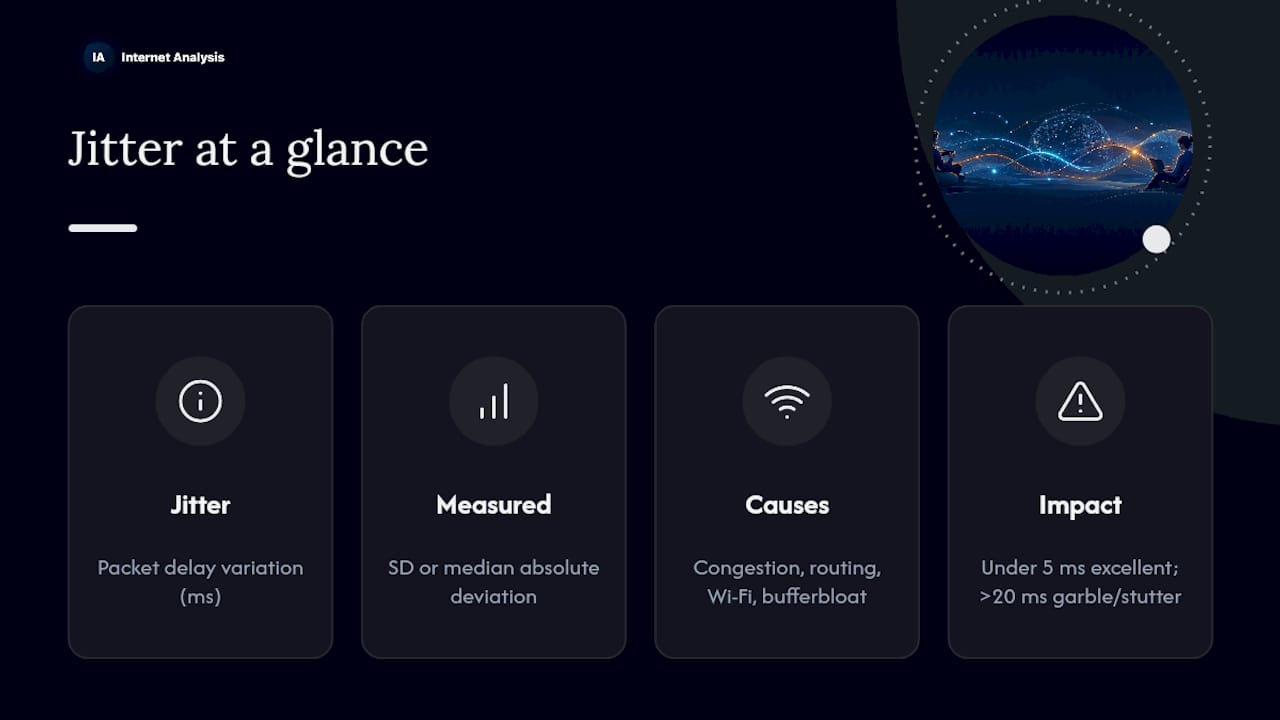
Jitter is packet delay variation, often abbreviated PDV, the inconsistency in how long consecutive packets take to arrive, expressed in milliseconds. It's typically calculated as a standard deviation or median absolute deviation across a batch of latency samples, not a single reading like ping.
Network congestion, shifting routing paths, Wi-Fi interference, and bufferbloat (when routers queue too much data before sending it) all drive jitter up. Home routers are frequent offenders: overloaded NAT tables, duplex mismatches on cheap switches, and aggressive power-saving Wi-Fi features that delay packet transmission are common root causes. A jitter reading under 5 ms is excellent. Once it climbs past 20 ms, video calls start to garble and games start to stutter, even if your average ping looks fine on paper.
Ping vs Jitter: Spotting the Real Culprit
The core difference is simple: ping measures speed, jitter measures stability. You can have a connection that's slow but perfectly steady, or one that's fast on average but wildly inconsistent. Both cause real problems, but they call for different fixes, and mixing them up is one of the most common diagnostic mistakes people make when troubleshooting.
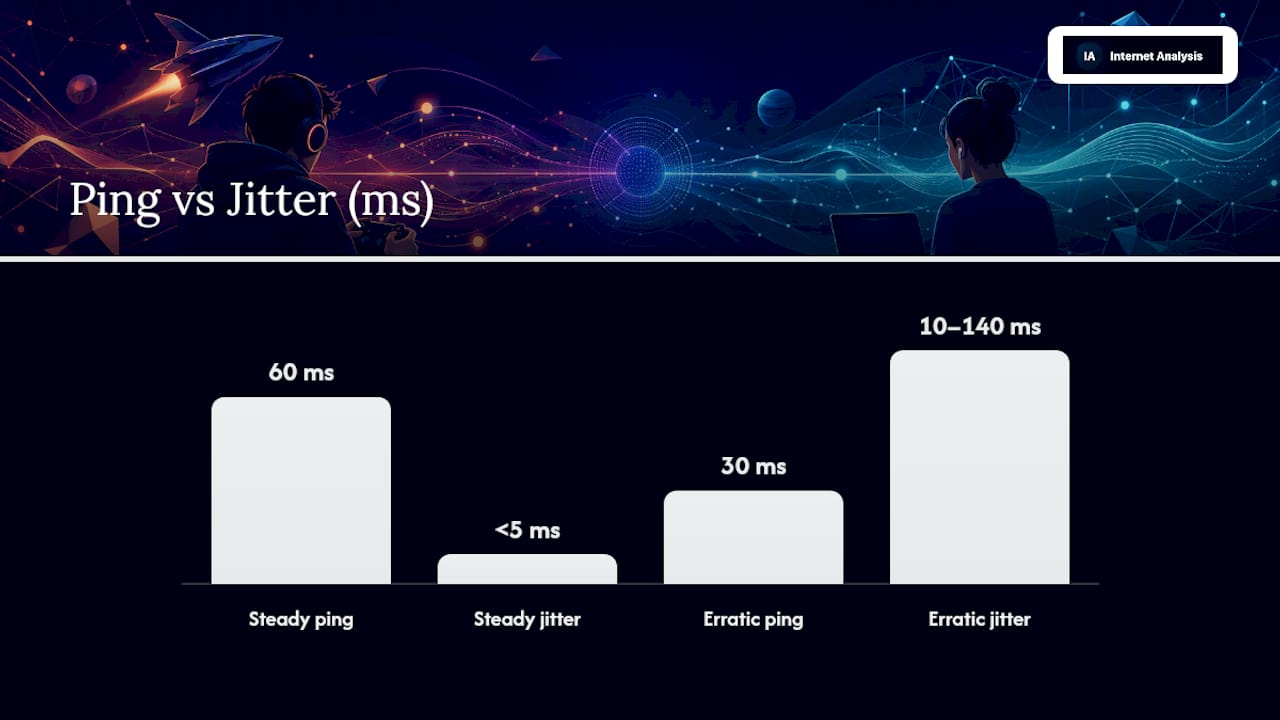
Picture two connections. One holds a steady 60 ms ping with jitter under 5 ms, calls sound clean and game inputs feel predictable. The other averages 30 ms but swings between 10 ms and 140 ms, calls break up and characters rubber-band on screen even though the average looks better. A gamer's guide from Optimum makes this exact point: a stable mid-range ping usually beats an erratic low one.
Use this quick reference when something feels off:
- Choppy audio, garbled video, or voices cutting in and out → suspect jitter.
- Consistent, predictable delay in every action → suspect latency (ping) or server distance.
- Fast average speed but unpredictable feel → jitter is masking a good ping.
- Slow but smooth performance → high ping, low jitter, distance or routing is likely the cause.
Why Ping and Jitter Feel Different in Real Use
Both metrics degrade your experience, just in different ways. In gaming, ping sets your baseline reaction delay, while jitter is what actually causes rubber-banding and dropped inputs when the game engine gets conflicting position updates. In VoIP and video calls, jitter above roughly 20 to 30 ms forces the client's jitter buffer to hold packets longer to smooth playback, which adds noticeable delay even when raw ping is low. Remote desktop sessions and cloud apps split the difference: ping drives how instantly your cursor responds, while jitter shows up as intermittent freezing or screen tearing.
If you had to fix one first, prioritize based on symptoms:
- Game feels delayed on every input → work on ping first.
- Game or call is inconsistent, spiky, unpredictable → work on jitter first.
- Video calls choppy but screen sharing feels fine → jitter, almost always.
- Everything feels uniformly slow → ping and server distance, not jitter.
How to Test Ping and Jitter the Right Way
Start with a basic ICMP ping test from your device's terminal, or use a browser-based tool that reports both numbers at once. Record the average, the minimum, and the maximum, then run the same test again at a different time of day. Peak-hour congestion often pushes jitter up even when your plan's advertised speed hasn't changed.
Most standard speed tests focus on throughput and skip jitter entirely, so a dedicated latency and jitter test gives you a more complete picture. Traceroute adds hop-by-hop timing, useful for spotting exactly where delay or instability enters the path. If problems come and go, a short continuous monitoring session captures spikes that a single snapshot test would miss entirely, which matters when you're building a case to send to ISP support.
How to Fix High Ping and High Jitter
Work through these roughly in order of effort:
- Switch to a wired Ethernet connection. Wi-Fi introduces variability that Ethernet simply doesn't have.
- Close background uploads, downloads, and streams competing for bandwidth on your network.
- Pick a nearer game or call server when the app gives you a choice.
- Reboot your router and modem to clear congested queues and stale connections.
- Enable Quality of Service (QoS) on your router to prioritize real-time traffic like calls and games.
- Disable aggressive Wi-Fi power-saving features that delay packet transmission on laptops and phones.
- Update router firmware and check for signs of bufferbloat, a common source of hidden jitter.
- Test at different times of day to isolate peak-hour congestion from a persistent problem.
- Collect evidence before escalating to your ISP, including timestamps, test results, and the device and server used.
Pro Tip: When a problem is intermittent, don't rely on one test. Run short 30 to 90 second monitoring snapshots during the exact window things feel bad, then save those results. That's the evidence that actually gets ISP support to take a ticket seriously.
When to Worry: Thresholds and a Quick Diagnosis Checklist
Rough benchmarks help, but sensitivity depends on the app. For most real-time use, ping under 50 ms and jitter under 20 to 30 ms feels responsive and stable. Jitter under 5 ms is excellent; past 20 ms, expect noticeable choppiness in calls or rubber-banding in games.
An occasional spike during a single session usually points to momentary congestion and isn't worth chasing. A pattern that repeats every evening, or shows up on every device in your home, suggests a real infrastructure issue worth escalating.
Before contacting your ISP or network admin, gather:
- Time and duration of the problem
- Ping and jitter readings from at least two tests
- Device and connection type (wired vs Wi-Fi)
- The server or service you were using when it happened
What Our Test Data Actually Shows
Across the anonymized measurements Internet-analysis collects globally, a few patterns show up again and again. Jitter reliably climbs during evening peak hours, even on connections with plenty of bandwidth headroom. Wired connections consistently post lower and steadier jitter than Wi-Fi, often by a wide margin on older routers. And a large share of "bad connection" complaints trace back to consumer router defaults, not the ISP's line at all. Running your own network quality test is the fastest way to see where your setup actually lands.
Test Your Real Ping and Jitter Numbers Now
Guessing which metric is hurting your gaming session or your work calls wastes time you don't have. Internet-analysis runs real measurements from a global test network, aggregates results without tracking you personally, and shows historical trends so you can tell a one-off spike from a recurring problem.
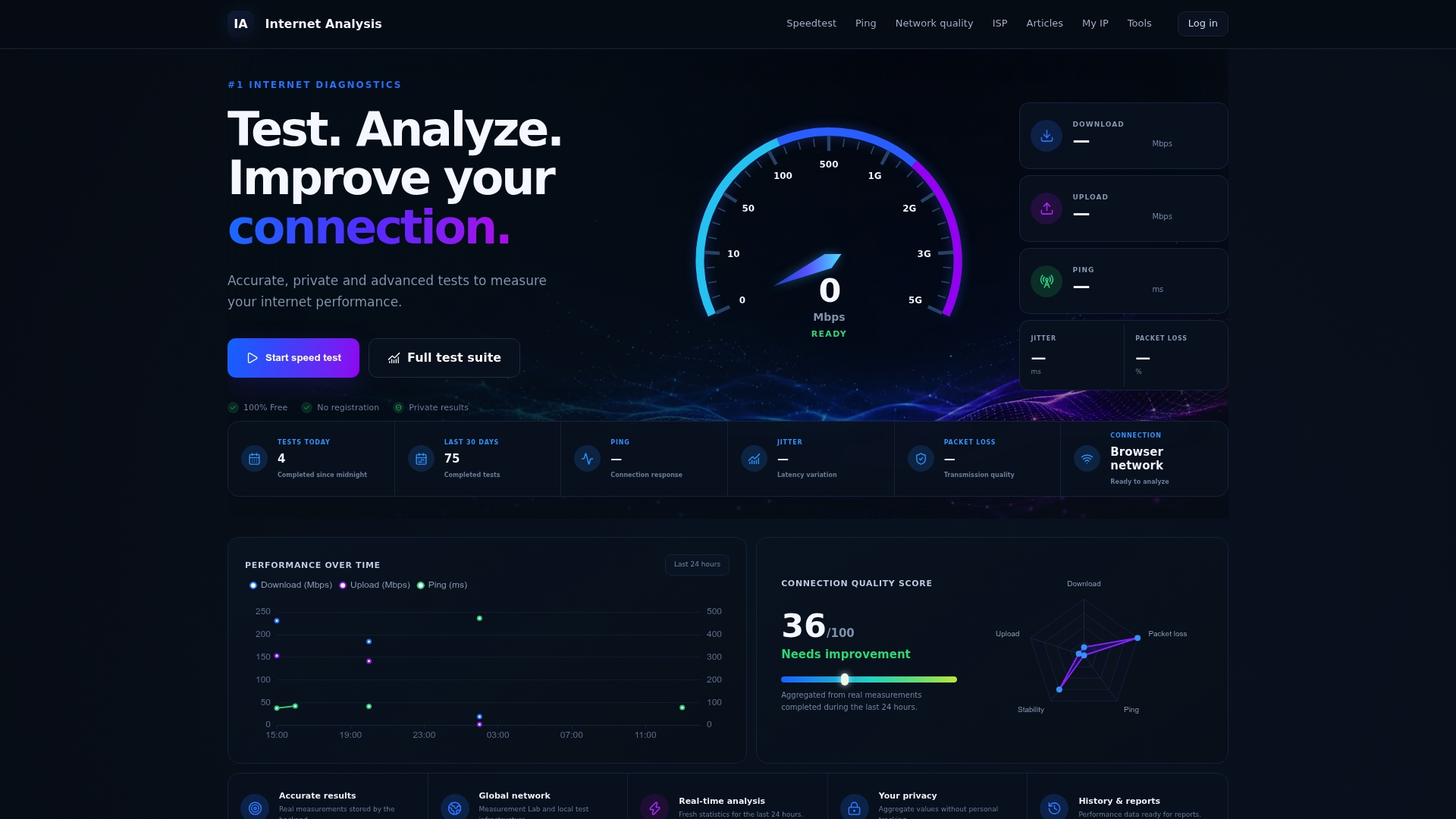
Run a latency and jitter test to see your actual numbers side by side, not just an average speed score. If your readings look unstable across multiple sessions, the continuous monitoring tool captures the spikes a single test would miss, which is exactly the evidence you'll want if you end up escalating to your ISP. Start with the test, then decide what's actually worth fixing.
Sources
- Ping and jitter explained | Complete Guide | IpToolsKit
- Jitter — Wikipedia
- Ping vs. latency vs. jitter: A gamer's guide | Optimum
- Jitter buffer — GetStream glossary
- What is network jitter vs ping? | SlashGear