

Ping is the diagnostic utility, and the round-trip time (RTT) it reports; latency is the underlying network delay itself, whether measured one-way or as a round trip. Run ping when you need a fast reachability check. Track latency, along with jitter and packet loss, when you care about real user experience, since that combination tells you far more than any single number.
TL;DR:
- Ping's round-trip time is a useful quick check, but it can be affected by ICMP restrictions and doesn't always reflect real traffic delays.
- Actual latency, especially one-way delay, depends on physical distance, bandwidth, and processing delays, often surpassing ping readings in accuracy.
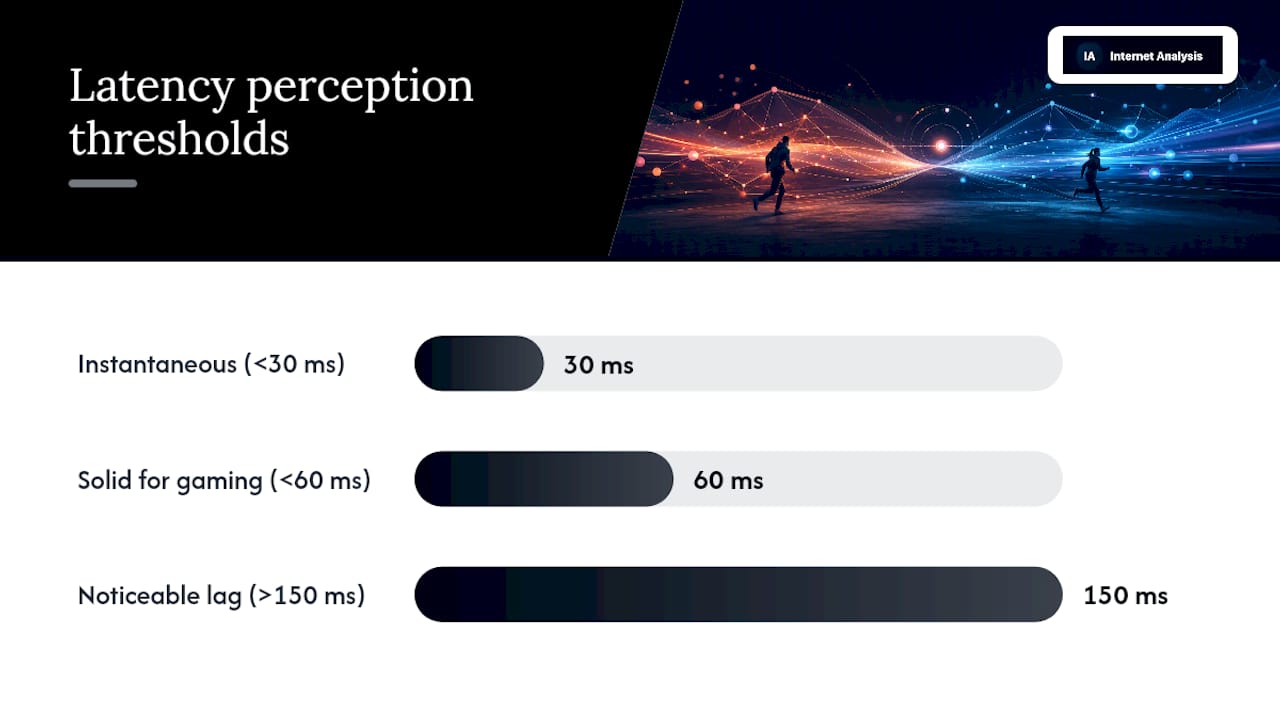
- A stable latency under 30ms feels instantaneous, while above 150ms causes noticeable lag in gaming and real-time communications.
- Reducing latency focuses on upgrading physical paths, using wired Ethernet, and minimizing interference, rather than solely increasing bandwidth.
- Running multiple tests, including ping, traceroute, and speed tests at different times, provides a comprehensive view of issues for effective troubleshooting.
Table of Contents
- Ping vs Latency: What Ping Actually Measures
- What Is Latency, and Why Is One-Way Delay Different From RTT?
- Ping vs Latency: When Each Metric Actually Matters
- How Ping, Latency, Jitter, and Packet Loss Show Up in Real Use
- How to Measure Ping and Latency the Right Way
- How to Reduce Latency Without Upgrading Your Plan
- How Internet-Analysis Measures Latency at Scale
- What to Check First When Something Feels Off
- Run Your Own Ping and Latency Check
- Sources
- FAQ
Ping vs Latency: What Ping Actually Measures
Ping is a command-line utility that sends ICMP echo request packets to a destination and waits for the echo reply. The time between sending and receiving is the round-trip time, and that number, not some abstract "connection speed," is what shows up on your screen.
A typical ping response includes a few fields worth knowing:
- time= — the RTT for that single packet, usually in milliseconds
- TTL — time to live, a hop counter that hints at how many routers the packet crossed
- min/avg/max — the summary statistics after a sequence of pings finishes
- packet loss % — how many of your pings never got a reply
If you ping a server and see time=24ms repeated with a summary of min/avg/max = 21/24/29ms, [0%](https://us.norton.com/blog/wifi/what-is-a-good-ping-speed) loss, that connection is healthy for nearly anything you'd throw at it. The ping utility's official documentation covers the exact syntax across platforms.
Ping has real limits, though. ICMP traffic can be blocked, throttled, or deprioritized by routers and firewalls, which sometimes makes a connection look worse (or oddly better) than it behaves for real traffic. Ping also uses small packets by default, so its RTT doesn't always match what a video call or a large file transfer experiences.
What Is Latency, and Why Is One-Way Delay Different From RTT?
Latency is the network property, not the tool. It's the time it takes data to travel from one point to another, and it can be measured as one-way delay or as round-trip time.
One-way latency is the more accurate number for understanding real application behavior, but it's harder to measure. It requires synchronized clocks on both ends, which is why most everyday tools default to RTT instead, then assume the delay splits roughly in half.
Several things stack up to create the latency you see:
- Propagation delay — physically limited by distance and the speed of light through fiber or copper
- Serialization delay — how long it takes to push a packet onto the wire, tied to bandwidth and packet size
- Processing and queueing delay — time spent inside routers, switches, and buffers along the path
Bandwidth and latency get confused constantly, but they measure different things. A 1 Gbps connection with a congested route can still post 150ms of latency, while a modest 50 Mbps connection with a clean path can hold latency under 20ms. More Mbps moves more data per second; it does nothing to shorten the distance a packet has to travel.
Ping vs Latency: When Each Metric Actually Matters
Ping is a utility plus the RTT number it hands back. Latency is the performance property that number is trying to describe, whether you got it from ping, a browser dev tool, or an application's own diagnostics.
- Use ping when you need a fast reachability check. A single ping to your router or a public DNS server tells you in seconds whether the path is up and roughly how fast it responds.
- Use latency monitoring or traceroute when you need to understand experience. If video calls stutter or games lag despite a "good" ping average, you need visibility into jitter, packet loss, and per-hop delay, not just one more RTT sample.
- Watch for common misreads. Low average ping can still hide poor app performance if jitter or asymmetric routing is the real problem, and ICMP deprioritization can make a perfectly fine connection look sick on paper.
Asymmetric routing, where your data leaves and returns by different paths, frequently causes ping numbers that don't match what users actually feel.
How Ping, Latency, Jitter, and Packet Loss Show Up in Real Use
Numbers only matter once you connect them to what you actually feel using an app. A connection under roughly 30ms of latency feels instantaneous for almost any interactive task. Staying under 60ms is solid for competitive online gaming, and anything above 150ms tends to cause noticeable lag in fast-paced games or real-time voice and video, according to Whatsmyip.
Pro Tip: A steady 80ms connection often feels smoother than one that swings between 20ms and 90ms. Consistency, not just the average, is what your brain notices.
That's because jitter, the variation between consecutive latency measurements, and packet loss frequently do more damage than a single high number ever could.
- Gaming: consistent mid-range latency beats a low average with occasional spikes
- VoIP and video calls: jitter above roughly 30ms causes choppy audio and garbled video even when average latency looks fine
- Web browsing: repeated handshakes on high-latency connections stack delays, making page loads feel sluggish even on fast broadband
How to Measure Ping and Latency the Right Way
Running a single ping and calling it a day tells you almost nothing about a recurring problem. Build a real case with a short sequence of tests instead.
- Run ping on your platform of choice. Windows, macOS, and Linux all ship with a built-in ping command; the syntax varies slightly, but every version returns time, TTL, and a min/avg/max summary with packet loss percentage at the end.
- Follow up with traceroute. Traceroute maps each hop between you and the destination, which helps pinpoint the specific hop introducing delay rather than just confirming that delay exists somewhere.
- Run a browser-based speed test for throughput and RTT together. This gives you a complementary view: whether the bottleneck is bandwidth, latency, or both.
Pro Tip: Test at different times of day and to more than one destination. A problem that only appears at 8 p.m. to one specific server points to congestion or routing, not your hardware.
Traceroute results can be misleading if the return path differs from the outbound path, or if a router along the way rate-limits ICMP replies, so treat a single spike with some skepticism until it repeats.

How to Reduce Latency Without Upgrading Your Plan
Start with the physical path before you touch settings or call your provider. A wired Ethernet connection routinely beats Wi-Fi for latency consistency, since wireless interference and signal contention add unpredictable delay that a cable simply doesn't have.
- Switch to Ethernet for anything latency-sensitive: gaming rigs, VoIP setups, video conferencing stations
- Reduce Wi-Fi interference by moving the router away from microwaves, thick walls, and other 2.4GHz devices
- Update router firmware and network drivers, since outdated firmware is a surprisingly common source of erratic latency
- Check for double NAT, which adds unnecessary processing overhead
- Avoid routing latency-sensitive traffic through a VPN unless the VPN's own path is genuinely shorter than your direct route
Pro Tip: Before assuming your ISP is at fault, disable QoS rules and any active VPN, then retest. Misconfigured QoS is one of the most overlooked, self-inflicted latency problems.
If the problem persists after these checks, shortening the data path itself with a CDN or a closer regional server matters more than adding bandwidth. Document your traceroutes and the times you saw problems, then bring that evidence to your ISP rather than a vague complaint about slowness.
How Internet-Analysis Measures Latency at Scale
A diagnostic suite covers latency, ping, jitter, packet loss, and traceroute, aggregated from tests conducted across many countries. That scale matters because a single ping tells you about one moment; historical and real-time analytics show whether a spike was a fluke or a pattern.
Results are aggregated without personal tracking, so the benchmarks reflect network conditions rather than a curated sample. For readers who want to see how their own connection stacks up against that broader dataset, the ping and latency testing pages turn a one-off check into ongoing visibility.
What to Check First When Something Feels Off
Start small: ping your local gateway, then ping a public DNS server like 8.8.8.8, then traceroute to the problem destination. If high round-trip time shows up to multiple external servers with hop-level evidence pointing outside your home, that's when it's time to contact your ISP.
— Tomasz
Run Your Own Ping and Latency Check
Reading about milliseconds only gets you so far. Online tools turn the checks covered here into something you can run in your browser right now, with no software install and no personal data attached to the result.
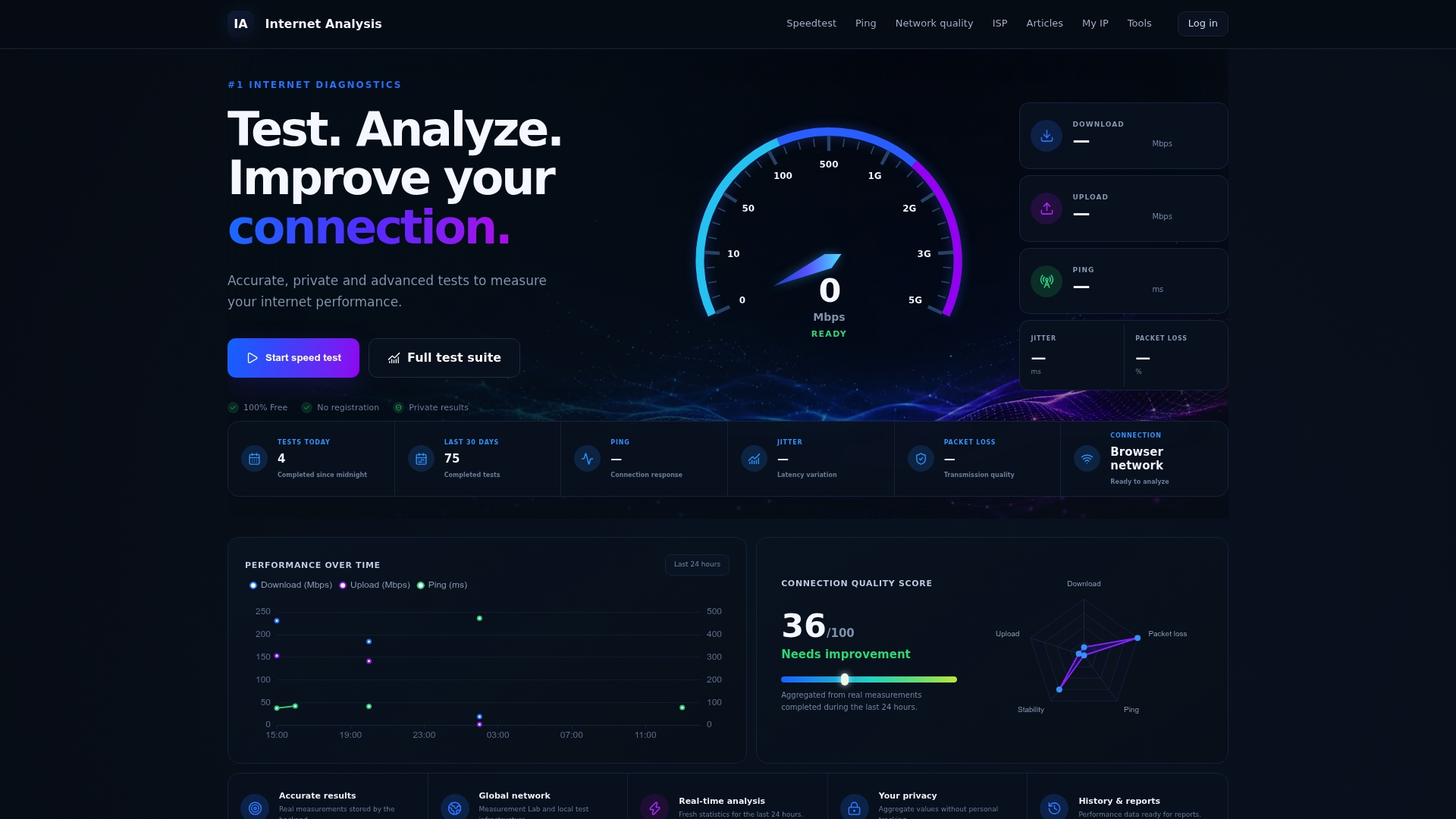
The network quality test reports latency, ping, and packet loss together, so you see jitter and loss alongside the RTT number instead of guessing at what a single ping means. If gaming performance is the concern, the online gaming analysis tool applies the same diagnostics to the thresholds that actually affect competitive play. And for connections that seem to drift over the course of a day, Monitor Your Connection in Real Time builds the kind of historical record that turns "it feels slow sometimes" into evidence an ISP has to take seriously. Start with the network quality test and see exactly where your connection's delay is coming from.
Sources
For deeper technical detail beyond this overview, the ping command documentation covers full command syntax, while DigitalOcean's latency guide explains the infrastructure-side fixes in more depth. For packet loss specifically in gaming contexts, this technical breakdown covers diagnosis and solutions.
FAQ
Is Is 100 Ping the Same as a 1 Second Delay?
No. A ping of 100 means 100 milliseconds, not a full second. This is one of the most common misreadings of ping results.
Is 200ms Latency Bad?
Yes, for most real-time uses. Latency at this level is generally considered poor for gaming, VoIP, and video calls, where anything above roughly 150ms starts causing noticeable lag.
What Counts as Good Ping and Latency?
Under about 30ms feels instantaneous for nearly any task, and under 60ms is solid for competitive gaming, according to WhatsMyIP.now. Above 150ms, most real-time applications start to suffer.
Is 27ms Latency Good?
Yes. A latency around this level falls comfortably under the 30ms threshold that feels instantaneous to most people, making it excellent for gaming, video calls, and everyday browsing.