
If your PS5 download speed is slow, three fixes solve most cases: switch to Ethernet or force the console onto 5 GHz Wi-Fi, pause every other download and app update running on the network, then run the built-in network test to see what you're actually working with. These three moves take about five minutes and resolve the majority of sluggish download complaints, because most of them trace back to Wi-Fi congestion or too many devices competing for the same pipe.
Sometimes the problem isn't yours to fix. PlayStation Network and its content delivery servers slow down during major game launches, big firmware updates, and holiday sales, and no amount of router tinkering changes that. You'll know it's server-side when your PS5 network test looks fine but the actual download crawls anyway.
Before digging into router settings or NAT types, do these three things in order:
- Test the connection. Go to Settings → Network → Test Internet Connection and write down the download Mbps.
- Clear the competition. Pause any other downloads, close streaming apps, and check if other devices on your Wi-Fi are hogging bandwidth.
- Go wired or go 5 GHz. Plug in an Ethernet cable if you can, or force the PS5 onto the 5 GHz band if you can't.
Key Takeaways
Most PS5 slow download problems come from local Wi-Fi congestion or competing downloads, not your internet plan, and get fixed faster with a wired connection and a documented test than with any single settings change.
| Point | Details |
|---|---|
| Start with the fastest fixes | Pause other downloads, run the PS5 network test, and try Ethernet or 5 GHz before anything else. |
| Rule out PSN first | Check the PSN status page, since server-side congestion during launches and updates can look identical to a local problem. |
| Compare PS5 and PC test results | A big gap between the two points to a local Wi-Fi or router issue rather than your ISP. |
| Fix NAT and DNS methodically | Enable UPnP, reserve a static LAN IP, and try Cloudflare or Google DNS before calling your ISP about CGNAT. |
| Document before escalating | Use Internet Analysis to capture packet loss, jitter, and traceroute data with timestamps for ISP or PlayStation Support tickets. |
Table of Contents
- Why Is PS5 Download Speed Slow? A One-Minute Checklist
- Could PSN Server Load Be Slowing Your Downloads?
- How Do You Test and Diagnose PS5 Internet Speed Issues?
- Ethernet vs. Wi-Fi: Which Actually Fixes Slow PS5 Downloads?
- What Router Settings Actually Improve PS5 Download Speed?
- How Do You Fix PS5 NAT Type Failed and DNS Problems?
- Does Pausing Downloads and Using Rest Mode Really Help?
- What Advanced Diagnostics Should You Run Before Contacting Support?
- What's the Right Order to Troubleshoot Slow PS5 Downloads?
- What I'd Prioritize First When PS5 Downloads Crawl
- Get a Clearer Picture of What's Actually Slowing Your Downloads
- Sources
Why Is PS5 Download Speed Slow? A One-Minute Checklist
Run through this checklist before you touch a single router setting. It takes about sixty seconds and tells you whether the problem is local or out of your hands.
- Open Settings → Network → Test Internet Connection. Note the download speed, upload speed, and whether NAT Type comes back as "Type 1," "Type 2," or "Failed." This baseline number is what you'll compare everything else against.
- Pause every other download. Check Notifications for queued game installs or updates, and pause anything not currently needed. A single stuck update in the queue can throttle the one you actually want.
- Turn on Rest Mode for the active download. Put the console in Rest Mode with "Stay Connected to the Internet" and "Supply Power to USB Ports" enabled under Settings → System → Power Saving. Downloads often move faster with the UI and background processes out of the way.
- Switch to Ethernet, or force 5 GHz if wired isn't possible. Go to Settings → Network → Set Up Internet Connection and either select the wired option or manually choose the 5 GHz band under Wi-Fi Frequency Bands.
- Reboot in the right order. Power down the PS5 fully, then the router, then the modem. Wait 30 seconds, power the modem back on, wait for it to fully sync, then the router, then the console.
Pro Tip: Write down the exact Mbps number from step 1 on your phone. If you end up contacting your ISP or PlayStation Support, that timestamped figure is the first thing they'll ask for, and having it ready saves a round of back-and-forth troubleshooting.
Could PSN Server Load Be Slowing Your Downloads?
Sony's network infrastructure gets hammered during predictable windows, and when that happens, your download speed problem has nothing to do with your router. Major game launches, day-one patches for anticipated titles, and system firmware rollouts push enormous simultaneous traffic through Sony's content delivery network, and individual users see the slowdown as a symptom of congestion they can't fix from their end.
Here's what server-side throttling typically looks like:
- Your PS5 network test shows normal or near-normal download speeds, but the actual game or update download crawls at a fraction of that number.
- The slowdown started right around a big release, a Tuesday patch day, or a seasonal sale event.
- Friends or forum threads report the same issue at the same time, which is a strong sign it's not isolated to your connection.
Community reports on platforms like Reddit back this pattern up. Users regularly describe download speeds that don't match what their PC pulls down on the same network, and the fix in many of those threads ends up being either a wait-it-out situation tied to PSN load, or a local fix like switching to Ethernet.
Check the PlayStation Network status page before you spend twenty minutes adjusting router settings for a problem that will resolve itself in a few hours. The page lists active incidents by service category, including downloads, so you can confirm whether Sony itself has flagged a problem before you start troubleshooting your own hardware.
One thing worth remembering: a fast bandwidth test doesn't guarantee fast downloads. PSN can throttle traffic on its end even while your ISP delivers full speed to your door, which is exactly why comparing your PS5's number against an independent test matters.
How Do You Test and Diagnose PS5 Internet Speed Issues?
Running the PS5's own test is step one, but it only tells half the story. You need a second, independent reading to know whether the bottleneck sits inside your console, your Wi-Fi, or somewhere upstream with your ISP.
Start with the built-in PS5 test under Settings → Network → Test Internet Connection. It reports four things: download speed, upload speed, NAT type, and whether it can reach PSN servers. A download number well below what you pay for points to a local or ISP problem. A NAT type of "Failed" flags a connectivity issue separate from raw speed, which matters more for multiplayer than downloads but is still worth noting.
Next, run a test from a device on the same network using a proper internet speed test. Do this as close in time as possible to the PS5 test, ideally within a minute or two, so you're comparing the same network conditions rather than two different moments in your ISP's traffic pattern.
- If the PC or phone test comes back near your plan's advertised speed and the PS5 test comes back much lower, the issue is almost certainly local. Think Wi-Fi band, distance from the router, or interference.
- If both tests come back low, the problem likely sits with your ISP or the route your traffic takes to reach PSN.
- If both look fine but the actual download still crawls, PSN congestion is the most likely explanation.
Beyond raw speed, three other metrics matter for diagnosing why is PS5 download slow even when bandwidth looks adequate: latency (ping), jitter (how much that ping fluctuates), and packet loss (data that never arrives and has to be resent). High packet loss in particular can tank download throughput even on a connection with plenty of raw bandwidth, because the console keeps re-requesting lost data. A traceroute adds one more layer, showing exactly which hop between you and the server introduces delay.
Pro Tip: Test at the same time of day you noticed the slowdown. Running a diagnostic at 6 AM when the original problem happened at 8 PM during peak neighborhood usage will hide the exact congestion pattern you're trying to catch.
Ethernet vs. Wi-Fi: Which Actually Fixes Slow PS5 Downloads?
Ethernet wins on throughput and consistency because it isn't fighting for airspace with every other wireless device in your house. A wired Cat5e or Cat6 cable delivers a stable connection largely immune to the walls, microwaves, baby monitors, and neighboring Wi-Fi networks that all compete for the same 2.4 GHz frequency. If your PS5 sits within cable range of your router, running Ethernet is close to the single highest-impact fix available.
When wiring isn't realistic, your next best move is forcing the console onto the 5 GHz Wi-Fi band instead of letting it default to 2.4 GHz. Switching bands frequently cuts download times substantially when the console sits within reasonable range of the router, according to TechRadar's testing. The tradeoff is range: 5 GHz carries more data per second but doesn't travel through walls or over distance nearly as well as 2.4 GHz.
Here's how to force it manually:
- Go to Settings → Network → Set Up Internet Connection → Use Wi-Fi → Set Up Manually.
- Look for Wi-Fi Frequency Bands and select 5 GHz specifically instead of leaving it on automatic.
- Run the network test again immediately afterward to confirm the change actually improved your download number.
If your PS5 sits far from the router, in a basement, or behind multiple walls, 5 GHz might actually perform worse than 2.4 GHz despite the higher ceiling, because signal strength drops off faster at that frequency. In that situation, you're choosing between two imperfect options unless you change the physical setup.
For rooms too far for a direct cable run and too far for a strong 5 GHz signal, a mesh Wi-Fi system typically outperforms a single point-to-point extender. Extenders rebroadcast the signal but often halve your effective throughput in the process, since they're receiving and retransmitting on the same radio. Mesh systems use dedicated backhaul connections between nodes, which avoids that penalty and keeps a stronger signal reaching a distant console. If you're deciding between the two and budget allows, mesh is the more reliable long-term fix for a console that can't be wired.
Whatever you choose, checking your gaming-specific speed and latency needs afterward gives you a clear benchmark for whether the change actually moved the needle.
What Router Settings Actually Improve PS5 Download Speed?
Your router does more heavy lifting than most people realize, and a handful of settings changes tend to produce outsized results for a relatively small time investment.
Start with reboot order, because it matters more than people assume. Power down the PS5, then the router, then the modem. Wait a full 30 seconds. Power the modem on first and let it fully sync (the lights will stabilize), then the router, then the console last. This order clears stale routing tables and forces the modem to re-establish a clean connection with your ISP before anything downstream tries to use it. Rebooting devices out of order, or all at once, often leaves the old connection state cached somewhere in the chain.
Placement matters just as much as settings. A router tucked inside a media cabinet, behind a TV, or next to a cordless phone base station loses signal strength before it ever reaches your console. Baby monitors, microwaves, and neighboring 2.4 GHz networks all crowd the same frequency space. Moving the router to an open, elevated spot, even a few feet, can measurably improve reception.
Three router-side changes worth making:
- Enable UPnP (Universal Plug and Play) in your router's admin panel, which lets the PS5 automatically open the ports it needs rather than routing everything through more restrictive default settings.
- Set up QoS (Quality of Service) and prioritize the PS5's traffic if your router supports it, especially useful in households with multiple people streaming or gaming simultaneously.
- Update router firmware. Manufacturers push fixes for known throughput bugs, and an outdated firmware version can quietly cap performance without any obvious symptom.
If your router lets you choose a Wi-Fi channel manually rather than relying on auto-select, switching to a less congested channel can help in apartment buildings or dense neighborhoods where dozens of networks overlap on the same 2.4 GHz channels. Most router apps now show a simple congestion graph for this exact purpose.
Pro Tip: If you've never updated your router's firmware, do it before anything else on this list. A firmware bug affecting throughput will undo every other fix you make until it's patched.
Lifewire's troubleshooting guide backs up several of these steps directly: rebooting router and console, wiring the PS5 by Ethernet, moving the console closer to the router, and changing DNS all show up as effective remedies in their testing.
How Do You Fix PS5 NAT Type Failed and DNS Problems?
A "NAT Type Failed" or "NAT Type 3" result on your PS5 network test signals a connectivity restriction, and while it mostly affects multiplayer and voice chat, it can also interfere with download stability in some router configurations. NAT stands for Network Address Translation, the process your router uses to manage traffic between your local devices and the internet. When it's misconfigured, the PS5 struggles to establish clean, direct connections.
Work through these steps in order:
- Enable UPnP on your router first. This is the simplest fix and resolves the majority of NAT Type 2 or Failed results without any manual configuration.
- Reserve a static local IP for your PS5 in your router's DHCP settings, so its address never changes and any port configuration stays valid.
- Manually forward the required PS5 ports if UPnP alone doesn't resolve it. Sony's support pages list the specific ports for PSN connectivity.
- Check for double NAT. If you have both a modem/router combo and a separate router, or a mesh system layered on top of ISP-provided equipment, you may have two NAT layers stacked on each other. Put the secondary router into bridge mode to eliminate the conflict.
- Call your ISP if none of that works. Ask specifically whether your account is behind CGNAT (Carrier-Grade NAT), a setup ISPs use to conserve IPv4 addresses that shares one public IP among many customers. CGNAT can cause persistent NAT failures no router setting on your end can fix, and only your ISP can remove it or assign you a dedicated public IP.
DNS is a separate, smaller lever worth trying. Your PS5's default DNS, usually assigned automatically by your ISP, occasionally suffers slow lookup times or intermittent routing issues that don't affect raw bandwidth but do affect how quickly the console resolves PSN's servers.
- Go to Settings → Network → Set Up Internet Connection → Manual, and enter a public DNS provider instead.
- Cloudflare's
1.1.1.1and Google's8.8.8.8are the two most widely used alternatives, both free and straightforward to enter. - This change helps most when your ISP's default DNS is slow or unreliable. It won't fix a bandwidth-limited connection or PSN server congestion.
If NAT problems persist after trying UPnP, Private Internet Access's troubleshooting notes suggest that a reserved LAN IP combined with manual port forwarding resolves most remaining cases that UPnP alone doesn't catch.
Does Pausing Downloads and Using Rest Mode Really Help?
Yes, and the reason comes down to how the PS5 allocates its resources while you're actively using it. Every open app, background download, and piece of UI rendering competes for the same processing and network resources as the download you actually care about.
Queued downloads stack up more often than people realize, especially after a system update triggers automatic patches for several installed games at once. Check Notifications → Downloads/Uploads and pause anything you don't need immediately, letting your priority download claim the full available bandwidth instead of splitting it three or four ways.
- Avoid playing a game while another one downloads in the background. Active gameplay pulls CPU and network resources that would otherwise go toward the download.
- Enable Rest Mode with "Stay Connected to the Internet" turned on under Settings → System → Power Saving, so downloads continue even when the console screen is off.
- Turn on automatic downloads for game updates under Settings → System → Automatic Downloads, so patches install overnight instead of competing with something you're trying to play right now.
Rest Mode in particular tends to produce noticeably steadier download speeds, since the console has far fewer competing processes running and can dedicate more of its resources to moving data.
What Advanced Diagnostics Should You Run Before Contacting Support?
If the basic fixes haven't resolved your slow PS5 downloads, it's time to collect the kind of data that actually gets a support ticket resolved on the first call instead of the third.
Three metrics matter most beyond simple download speed: packet loss percentage, jitter (the variation in latency over time), and the number of hops a traceroute takes before reaching its destination. Advanced network testing that captures all three at once often reveals ISP routing faults that a basic speed test never surfaces, because a connection can report full bandwidth while still losing packets intermittently along a specific route.
The most useful approach is capturing three time-stamped snapshots during the same problematic session: the PS5's own network test, an independent speed test run from another device on the same LAN within a minute or two of the PS5 test, and a packet-loss or traceroute reading. Having all three from the same window of time is the strongest evidence you can hand to a support agent, since it rules out the "maybe it was just a bad moment" explanation.
| Metric | What it tells you |
|---|---|
| Download/upload Mbps | Whether your connection meets your plan's advertised speed |
| Packet loss % | Whether data is being dropped and re-requested, slowing effective throughput |
| Jitter | How stable your latency is over time, relevant for both downloads and multiplayer |
| Traceroute hop count | Which point along the route to PSN's servers introduces delay |
When you contact your ISP or PlayStation Support, come prepared with your account or console details, the exact timestamps of your tests, the download speed reported by both the PS5 and an independent test, and any packet loss or traceroute results you've gathered. A support agent presented with concrete, timestamped numbers can escalate a real routing problem far faster than one working from "my downloads feel slow."
What's the Right Order to Troubleshoot Slow PS5 Downloads?
Work through these tiers in order. Stop as soon as one of them fixes the problem, and don't jump to advanced diagnostics until the fast fixes are exhausted.
Tier 1: Fast fixes (try these first, five minutes total)
- Pause all other downloads and queued updates.
- Run Settings → Network → Test Internet Connection and record the result.
- Check the PSN status page for active incidents.
- Switch to Ethernet, or force the 5 GHz Wi-Fi band if wired isn't an option.
Tier 2: Local network fixes (10 to 15 minutes)
5. Reboot modem, then router, then console, in that order, with 30 seconds between each.
6. Check for router firmware updates and install if available.
7. Enable UPnP and set up QoS to prioritize PS5 traffic.
8. Change DNS to Cloudflare (1.1.1.1) or Google (8.8.8.8) if lookups seem slow.
Tier 3: Advanced checks and escalation 9. Run packet loss, jitter, and traceroute diagnostics from the same network during a live slow download. 10. Check for double NAT by looking for two router layers, and put any secondary router into bridge mode. 11. Contact your ISP to ask directly about CGNAT if NAT problems persist after UPnP and port forwarding. 12. Contact PlayStation Support with your timestamped test data if the PS5 test itself flags a persistent PSN connectivity failure unrelated to your local network.
Most readers never make it past Tier 1. The ones who do usually find the culprit somewhere in Tier 2, most often a router that needed a firmware update or a NAT setting that had never been touched since setup.
What I'd Prioritize First When PS5 Downloads Crawl
Network diagnostics tend to reward patience over cleverness. Most people troubleshoot backward, jumping straight to DNS changes or port forwarding before ruling out the boring stuff, like whether three other downloads are quietly running in the background.
That's why the fastest-to-impact fixes belong first, always. Pausing competing downloads and switching to Ethernet or 5 GHz costs you nothing and fixes the majority of cases. Only after that should anyone touch NAT settings, DNS, or router firmware, because those changes take longer to test and are far less often the actual cause.
The habit worth building is documentation. Write down your test results, with timestamps, every time you troubleshoot. If the problem returns in three months, you'll have a baseline to compare against instead of starting from zero. That single habit separates people who solve their own connection problems from people stuck restating "it's just slow" to a support agent who can't do much with that.
— Tomasz
Get a Clearer Picture of What's Actually Slowing Your Downloads
Basic fixes solve most PS5 slow download problems, but when packet loss or an ISP routing fault is the real cause, you need data that a simple speed number can't show you. Internet Analysis's diagnostic suite measures packet loss, jitter, and traceroute hops using real measurements from a global testing network, not estimates, so you can see exactly where your connection breaks down between your console and PSN's servers.
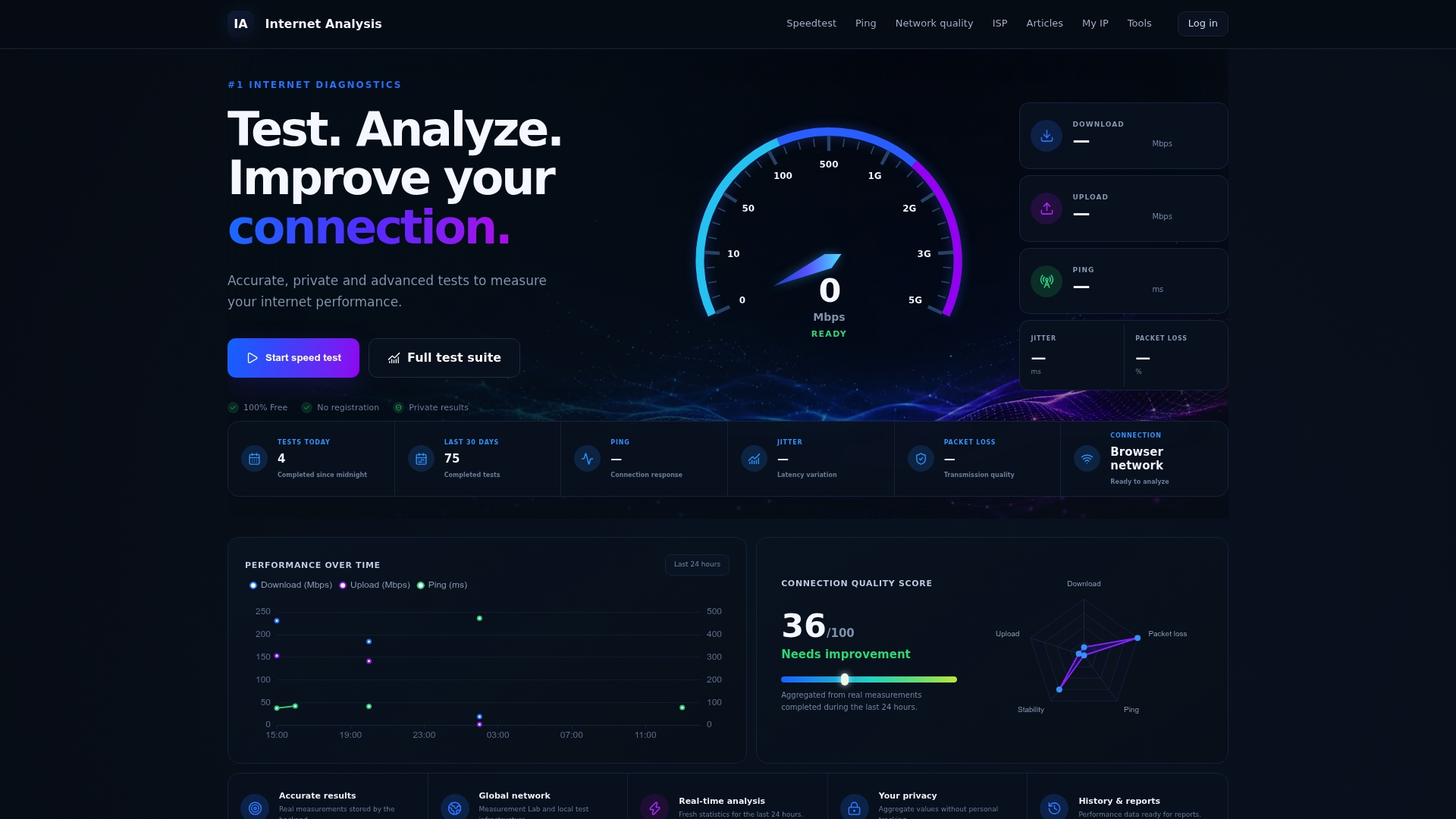
Every test result is aggregated without personal tracking, and you can run the same diagnostic repeatedly to build a historical record of your connection's behavior over days or weeks. That history is exactly what turns a vague "my downloads are slow sometimes" into a specific, timestamped pattern an ISP or PlayStation Support agent can actually act on. If Tier 1 and Tier 2 fixes haven't resolved your issue, run a full network quality check now and export the results before your next support call.
Sources
- How to connect your PlayStation console to the internet — PlayStation Support
- Status
- How to fix slow Wi-Fi on PS5 — Lifewire
- Sick of slow PS5 game downloads? This simple trick could save you a whole lot of time — TechRadar
- Is PlayStation Network down? — NordVPN (PSN status checks)
Recommended
- Fast Speed Test but Slow Internet? Test the Cause | Internet Analysis
- How to Reduce Ping Without Upgrading Internet Test the Cause | Internet Analysis
- Is Slow Internet Caused by Your Router or ISP? Test the Cause | Internet Analysis
- Best Internet Speed for Gaming: Download, Upload & Ping Requirements | Internet Analysis