

The fastest way to reduce jitter is to move your device to a wired Ethernet connection and turn on SQM (fq_codel or CAKE) to stop bufferbloat, then confirm the fix with a 60-second ping test before and after. These two changes typically cut packet delay variation dramatically on a home or small business network. If a LAN ping already shows high jitter, the problem is local; if jitter only shows up past the first hop on an MTR trace, your ISP or an upstream network is the culprit.
TL;DR:
- Running a wired Ethernet connection with SQM enabled can significantly reduce jitter caused by bufferbloat, especially during high network load.
- Identifying whether jitter originates locally or upstream involves comparing ping results to your router versus a public server and analyzing traceroute hop levels.
- Upgrading outdated hardware, updating firmware, and optimizing Wi-Fi channels are quick, cost-effective steps to minimize wireless interference and retransmits.
- Configuring QoS and SQM settings properly manages network queues, with SQM algorithms like fq_codel or CAKE offering more substantial improvements than priority-based QoS alone.
- Regular, automated jitter monitoring during different times and under load helps detect congestion patterns and supports effective ISP escalation if needed.
Table of Contents
- What Causes Jitter on Your Network?
- How Do You Measure and Pinpoint Jitter?
- Fast, Low-Cost Fixes You Can Try Right Now
- QoS, SQM, and Router Settings That Actually Reduce Jitter
- Wi-Fi Fixes That Cut Jitter Fast
- Bufferbloat, Jitter Buffers, and Which One You Actually Need
- When Should You Contact Your ISP?
- Ongoing Monitoring: Building a Jitter Baseline
- Network Hardware and Firmware Upgrades That Cut Jitter
- Tuning Router and Switch Settings Beyond QoS
- Do VPNs Make Jitter Better or Worse?
- How Jitter Affects VoIP, Video Calls, and Gaming Differently
- Advanced Diagnostics: Wireshark and Jitter Graphs
- Best Practices for Tracking Jitter Over Time
- The Troubleshooting Order That Actually Works
- Test and Track Jitter With Internet Analysis
- Sources
- FAQ
What Causes Jitter on Your Network?
Jitter is the variation in delay between packets arriving at their destination. It is measured in milliseconds, and it matters more than raw speed for anything happening in real time. A stream of packets arriving 20, 45, 22, and 60 milliseconds apart creates jitter, even if the average delay looks fine on paper.
Thresholds vary by application. Competitive gaming wants jitter under roughly 5 ms for a stable experience. Video calls and VoIP calls generally tolerate up to about 30 ms before audio starts breaking up or video gets choppy. Anything consistently above that range causes noticeable stutter, robotic audio, or dropped frames.
The causes split cleanly into local and upstream categories, and figuring out which side you're on saves hours of pointless troubleshooting.
Local (LAN) causes:
- Wi-Fi interference from neighboring networks, microwaves, or Bluetooth devices forcing retransmits
- Wi-Fi power-save mode on laptops and phones, which introduces sporadic multi-millisecond delays as radios cycle in and out of sleep
- Old or damaged Ethernet cables that force lower link speeds or intermittent errors
- Underpowered consumer routers or overloaded switches that can't keep up with multiple simultaneous streams
Cross-cutting cause:
- Bufferbloat, where oversized buffers in your router or modem queue packets for variable lengths of time under load, shows up as jitter that gets worse the moment someone starts a big upload or download
WAN/ISP causes:
- Network congestion during peak evening hours
- Overloaded peering points where your ISP hands off traffic to another network
- Route changes or unstable paths from your provider's core network
- Upstream packet loss that forces retransmissions and adds delay variance
Pay attention to the pattern, not just the number. Jitter that's constant throughout the day points to a local hardware or Wi-Fi issue. Jitter that spikes only in the evening, or only during specific hours, usually means ISP congestion somewhere upstream. Bursty jitter tied to specific activities, like someone else in the house starting a cloud backup, points straight at bufferbloat.
How Do You Measure and Pinpoint Jitter?
You can't fix what you haven't measured, and jitter troubleshooting without data is just guessing. Run these tests in order:
- Run a 60 second ping to your router first. This isolates your LAN. If jitter is already high here, before you even touch the internet connection, the fault is Wi-Fi, cabling, or the router itself.
- Run the same 60 second ping to a stable public target, such as a well known public DNS resolver. Compare the mean delay and the variation, not just the average. A high average with low variation is a latency problem; a moderate average with wide swings is a jitter problem.
- Run an MTR (My Traceroute) to the endpoint giving you trouble. MTR sends continuous packets to every hop along the route and reports loss and jitter per hop, which tells you exactly where the problem starts. If hop one already looks bad, it's your router or Wi-Fi. If everything is clean until hop four or five, that's your ISP's network or a peering point.
- Log jitter-aware speed tests at different times of day. Testing only once at 2 p.m. tells you nothing about what happens at 8 p.m. when the whole neighborhood is streaming.
- Test under deliberate load. Start a large file upload, then run your ping test simultaneously. If jitter spikes the moment the upload starts, bufferbloat is very likely your problem, not your ISP.
Save every test result: timestamps, target IPs, and sample counts. You'll need this exact data if you end up escalating to your provider. Running a dedicated advanced network test that logs traceroute hops alongside jitter makes this step far less tedious than piecing together raw command line output by hand.
Pro Tip: Run your load test twice, once on Wi-Fi and once on Ethernet, using the same device. If the wired jitter number is dramatically lower, you've just proven the fix is wireless, not your internet plan, and you've got the evidence to skip the ISP call entirely.
Fast, Low-Cost Fixes You Can Try Right Now
Before touching any settings, work through the changes that cost nothing and take minutes.
- Restart your modem, router, and any affected device. A stale routing table or a memory leak in consumer router firmware can quietly build up jitter over days or weeks; a reboot clears it.
- Pause heavy background tasks during real-time sessions. Cloud backups, large software updates, and 4K streaming on another device all compete for the same upstream queue and will manufacture jitter out of nowhere.
- Temporarily disable Wi-Fi on your router to confirm the cause. If jitter disappears the moment wireless is off, you've isolated the problem without spending a dollar.
- Inspect and replace damaged or outdated Ethernet cables. A cable that's been stepped on or coiled too tightly for years can force a link down to a lower speed; Cat6 cabling is cheap insurance against that.
If you're preparing for a specific use case, the acceptable jitter range for video calls is more forgiving than the range you want for competitive online gaming, so calibrate your expectations before assuming something is broken.
QoS, SQM, and Router Settings That Actually Reduce Jitter
Once the free fixes are exhausted, the real gains come from how your router manages its queues, not just how fast your plan is rated.
Quality of Service (QoS) works by classifying traffic and giving priority to time-sensitive flows. Most consumer routers offer a preset for gaming or VoIP that uses DSCP (Differentiated Services Code Point) markings to tag packets so they jump the queue ahead of a Netflix stream or a background download. This helps, but it only reorders packets. It does nothing about the underlying problem if your buffers are oversized to begin with.
SQM (Smart Queue Management), using algorithms like fq_codel or CAKE, tackles that underlying problem directly. Instead of just prioritizing, it actively manages queue depth so packets don't sit waiting during periods of congestion. SQM implementations tend to deliver a bigger real-world improvement than basic priority QoS because they prevent the queue buildup instead of just rearranging who's stuck in it.
Practical steps:
- Look for a router running OpenWrt or a stock firmware that explicitly lists SQM, fq_codel, or CAKE among its features.
- Set the SQM bandwidth limit slightly below your actual measured upload and download speed. Setting it too close to your real speed defeats the purpose.
- For a household with multiple heavy users, consider a separate VLAN or dedicated SSID for real-time traffic like a home office VoIP line, keeping it isolated from streaming devices and IoT chatter.
- Update firmware on your router before assuming a setting is broken; vendors regularly patch scheduler bugs that cause jitter under specific traffic patterns.
Pro Tip: Always validate with the same 60 second ping and MTR test you ran before making changes. If jitter didn't improve, the setting isn't working, no matter how good it looks in the router's admin panel.
Wi-Fi Fixes That Cut Jitter Fast
Wireless is the single biggest source of jitter complaints in homes and small offices, and most of it traces back to a handful of fixable issues.
Interference and retransmits are the core problem. When a Wi-Fi signal collides with a neighbor's network, a microwave, or a Bluetooth speaker, the radio has to resend packets, and that resend time varies wildly from one attempt to the next. The 2.4 GHz band is more crowded and penetrates walls better, which sounds like an advantage until you realize every neighbor's router is on the same handful of channels.
- Switch to 5 GHz or 6 GHz on any device that supports it. Less crowded spectrum means fewer collisions and dramatically steadier packet timing.
- Use a Wi-Fi analyzer app to find the least congested channel rather than trusting your router's auto-channel setting, which doesn't always react quickly to a new neighbor's network.
- Move closer to the access point or eliminate obstacles. A wall, a mirror, or even a large fish tank between your device and the router can add enough signal degradation to spike jitter.
- Disable Wi-Fi power-save mode on latency-sensitive devices. Power-save cycling causes sporadic jitter spikes as the radio powers down between packets, an artifact that's invisible until you're mid-call.
- Consider MoCA or powerline adapters when running a physical Ethernet cable isn't practical. Both use existing coax or electrical wiring to deliver a wired-equivalent connection without new cable runs.
Bufferbloat, Jitter Buffers, and Which One You Actually Need
Bufferbloat happens when a router or modem holds onto packets in an oversized buffer instead of dropping or forwarding them promptly. Under load, that buffer fills up, and packets sit in queue for a length of time that varies constantly, which is the textbook definition of jitter.
It's easy to confuse bufferbloat with jitter buffers, but they solve opposite problems.
- SQM manages the queue at the network level, preventing packets from piling up in the first place.
- A jitter buffer sits at the endpoint, like your VoIP phone or video app, and deliberately holds incoming packets briefly to smooth out arrival timing before playback.
- Jitter buffers add delay to fix jitter, which is a real tradeoff. Buffering delay scales with buffer size, so a bigger buffer means smoother audio but a longer lag before you hear it.
- Fix the network first. Lean on SQM/fq_codel/CAKE at the router. Reserve jitter buffers in your softphone or conferencing app settings as a fallback, not a permanent patch for a router that's badly configured.
To check for bufferbloat directly, run your ping test while a large upload is active. A calm baseline that suddenly spikes under load is the clearest sign you're dealing with buffer queuing rather than a wireless or ISP problem.
When Should You Contact Your ISP?
If your MTR consistently shows jitter or packet loss beginning at hop two or later, and your local network tests clean, the issue lives upstream of your router. That's your cue to escalate, but showing up with vague complaints gets you nowhere.
- Collect the evidence first. Save repeated 60 second ping logs, MTR output files, and a side by side comparison of wired versus wireless results, all with timestamps.
- Use precise technical language with support. Say "packet delay variation" and "packet loss," and specify the exact hop number where your MTR trace degrades. Vague descriptions like "the internet feels slow" get you a router reboot script, not a real investigation.
- Request a line quality check or provisioning refresh. These are specific technician actions that address jitter, distinct from a generic speed troubleshooting flow.
- Set realistic expectations. A straightforward fix might resolve within hours; a backbone or peering issue can take days to clear, since it often involves a network your ISP doesn't fully control.
- Insist on escalation if front-line support can't explain a jitter pattern that clearly starts beyond your own equipment. You have the trace data; use it.
Ongoing Monitoring: Building a Jitter Baseline
A single test tells you what's happening right now. A baseline tells you what's normal, which is the only way to know something has actually changed.
- Schedule a 60 second ping and jitter test during both business hours and off-hours to build a realistic picture of your connection's normal range.
- Set an alert threshold, such as jitter running more than 50% above your median baseline, as your signal to investigate before a call or match gets ruined.
- Use the historical trend to spot recurring ISP congestion windows, then schedule important video calls or gaming sessions outside those hours.
- A tool like Internet Analysis can run these recommended tests on a schedule, store anonymized historical baselines, and export the logs you'd need for an ISP escalation call.
Treat monitoring as a habit, not a one-time diagnostic. Jitter that was fine last month can creep back the moment your ISP reroutes traffic or a neighbor installs a new mesh Wi-Fi system next door.
Network Hardware and Firmware Upgrades That Cut Jitter
Hardware age matters more than most people assume. Older routers ship with smaller packet buffers, weaker CPU schedulers, and Wi-Fi radios that predate current interference-handling standards. That combination struggles the moment two people are on a video call while a third streams in 4K.
Vendors regularly release firmware updates that specifically patch scheduling bugs and improve queue handling, and skipping those updates leaves known jitter-causing issues unresolved on hardware that's otherwise perfectly capable. Check your router's admin panel for a firmware update option before assuming the device itself needs replacing.
When shopping for a replacement, prioritize a router or access point that explicitly advertises SQM support, either through OpenWrt compatibility or a stock firmware that lists fq_codel or CAKE among its features. A dual-band or tri-band router with dedicated 5 GHz and 6 GHz radios also reduces the odds you're stuck fighting for space on an overcrowded 2.4 GHz channel.
For small offices running several simultaneous VoIP lines or video calls, a managed switch that supports VLAN tagging is worth the upgrade over an unmanaged consumer switch. Unmanaged switches treat every packet identically, so a large file transfer between two office computers can just as easily starve a phone call of bandwidth as anything happening on Wi-Fi.
Don't overlook the modem itself. A modem stuck on outdated firmware, particularly on cable connections, can contribute to upstream jitter that no amount of router tuning will fix.
Tuning Router and Switch Settings Beyond QoS
QoS and SQM get most of the attention, but a handful of secondary settings shape jitter just as much on a busy network.
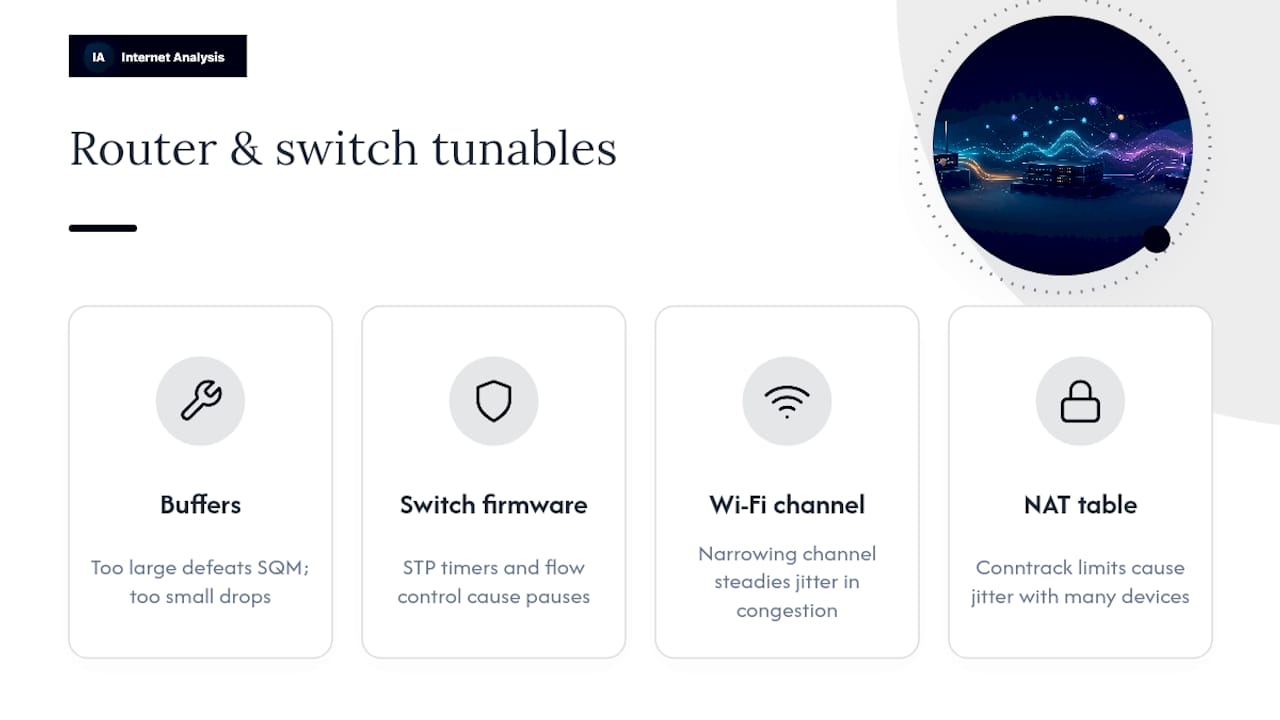
Buffer size adjustments matter on routers that expose them directly. A buffer set too large defeats the purpose of SQM entirely, since packets still queue for a while even with smart management active; a buffer set too small can cause unnecessary packet drops. Most SQM implementations calculate this automatically once you input accurate upload and download speeds, so the real setting to get right is that speed figure, not the buffer itself.
Firmware tuning on managed switches includes settings like Spanning Tree Protocol timers and flow control, which, left at aggressive defaults, can introduce brief pauses that show up as jitter on a busy office network. Disabling flow control on ports carrying real-time traffic, while keeping it active on ports used for bulk file transfer, isolates the problem traffic from the sensitive traffic.
Channel width on Wi-Fi access points is another overlooked lever. Wider channels (80 MHz on 5 GHz, for instance) offer more throughput but are more susceptible to interference and packet retransmits. Narrowing the channel width on a congested access point often trades a bit of peak speed for meaningfully steadier jitter.
NAT and connection tracking table limits on budget routers can also silently cause jitter once a household has enough simultaneous connections, since the router has to work harder managing state for every open connection. If you've got a smart home with dozens of always-connected devices, this is worth checking in your router's advanced settings before you assume the problem is Wi-Fi or your ISP.
Do VPNs Make Jitter Better or Worse?
A VPN can go either way, and the outcome depends almost entirely on the VPN server's location and load, not the VPN software itself.
Routing your traffic through a VPN adds at least one extra hop, and usually several, between you and your destination. Every additional network segment is a chance to pick up more jitter, especially if the VPN provider's server is geographically distant or oversubscribed with other users during peak hours. For gaming or VoIP, this is often a net negative unless there's a specific reason to use one.
There are cases where a VPN or proxy genuinely helps. If your ISP is throttling or deprioritizing specific traffic types, such as certain gaming protocols or VoIP ports, routing through a VPN can bypass that reprioritization and produce steadier performance. Some VPN providers also operate private backbone routes that avoid a congested public peering point your ISP normally uses, which occasionally smooths out jitter that originates upstream of your home network.
The practical approach is to test both ways. Run your 60 second ping and MTR with the VPN off, then again with it on, comparing the exact same target. If jitter improves with the VPN active, keep using it for that specific application. If it gets worse, and for most real-time gaming scenarios it will, skip the VPN for that use case and address the actual cause of your jitter directly instead.
How Jitter Affects VoIP, Video Calls, and Gaming Differently
Jitter doesn't hit every application the same way, which is exactly why a one-size-fits-all threshold doesn't work.
VoIP calls are the most sensitive to jitter because audio is a continuous stream that has to arrive in order and on time. Even moderate jitter causes choppy, robotic-sounding audio as the receiving device struggles to reassemble packets into a coherent stream. VoIP systems typically rely on a jitter buffer at the endpoint specifically because audio degradation is so noticeable to the human ear.
Video conferencing tolerates a bit more jitter than pure voice because video codecs have more built-in error correction and frame interpolation. That said, high jitter still shows up as frozen frames, lip-sync drift, or a call that periodically drops to audio-only while the software tries to recover.
Online gaming cares less about jitter buffers and more about raw consistency. A jitter buffer that smooths audio would introduce unacceptable input lag in a competitive match, so games generally don't use one. Instead, gaming demands the network itself stay steady, which is why the recommended jitter threshold for competitive play is tighter than what's acceptable for a business call.
Matching your fix to your use case matters. A jitter buffer setting that rescues a choppy conference call would feel sluggish in a first-person shooter, so the right mitigation depends entirely on what you're trying to protect.
Advanced Diagnostics: Wireshark and Jitter Graphs
Once basic ping and MTR tests confirm a problem but don't fully explain it, packet-level analysis fills the gap.
Wireshark captures every packet crossing your network interface and lets you filter by protocol, such as RTP for VoIP traffic, to see the actual inter-arrival time between packets rather than an aggregated average. This reveals patterns invisible to a simple ping test, like a specific device on your network flooding traffic at regular intervals that correlates precisely with your jitter spikes.
Jitter variability graphs, available in Wireshark's RTP stream analysis feature or in dedicated network monitoring dashboards, plot delay variation over time rather than reducing it to a single number. A graph that shows a sawtooth pattern, steadily climbing delay followed by a sudden drop, is a textbook bufferbloat signature. A graph with random, unpredictable spikes points more toward Wi-Fi interference or a flaky cable.
For most home users, this level of detail is overkill. But for a small business running a phone system over a shared office network, or anyone trying to build a case for an ISP escalation that goes beyond "the connection feels bad," packet capture data settles arguments that a basic speed test can't. A dedicated traceroute tool that logs hop-by-hop jitter over time gives you a middle ground between a simple ping and a full Wireshark capture, useful when you need more than basic evidence but don't need to reverse-engineer raw packet timestamps by hand.
Best Practices for Tracking Jitter Over Time
A jitter fix that works today can quietly stop working in three months as your ISP changes routing, your household adds devices, or your router's firmware drifts out of date. Continuous monitoring catches that drift before it becomes a ruined call.
Run automated tests on a fixed schedule rather than only when something feels wrong; testing reactively means you've already missed the pattern that would have told you what changed. Compare results against your established baseline rather than against an arbitrary "good" number, since normal jitter varies meaningfully between a fiber connection and a cable connection, and even between neighborhoods on the same ISP.
Keep a simple record of any change you make, whether it's a firmware update, a new router, or a switched Wi-Fi channel, alongside the test results from before and after. Without that log, it becomes almost impossible to tell which of the five things you tried last month actually fixed the problem, or whether it fixed itself when your ISP resolved a congestion issue on their end.
The Troubleshooting Order That Actually Works
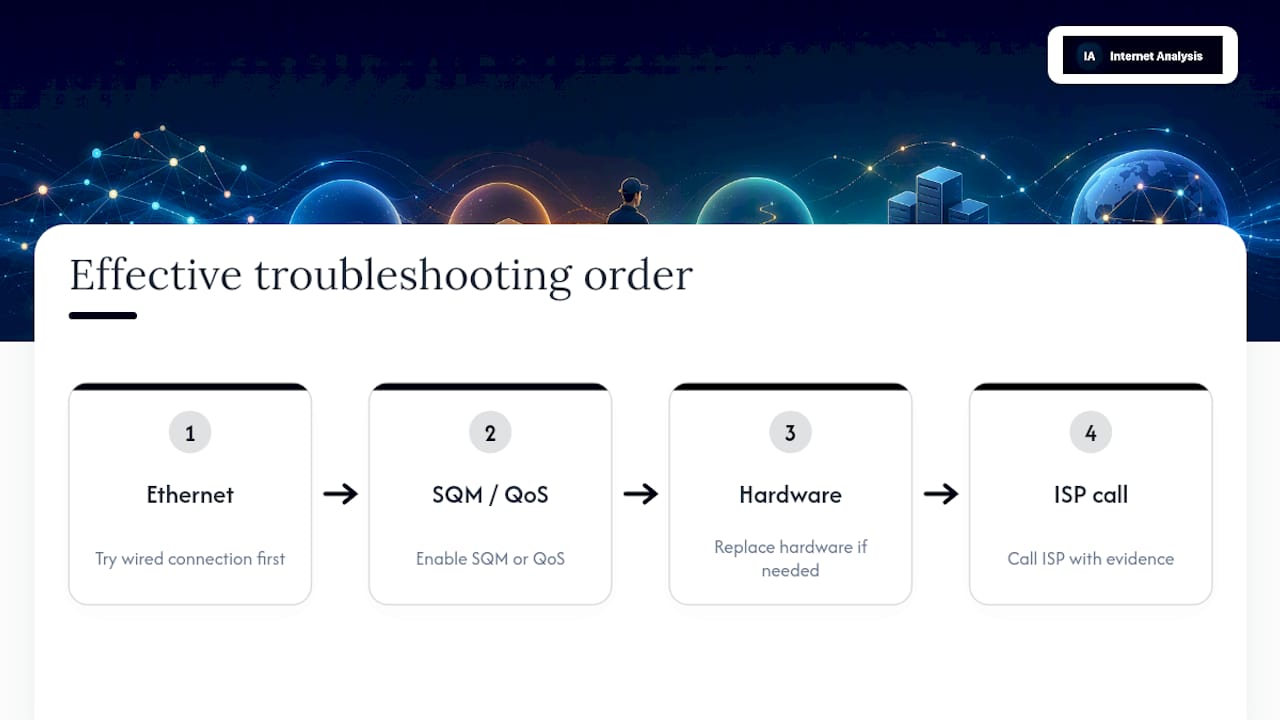
Most people reach for their ISP's phone number first, which is backwards. The order that actually saves time is Ethernet first, then SQM or QoS, then hardware replacement, and only then an ISP call with evidence in hand. Skipping straight to "call the ISP" wastes a support call on a problem that a $20 Ethernet cable would have solved in ten minutes.
The habit that separates a fast fix from a frustrating week of guessing is testing under load before you blame anyone. A ping that looks clean while idle and falls apart the moment someone starts a cloud backup is not an ISP problem; it's a queue management problem sitting in your own router. Document the before and after numbers every time you change something, even something small, because that log is what turns "it feels better" into proof.
If you troubleshoot recurring jitter more than once, start a simple test log now rather than after the third bad video call. Future you will be grateful for the timestamps.
— Tomasz
Test and Track Jitter With Internet Analysis
Diagnosing jitter properly means running the same tests repeatedly and comparing results over time, and doing that by hand with a terminal window gets old fast. Internet Analysis runs a 60 second ping, jitter measurement, packet loss check, and traceroute directly from your browser, and stores anonymized historical results so you can see whether last night's bad call was a one-time fluke or a recurring pattern tied to a specific time of day.
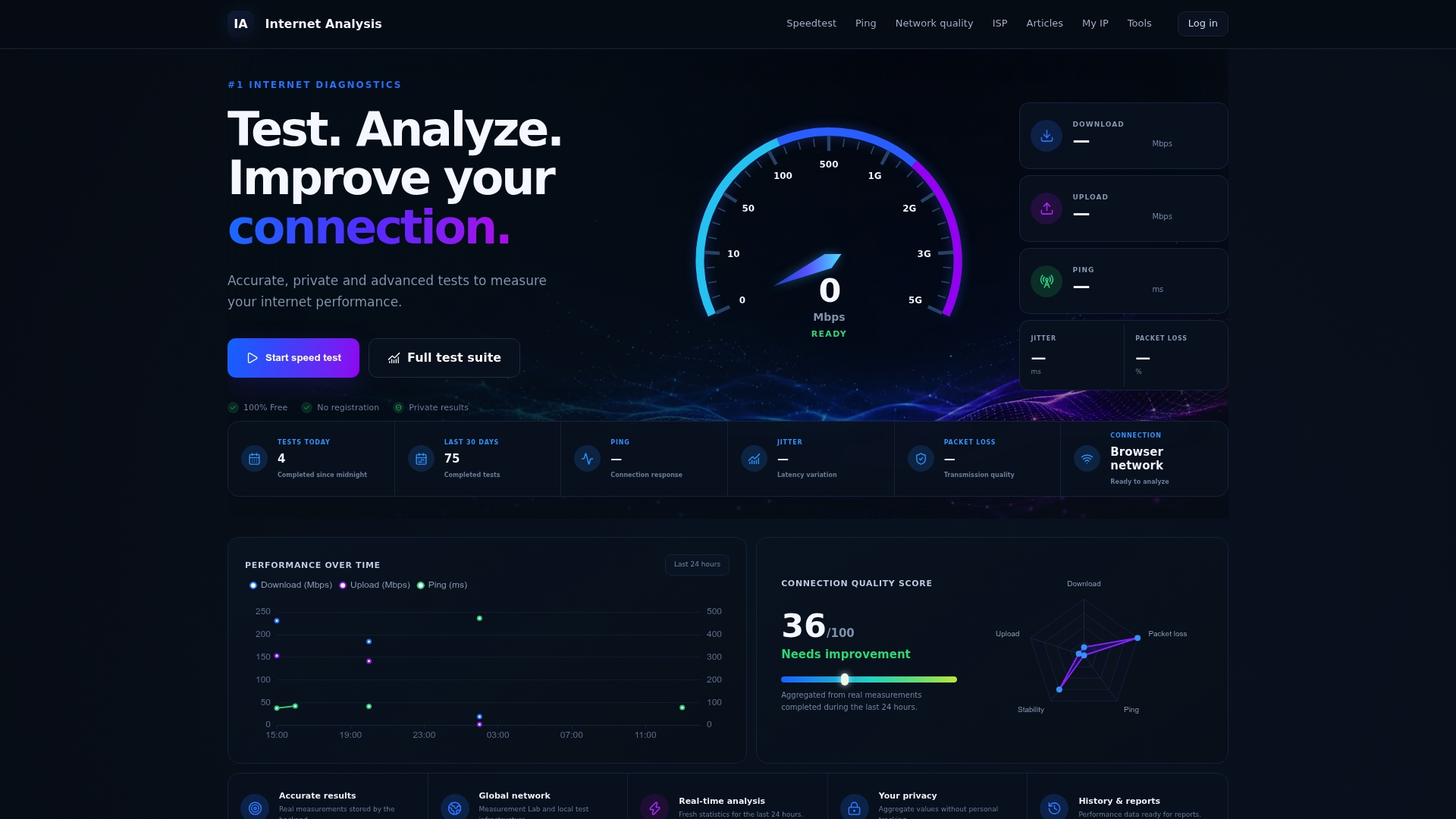
Because results are aggregated without personal tracking, you get real, exportable evidence to bring to an ISP support call without handing over a browsing history in the process. If you're mid-troubleshooting right now, run a free speed and jitter test and save the results before and after your next change, whether that's switching to Ethernet, enabling SQM, or swapping out an aging router. That before-and-after comparison is exactly what turns a support call from "it feels slow" into a resolved ticket.
Sources
Key claims in this guide draw on Meraki's documentation on jitter diagnosis, Paessler's jitter troubleshooting guide, TechRepublic's bufferbloat explainer, and PacketProbe's guide to testing and reducing jitter. For VoIP-specific troubleshooting steps, see Talkroute's VoIP troubleshooting guide.
FAQ
What causes jitter to be high?
High jitter usually comes from Wi-Fi interference, bufferbloat under network load, aging routers with weak packet scheduling, or ISP congestion during peak hours. Running a 60 second ping alongside an MTR trace isolates which of these is responsible in your specific case.
How much jitter is normal for internet?
Jitter under roughly 30 ms is generally fine for video calls and VoIP, while competitive gaming benefits from staying under about 5 ms. Anything consistently higher tends to produce noticeable audio breakup, video stutter, or input lag.
Is a jitter of 2ms good?
Yes, 2 ms of jitter is excellent and well within the range needed for smooth gaming, VoIP, and video conferencing. At that level, packet delay variation is low enough that real-time applications shouldn't show any noticeable degradation.
How can I test my network jitter?
Run a 60 second ping to your router for a LAN check and to a stable public target for a WAN check, then follow up with an MTR trace to find which hop introduces the delay variation. A tool like Internet Analysis runs these tests directly in your browser and keeps a historical record for comparison over time.