
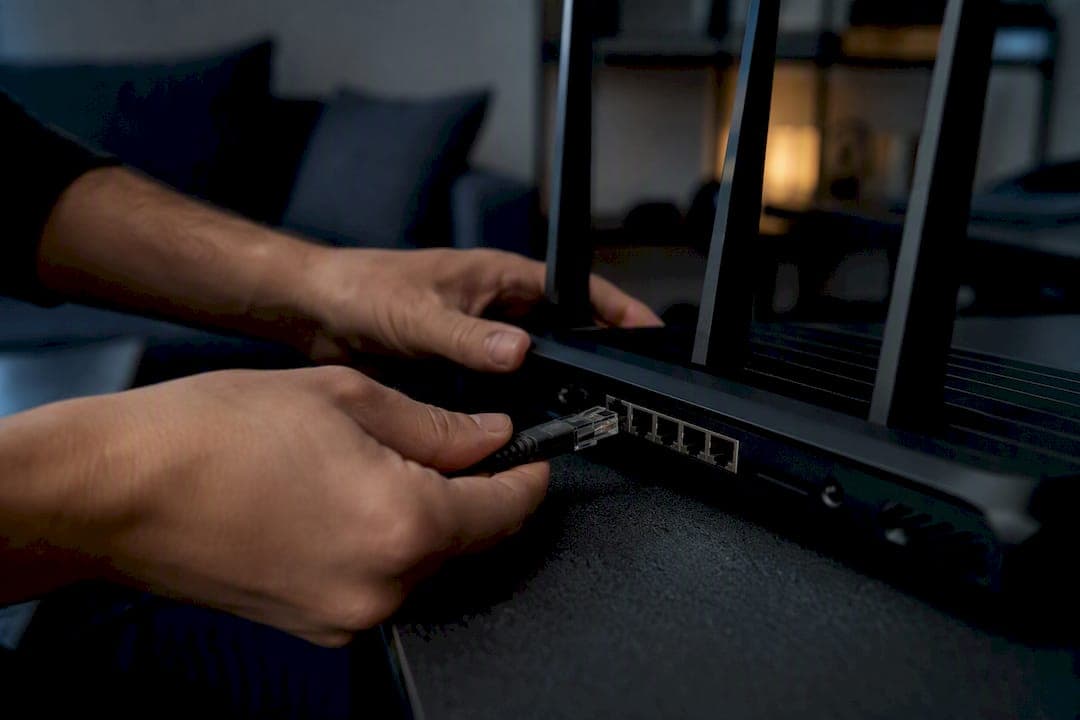
The fastest way to reduce ping is to plug your gaming PC or console into a wired Ethernet connection, then close background apps and pick the nearest server. That single switch typically cuts ping by 5 to 20 milliseconds and sharply reduces jitter and packet loss compared to Wi-Fi, since a cable removes the wireless interference and retransmission delays that spike your connection mid-match.
Two more moves finish the job in the first ten minutes:
- Close or pause anything eating bandwidth in the background: cloud backups, game updates, streaming apps, and especially Windows Update.
- Choose the game server or region physically closest to you. Distance sets a hard floor on latency that no software tweak can overcome.
Before you touch anything, run a quick ping test to record your starting numbers for ping, jitter, and packet loss. Make one change at a time, then test again. That before-and-after comparison is the only way to know whether a fix actually worked or you just got lucky with server load.
Key Takeaways
Wired Ethernet, background app management, and server selection fix most high ping situations, while VPNs, DNS changes, and hardware upgrades solve narrower, specific problems.
| Point | Details |
|---|---|
| Start with Ethernet | Wired connections typically cut ping by 5 to 20 milliseconds versus Wi-Fi and reduce jitter. |
| Test before and after every change | Run a ping and jitter check before and after each fix to confirm it actually worked. |
| Match the fix to the failure layer | Use traceroute or MTR to find whether delay starts locally, at your ISP, or further upstream. |
| DNS and VPNs solve narrow problems | DNS speeds up matchmaking only; VPNs help only when your ISP's routing is genuinely inefficient. |
| Prioritize stability over raw numbers | Low jitter and packet loss often matter more for gameplay feel than shaving a few extra milliseconds off ping. |
Table of Contents
- Quick Fixes to Reduce Ping in Under 15 Minutes
- Router Settings That Cut Jitter and Prioritize Your Traffic
- Do NIC and Windows Settings Actually Lower Ping?
- Does Changing DNS or Using a VPN Reduce Ping?
- How Do You Diagnose Where Latency Is Coming From?
- When Should You Upgrade Your Internet Plan or Switch ISPs?
- Confirm Your Fixes Actually Worked
- Advanced Router Tweaks: MTU Size and Port Forwarding
- Can a Faster CPU or More RAM Lower Your Ping?
- Why Does Your Ping Spike During Peak Hours?
- Do Gaming VPNs Really Reduce Ping?
- Does Your Internet Connection Type Set a Hard Ceiling?
- What Actually Moves the Needle on Ping
- Sources
Quick Fixes to Reduce Ping in Under 15 Minutes
Start with the cable. Run an Ethernet line from your router to your gaming PC or console. If drilling through walls isn't realistic, a powerline adapter (using your home's electrical wiring) or a MoCA adapter (using coaxial cable) usually beats Wi-Fi by a noticeable gap, even though neither matches a direct Ethernet run.
Work through this checklist in order:
- Plug in Ethernet or a wired alternative. This is the highest-yield change you can make in one step.
- Kill background bandwidth hogs. Open Task Manager (Windows) or Resource Monitor, sort by network usage, and close anything you don't need. Pause Windows Update manually. A single large download in the background can add 20 to 50 milliseconds of queuing delay to everything else on your connection.
- Switch server region. Most games let you manually select or prioritize the nearest data center. This won't fix a bad connection, but it removes unnecessary distance from the equation.
- Restart your router and modem. A cold reboot clears cached routing tables and temporary memory leaks that build up over days of uptime, and it's often the fastest way to shake loose a mystery latency spike.
- Switch your DNS to Cloudflare (1.1.1.1) or Google (8.8.8.8). This speeds up matchmaking and connection setup, not your in-match round-trip time. Don't expect it to lower ping once you're already in a match.
Multiple independent guides converge on this same sequence, and for good reason: Ethernet, closing background apps, server selection, and updated firmware consistently rank as the highest-impact, lowest-effort fixes across different setups.
Pro Tip: Run a two-minute ping test before you start this checklist and another after each step. Isolating which single change improved your numbers saves you from re-breaking something later.
Router Settings That Cut Jitter and Prioritize Your Traffic
Quality of Service (QoS) is the router feature most players ignore and most need. Enabling it tells your router which device or traffic type gets priority when your home network is busy, which matters enormously in shared households where someone else is streaming 4K video while you're mid-match.
To configure it properly:
- Set your QoS target bandwidth to about 90% of your tested upload and download speeds, not the full number. Routers that assume 100% of your rated speed is always available tend to overcorrect and choke traffic unnecessarily.
- Prioritize your gaming device by IP address or MAC address rather than by port or application, since IP/MAC-based rules are harder to misconfigure.
- If you're stuck on Wi-Fi, use the 5 GHz or 6 GHz band instead of 2.4 GHz. Both offer less interference and more available channels.
- Log into your router's admin panel and manually select the least congested Wi-Fi channel. Free channel-scanning apps make this a five-minute job.
Router placement matters more than most people assume. Keep it elevated, away from thick walls, microwaves, and baby monitors, all of which interfere with 2.4 GHz signals. Update the router's firmware while you're in the admin panel. Manufacturers regularly patch bugs that cause connection drops and routing inefficiencies.
If your router is more than five years old or lacks QoS entirely, an upgrade is worth considering. Look for models with dedicated QoS processors, Wi-Fi 6 or 6E support, and multiple Ethernet ports rated at gigabit speed.
Do NIC and Windows Settings Actually Lower Ping?
Once your network is optimized, the next layer is your device itself. Outdated network interface card (NIC) drivers are a common, invisible source of latency. Download the latest driver directly from your NIC manufacturer's site or your motherboard maker's support page, not from Windows' generic driver installer, which often lags behind by months.
Inside your NIC's advanced settings, a few adjustments are worth checking:
- Confirm speed and duplex settings match your router (usually "Auto Negotiation" is correct, but forcing 1 Gbps full duplex can help on flaky connections).
- Disable Large Send Offload (LSO), which can introduce buffering delays in latency-sensitive games.
- Disable interrupt moderation, which batches network interrupts to save CPU cycles but adds a few milliseconds of delay in the process.
On the Windows side, disabling Nagle's algorithm and setting TCPNoDelay can help in TCP-heavy, small-packet games. These edge-case tweaks often shave 5 to 15 milliseconds off latency in specific configurations, but they're not universal wins.
Pro Tip: Change one NIC or registry setting at a time and note your CPU usage and connection stability afterward. If a tweak increases CPU load or causes disconnects, revert it immediately. These are advanced settings, not free upgrades.
Does Changing DNS or Using a VPN Reduce Ping?
DNS and VPNs are the two most misunderstood levers in ping reduction, largely because their effects are real but frequently misapplied. Switching to a faster DNS provider speeds up the lookup that translates a server name into an IP address, which helps matchmaking and connection setup. It does nothing to your round-trip time once you're already in a match, since DNS isn't involved in that traffic at all.
VPNs work the opposite way from what most players expect. Adding a VPN typically adds 4 to 20 milliseconds of overhead from encryption and routing through an extra server. The exception is when your ISP's default routing path to a specific game server is inefficient. A VPN can occasionally shortcut around a congested transit hop and lower ping in that specific case.
| Scenario | Likely Effect on Ping |
|---|---|
| Standard DNS switch (Cloudflare/Google) | Faster matchmaking, no change to in-match RTT |
| VPN on an efficient ISP route | Usually adds latency |
| VPN bypassing a congested ISP hop | Can reduce latency, but only sometimes |
The only reliable way to know is to test. Run a traceroute to your game server with and without the VPN active, using a VPN server physically close to that game server, and compare the hop counts and response times directly.
How Do You Diagnose Where Latency Is Coming From?
A structured testing sequence tells you whether the problem is your device, your home network, your ISP, or physical distance to the server, which matters because the fix is completely different in each case.
- Run a baseline speed test alongside a ping, jitter, and packet loss check to establish your starting numbers.
- Ping your router's gateway address (usually 192.168.1.1) to rule out local network problems.
- Ping a public DNS server like 8.8.8.8 to check your connection outside the home network.
- Run a traceroute or MTR to the actual game server and watch for where delay or packet loss first appears.
- Leave a continuous ping running for a few minutes to catch intermittent spikes that a single test would miss.
Matching the fix to the failure layer prevents wasted effort. If MTR shows the delay starting at your first hop, the problem is local. If it appears three or four hops in and stays consistent from there, that's your ISP's routing or backbone, not your equipment.
If you need to escalate to your ISP, screenshot the traceroute results showing where latency spikes, along with timestamps and your baseline ping numbers from before the issue started.
When Should You Upgrade Your Internet Plan or Switch ISPs?
Paying for more Mbps almost never lowers your ping. Bandwidth and latency are different problems: bandwidth determines how much data moves at once, while ping depends on distance, routing efficiency, and how many network hops your data crosses to reach the server. A 1 Gbps plan with poor peering to gaming networks can post worse ping than a modest fiber connection with a clean route.
What actually correlates with lower, more stable latency:
- Fiber-optic service over cable or DSL, since fiber has lower inherent transmission delay.
- Low contention ratios, meaning fewer neighbors sharing your local network segment.
- Strong peering agreements between your ISP and major gaming and cloud networks.
- Proximity to regional data centers and internet exchange points.
Document a pattern of consistent, external hop latency with traceroute logs over several days before switching providers. That evidence tells you whether a new ISP will actually help or just repeat the same routing problem under a different name.
Confirm Your Fixes Actually Worked
Every change above is only useful if you can prove it moved the numbers. Internet Analysis runs ping, jitter, packet loss, traceroute, and historical tracking from one dashboard, so you can measure the exact same metrics before and after each fix instead of guessing.
Run a baseline test, apply one change, and re-test. Watch jitter and packet loss as closely as the raw ping number. A connection with 35 milliseconds ping and near-zero jitter usually plays better than one bouncing between 20 and 60 milliseconds.
- Ping, jitter, and packet loss for real-time connection health
- Traceroute for hop-by-hop diagnosis
- Historical tracking to catch patterns your ISP might dispute
Internet Analysis has run over 25 million tests across more than 180 countries, aggregating results without personal tracking so the data reflects real-world conditions rather than a single lab setup.
Advanced Router Tweaks: MTU Size and Port Forwarding
Beyond QoS, two router-level settings occasionally matter for gamers chasing the last few milliseconds: MTU size and port forwarding.
Maximum Transmission Unit (MTU) controls the largest packet size your connection sends without fragmenting it. The standard is 1500 bytes for most Ethernet connections, but PPPoE connections (common with DSL and some fiber setups) often need 1492 to avoid fragmentation. A mismatched MTU forces your router to split packets into smaller pieces, adding processing delay on every single packet. If your connection uses PPPoE, check your ISP's documentation for the correct MTU value and set it manually in your router's WAN settings rather than relying on auto-detection, which sometimes gets it wrong.
Port forwarding solves a different problem: it opens a direct path for game traffic to reach your specific device instead of getting routed through Network Address Translation (NAT) evaluation on every packet. This mostly helps with connection stability and matchmaking speed (fewer "strict NAT" warnings) rather than shaving raw milliseconds off ping. Still, for games that rely on peer-to-peer connections rather than dedicated servers, forwarding the specific ports your game requires can prevent the packet loss that shows up as connection drops or rubber-banding.
Both settings live in your router's advanced configuration page, usually under "WAN" for MTU and "Port Forwarding" or "Virtual Server" for the second. Change one at a time, and keep a note of your router's default values in case you need to revert.
Can a Faster CPU or More RAM Lower Your Ping?
Not directly, but weak hardware can look exactly like a ping problem when it isn't one. Ping measures the round-trip time between your device and a server. A CPU or RAM bottleneck doesn't change that number, but it can cause the symptoms players mistake for high ping: stutter, input delay, and inconsistent frame pacing that feels like lag even when your actual network latency is fine.
Here's where hardware does matter. An overloaded CPU struggles to process incoming network packets quickly, especially in games with heavy physics or many simultaneous players, which can introduce processing delay that shows up as inconsistent response time rather than a change in your measured ping. Insufficient RAM forces your system to swap data to disk, and that swapping competes for system resources your network stack needs to process packets promptly.
If your ping test shows stable, low numbers but the game still feels laggy, the bottleneck is almost certainly your CPU, RAM, or GPU, not your connection. Check Task Manager during gameplay: sustained CPU usage above 90% or memory usage near your system's limit points to a hardware upgrade, not a networking fix. Closing background applications, which also helps your actual network performance, frees up both bandwidth and processing headroom at the same time. That overlap is why the same basic checklist keeps showing up across ping guides and performance guides alike.
Why Does Your Ping Spike During Peak Hours?
Network congestion follows a predictable daily rhythm, and understanding it explains why your ping might be fine at 10 a.m. and rough at 8 p.m. Evening hours, typically 6 p.m. to 11 p.m. local time, see the heaviest household internet usage as people stream video, game, and video call simultaneously. Your ISP's local network segment has finite capacity, and when everyone in your neighborhood is active at once, that shared capacity gets strained.
This shows up as higher ping and, more importantly, higher jitter: your connection doesn't just get slower, it gets less predictable, with response times swinging between acceptable and terrible from one moment to the next. That instability is often more disruptive to gaming than a consistently higher ping number, since games depend on regular, predictable packet delivery to feel smooth.
If you notice a repeatable pattern where your ping degrades at the same time every evening, that's a strong signal of local network congestion rather than a problem with your equipment. Running a traceroute during a bad period and comparing it to a traceroute during a good period will usually show the congestion appearing at the same hop, typically your ISP's local aggregation point, both times. QoS configuration on your own router helps you compete for priority within your own household, but it can't fix congestion happening further upstream at your ISP's shared infrastructure.
Do Gaming VPNs Really Reduce Ping?
Gaming VPNs and specialized proxy services market themselves as ping-reduction tools, and the claim has a kernel of truth buried in a lot of overselling. These services work by routing your traffic through their own network infrastructure, which occasionally takes a more direct or less congested path to a game server than your default ISP routing does.
The keyword there is "occasionally." A gaming VPN helps specifically when your ISP's default route to a particular server involves an inefficient hop or a congested peering point, and using the VPN's optimized routing bypasses that bottleneck. If your ISP's routing is already efficient, adding a VPN or proxy layer just adds processing overhead and a longer physical path, making your ping worse rather than better.
The only way to know which situation you're in is to test both configurations directly. Run a ping test and traceroute to your target game server without the VPN, then repeat both tests with the VPN connected to a server physically close to that same game server. Compare the numbers side by side. If the VPN reduces ping and hop count, it's solving a real routing inefficiency. If it doesn't, save the subscription fee and focus on the fixes covered earlier in this guide.
Does Your Internet Connection Type Set a Hard Ceiling?
Your physical connection type and your location relative to your ISP's infrastructure impose limits that no amount of software tuning can overcome. Fiber-optic connections carry the lowest inherent latency because light signals travel through glass with minimal degradation, and fiber networks typically have shorter, more direct paths to major internet exchange points.
Cable internet (DOCSIS) performs well for bandwidth but introduces slightly higher latency than fiber due to how it shares a local network segment among neighborhood subscribers. Contention during peak hours affects cable connections more noticeably than fiber for this reason. DSL, which runs over telephone lines, generally posts the highest latency of common wired options because of both the older infrastructure and typically longer physical distance from the ISP's central office.
Satellite internet sits in a category of its own. Even low-earth-orbit satellite services, which perform far better than older geostationary satellite internet, still contend with the physical reality of signal travel time to and from orbit, adding latency that ground-based connections don't face. If competitive gaming is a priority and satellite is your only option, expect a meaningfully higher ping floor no matter how well you optimize everything else on this list.
Your physical distance from your ISP's nearest data center and from the game server itself compounds all of this. Two players with identical connection types and identical routers will see different ping if one lives 50 miles from a server and the other lives 500.
What Actually Moves the Needle on Ping
Most ping advice online buries the one thing that matters most under a dozen tweaks that barely register. Ethernet, closing background apps, and server selection solve the overwhelming majority of high-ping complaints, and everything past that point delivers diminishing returns unless you've already confirmed, with actual measurements, that a deeper problem exists.
The conventional advice falls short in one specific way: it treats DNS changes and VPN subscriptions as reliable ping fixes rather than situational tools that only help under narrow conditions. Most players who try a gaming VPN never run the traceroute comparison that would tell them whether it's actually helping or quietly making things worse.
If you take one thing from this guide, test before you tweak, and test again after. A stable connection with modest jitter beats a lower ping number that swings wildly, and you can't tell the difference between the two without measuring both.
— Tomasz
Sources
Run your own before-and-after checks using Internet Analysis' ping test and traceroute tool. For deeper reading, see Optimum's breakdown of ping, latency, and jitter and Databank's explanation of network latency and interconnection. For a full diagnostic walkthrough, visit how to reduce ping without upgrading your plan.