

The fastest ping reduction comes from three moves, in order: plug in a wired Ethernet connection, manually select the closest game server, and stop any device or app competing for bandwidth. Together these typically shave 5–20 milliseconds off latency from the cable switch alone, with server selection and bandwidth relief adding more depending on distance and household traffic. Run a baseline latency test before touching anything, then retest after each change so you know which fix actually worked.
TL;DR:
- Connecting your device with an Ethernet cable typically reduces ping by 5 to 20 milliseconds and eliminates Wi-Fi interference.
- Manually selecting the nearest game server and pausing background downloads can further lower latency, especially if traffic is local or household bandwidth is limited.
- Enabling bufferbloat mitigation techniques like SQM with fq_codel or cake, along with proper bandwidth settings, significantly reduces latency spikes under load.
- Troubleshooting should focus on measuring latency at each step, starting from the router and ISP network to the game server, to identify where delays originate.
- Upgrading outdated router hardware, especially if it is more than five years old, can improve latency management beyond basic configuration tweaks.
Table of Contents
- Quick Fixes You Can Do in 5 to 30 Minutes
- How Do You Find Where Your Latency Is Coming From?
- Router and Home Network Fixes That Actually Reduce Jitter
- Windows and Network Adapter Tweaks Worth Testing
- When a VPN or Routing Optimizer Actually Helps
- Could Your ISP Be Throttling Your Connection?
- Do Gaming DNS Servers Actually Lower Ping?
- Does Better Hardware Beyond the Router Matter?
- Author Perspective: Why Measurement Beats Guessing Every Time
- Verify Every Fix With Real Numbers, Not Guesswork
- Sources
Quick Fixes You Can Do in 5 to 30 Minutes
Before adjusting router settings or digging into network drivers, run through the fixes that cost nothing and take less time than a matchmaking queue.
- Go wired. A Cat5e or Cat6 Ethernet cable typically cuts latency by 5 to 20 milliseconds compared to Wi-Fi, and it eliminates most of the jitter that Wi-Fi introduces from interference and signal drops.
- Restart your router and modem. A simple power cycle clears stuck connections and resets any congestion your equipment has quietly accumulated.
- Pick the closest server manually. Ping is bound by distance and the speed of light through fiber, so a server one region over will almost always beat a server on another continent, no matter how good your connection is.
- Pause background downloads and updates. Game client patches, cloud backups, and Windows updates all compete for the same pipe your match traffic needs.
- Check other devices on the network. A roommate's 4K stream or a kid's tablet downloading a game update can spike your ping even when your own setup is perfect.
- Consider switching DNS providers for faster matchmaking. Changing DNS speeds up connection setup and matchmaking but doesn't touch your in-match round-trip time once you're already in a game.
Run a speed and latency test before and after each step. If a number doesn't move, that fix wasn't your bottleneck, and you can cross it off the list.
Pro Tip: Keep a simple log, even just three lines in a notes app, of your ping before and after each change. It takes ten seconds and saves you from re-testing the same fix twice next month.
How Do You Find Where Your Latency Is Coming From?
Guessing wastes time. Many popular guides repeat the same short list of tips, but the fixes that stick come from finding which layer, your device, your home network, your ISP, or the game server itself, is actually adding the milliseconds.
Start with a baseline test using Internet Analysis's speed and latency tool or another trusted tester, and record your ping, jitter, and packet loss. Then work outward:
- Ping your router. Wired, this should read under 1 to 5 milliseconds. Anything higher points to a local hardware or driver issue, not your ISP.
- Ping a hop or two into your ISP's network. This isolates whether delay starts inside your home or the moment traffic leaves it.
- Ping the actual game server, if the game or a third-party tool lets you grab its IP.
- Run traceroute or mtr to the server. This shows the specific hop where latency jumps, which tells you whether the problem sits at your router, your ISP's transit network, or somewhere near the destination.
One number worth checking specifically: does your ping climb sharply only when the connection is under load, say, while someone streams video or a big download is running? That pattern is bufferbloat, and it behaves very differently from a flat, consistently high ping that suggests distance or ISP routing. A quick way to spot CGNAT or strict NAT trouble is repeated connection drops or matchmaking failures despite a clean ping. Whatever your baseline shows, write it down. It's the number every later fix gets judged against.
Router and Home Network Fixes That Actually Reduce Jitter
Bufferbloat is the most underrated cause of gaming lag. It happens when your router lets too much data queue up before sending it, so latency balloons the moment your connection gets busy. Enabling Smart Queue Management (SQM) with an algorithm like fq_codel or cake can reduce extreme latency spikes under load to significantly lower levels. The catch: SQM only works well if you set the target bandwidth slightly below your actual measured speed.
- Set SQM's bandwidth target to roughly 85 to 90 percent of your measured download and upload speeds. Going higher lets the buffer fill back up; going much lower wastes throughput you're paying for.
- Turn on Quality of Service (QoS) and prioritize your gaming device or its traffic type, often labeled DSCP or "highest priority" in router firmware.
- On Wi-Fi, use the 5 GHz band over 2.4 GHz, keep the router within line of sight if possible, and disable band steering if it's causing your device to hop networks mid-match.
- If running a cable isn't realistic, MoCA (over coax) or powerline adapters usually beat Wi-Fi for consistency, even if their peak speeds are lower.
- Cat6 or Cat6a cable isn't strictly necessary for gaming latency over Cat5e at short distances, but it future-proofs you for higher speeds and reduces interference risk on longer runs.
Pro Tip: A router marketed as a "gaming router" isn't automatically better for latency. What matters is whether it actually supports SQM with fq_codel or cake. Check the specs or firmware options before assuming the label means anything.
Router age matters more than people expect. If yours is more than four or five years old, weak CPU power alone can bottleneck SQM even when your internet plan is fast enough.
Windows and Network Adapter Tweaks Worth Testing
TCP-based games (older titles, mostly) can suffer from Nagle's Algorithm, a decades-old feature that batches small packets together before sending them, trading a few milliseconds of delay for network efficiency. Disabling Nagle's Algorithm, known as TCPNoDelay, alongside certain NIC power-saving features, can shave 5 to 15 milliseconds off small-packet latency on TCP-based games. It does nothing for UDP-based shooters, which is most competitive multiplayer titles today, so check which protocol your game uses before bothering.
- In your network adapter's advanced settings, disable Energy Efficient Ethernet and Interrupt Moderation, both of which introduce small delays to save power.
- Manually set speed and duplex to match your router instead of leaving it on auto-negotiate.
- Disable Flow Control unless you're seeing packet loss it's meant to prevent.
- Update your network drivers directly from the manufacturer's site rather than relying on Windows' generic driver.
- Test every change with a simple before-and-after: run
ping -n 50 [server]ortracertbefore the tweak and again right after.
Pro Tip: If a tweak causes higher CPU usage or connection instability instead of smoother pings, revert it. Not every setting helps every setup, and stacking too many changes at once makes it impossible to tell which one is responsible for a result.
MTU tuning and Large Send Offload adjustments can help in specific router or ISP combinations, but they're situational enough that they're not worth touching until the more common fixes above have been tested. A detailed Windows 11 gaming optimization guide covers additional adapter-level settings if you want to go further.
When a VPN or Routing Optimizer Actually Helps
A VPN adds a hop, which usually adds latency, not removes it. It only helps when it routes your traffic more efficiently than your ISP does, or when it bypasses ISP-level throttling on gaming traffic. Routing optimizers work on a similar principle but focus specifically on finding a cleaner path to game servers rather than encrypting traffic for privacy.
- Run traceroute to your game server without a VPN, note the average and jitter.
- Connect to a VPN node physically close to the game server, then run traceroute again.
- Compare both results directly rather than trusting how the game "feels."
- Only pay for a subscription if the improvement holds across multiple sessions and times of day, not just one lucky test.
If checking for ISP throttling reveals your provider is deprioritizing gaming traffic, a VPN or optimizer becomes far more likely to help than in a clean connection.
Could Your ISP Be Throttling Your Connection?
Some ISPs manage bandwidth during peak hours, deprioritizing certain traffic types when the network gets congested. Gaming traffic isn't usually the primary target, streaming and torrenting typically are, but shared network congestion can still hit your ping indirectly if your ISP is oversubscribed in your area.
The tell is timing. If your ping and packet loss spike specifically during evening hours (roughly 6 to 11 PM, when most households are online) but stay clean at 3 AM, that's a strong signal of local network congestion rather than anything wrong with your setup. Run identical latency tests at both times and compare.
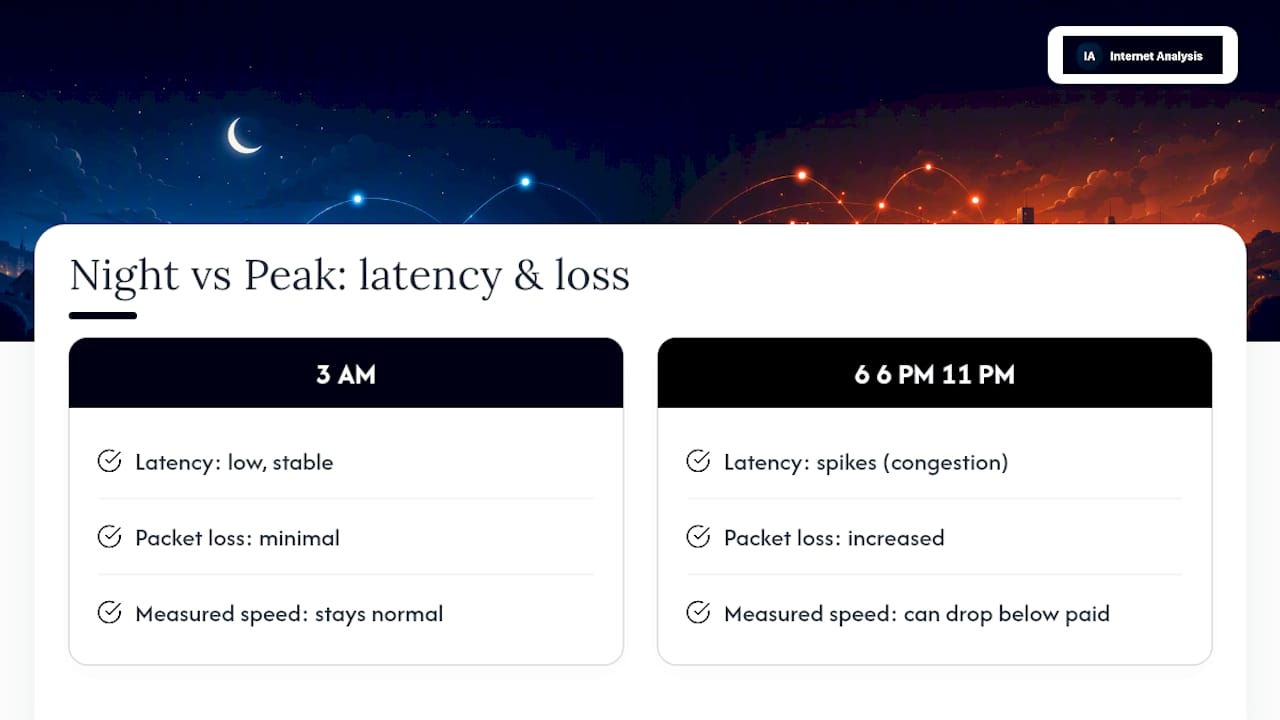
To check for throttling specifically, run a speed test and latency check at different times of day and note whether your measured speeds drop well below what you're paying for during peak hours while staying normal overnight. A VPN test can also help here: if your ping to a game server improves noticeably through a VPN during peak hours but shows no difference at 3 AM, your ISP is likely deprioritizing that traffic type when the network is busy.
If throttling is confirmed and consistent, your realistic options are contacting your ISP directly, using a VPN during peak hours as described above, or comparing other providers available at your address. None of these are guaranteed fixes, but they're better than assuming your router or game settings are the problem when the real bottleneck sits upstream.
Do Gaming DNS Servers Actually Lower Ping?
Switching to a gaming-focused DNS service will speed up how quickly your device resolves server addresses and connects during matchmaking. It will not lower your ping once you're already in a match. DNS changes affect connection setup speed, not the ongoing round-trip time between you and the game server.
That distinction trips up a lot of players. A faster DNS lookup can shave a second or two off loading into a lobby, which feels meaningful, but it has zero effect on the actual packet travel time during gameplay. If your in-match ping is high, changing DNS providers won't fix it. If your matchmaking or lobby loading feels sluggish, a faster DNS provider is worth trying, since that's the specific symptom it actually addresses.
Worth testing regardless, since it costs nothing: switch your DNS settings to a public, low-latency provider and see if connection times improve. If they don't, revert and move on to fixes that target your actual in-match ping instead.
Does Better Hardware Beyond the Router Matter?
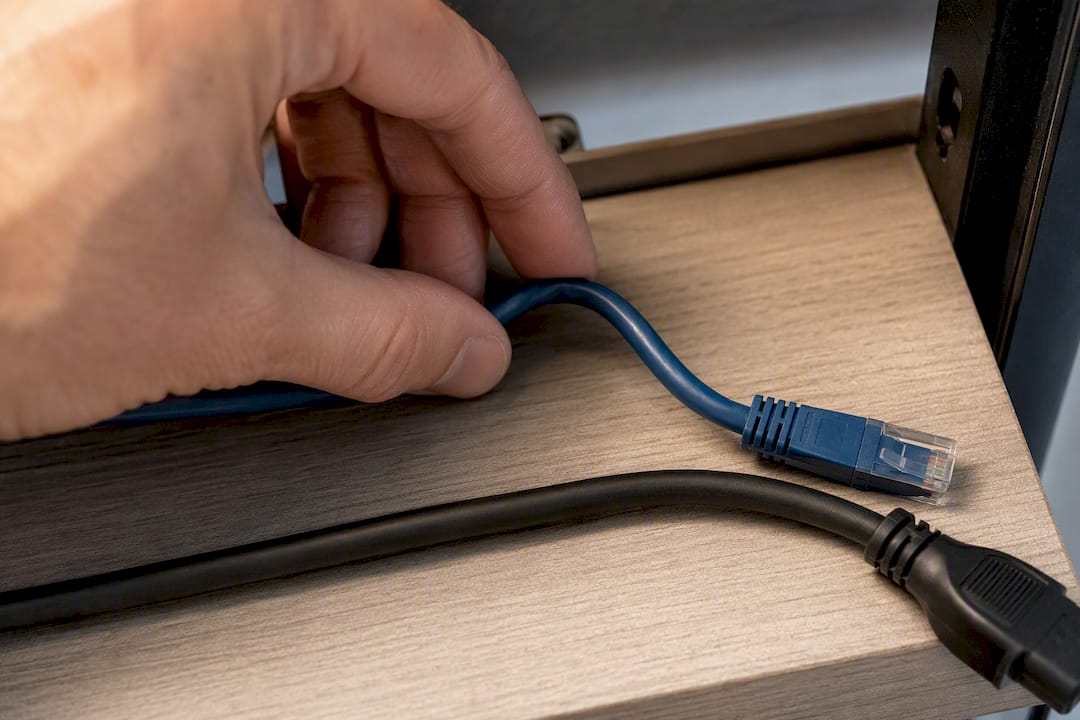
Cable quality matters more than most players assume, and it's the cheapest fix on this entire list. A worn or poorly shielded Ethernet cable, especially one that's been bent sharply or run near power lines, can introduce packet errors that show up as intermittent latency spikes rather than a consistently high ping. If you're still on whatever cable came in the box, a shielded Cat6 cable is a five dollar fix worth trying before blaming your ISP.
Gaming-specific network cards exist and some do offer lower CPU overhead for packet processing, which can reduce jitter under heavy load, like when you're gaming while something else on the same machine, like a stream or a background render, is chewing through resources. For a single-purpose gaming PC without heavy multitasking, the practical difference is usually small enough that it's not the first upgrade worth making.
Router hardware age is a bigger factor than most gamers expect. A five-year-old router's CPU can bottleneck SQM and QoS features even when your internet plan is fast enough to handle modern gaming traffic. If you've applied the router-level fixes above and still see inconsistent results, the router itself, not your ISP or your game settings, may be the actual limit.
Author Perspective: Why Measurement Beats Guessing Every Time
Most latency advice skips the step that actually matters: measuring before you touch anything. Players who tweak DNS when the real problem is bufferbloat waste time and often convince themselves a placebo fix worked. If you're a casual player, start with Ethernet and server selection. If you're competitive and chasing the last 10 milliseconds, go straight to traceroute and SQM. Either way, keep a baseline. It's the only way to catch a regression before it costs you a ranked match.
— Tomasz
Verify Every Fix With Real Numbers, Not Guesswork
Every fix in this article only means something if you can measure its effect. Internet Analysis's diagnostic suite gives you the same measure, fix, verify loop professionals use, built from real-world test data rather than guesswork: latency and jitter readings, packet loss detection, traceroute analysis, and bufferbloat checks, all in one place, with no personal tracking attached to your results.
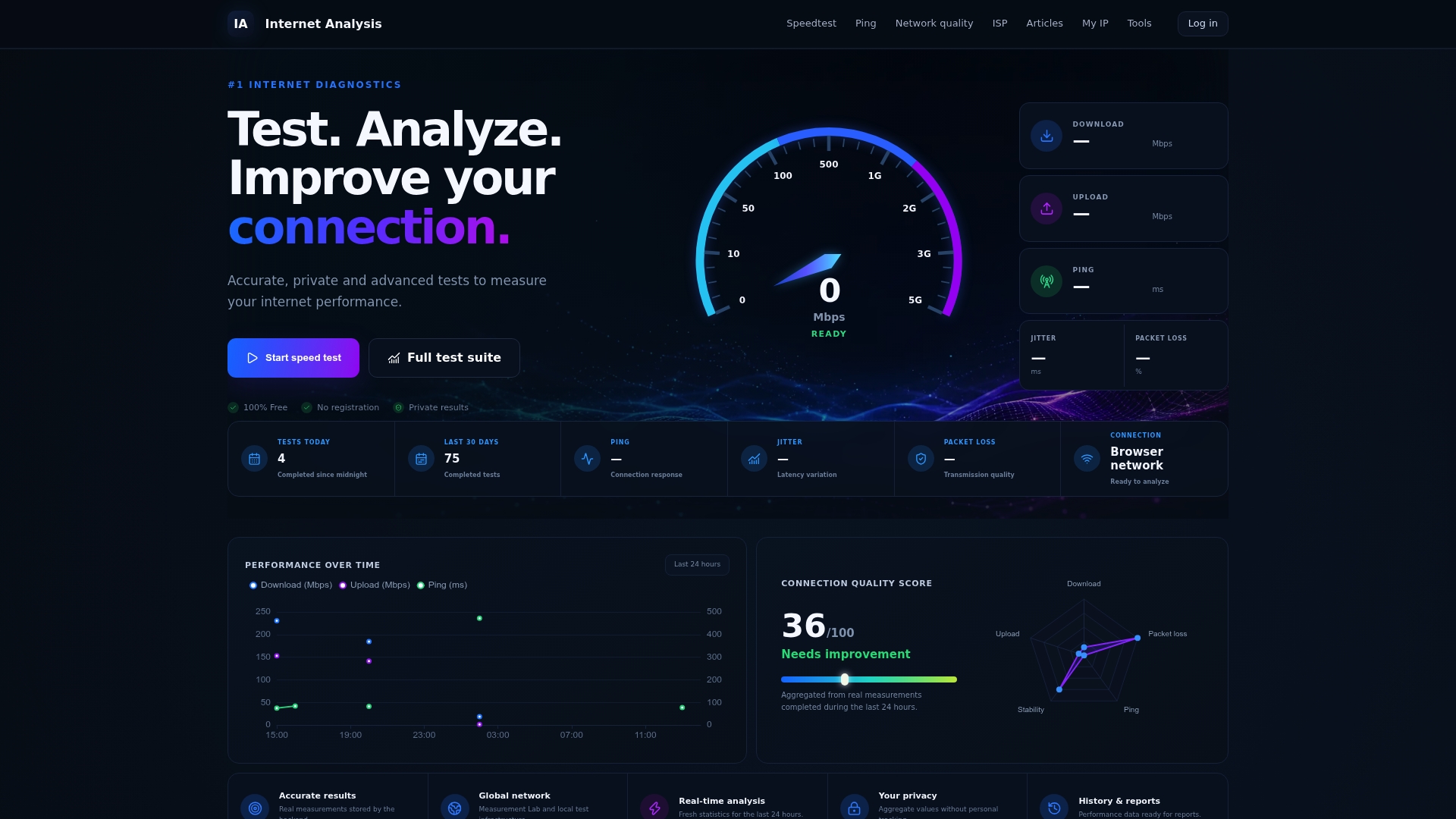
Run a baseline speed and latency test before you change a single setting, then retest after each fix from this guide, wired connection, SQM, adapter tweaks, whatever you tried first. If you're troubleshooting gaming specifically, the online gaming diagnostics page breaks results down against the thresholds that actually matter for competitive play, so you know within minutes whether a change is worth keeping or worth reverting.