

Most slow upload speed problems trace back to one of two causes: an asymmetric ISP plan that never offered much upstream bandwidth to begin with, or a local bottleneck like Wi-Fi congestion, background cloud syncs, or an outdated modem. Run a wired speed test first and pause any cloud backups before you troubleshoot further. If the wired number still matches your plan's advertised upload speed, the issue is that your plan or hardware may limit your upload speed more than your local setup.
TL;DR:
- Most slow upload speeds result from legacy asymmetric cable plans with limited upload bandwidth or outdated hardware that cannot support newer spectrum upgrades.
- Conduct wired tests during peak hours to accurately assess if the issue stems from your plan or local network conditions before troubleshooting further.
- Wireless interference, bufferbloat, or background uploads often cause Wi-Fi-related slowdowns, making wired tests essential for a true diagnostic.
- Upgrading your modem to support Mid-Split or High-Split spectrum can significantly increase upload speeds if your wired test shows a ceiling below your plan's advertised upload rate.
- Malware infections can hijack upload capacity without obvious signs, so running full system scans is crucial if bandwidth remains unexpectedly low after hardware checks.
Table of Contents
- How Do You Test and Verify Upload Speed?
- What Causes Slow Uploads on a Home Network?
- Step-by-Step Troubleshooting Checklist
- When Do You Need New Hardware or an ISP Upgrade?
- Confirm the Diagnosis With Deeper Testing
- Can Malware Cause Slow Upload Speeds?
- How Do Device Limitations Affect Upload Speed?
- What Upload Speed Do You Actually Need?
- Test and Document Your Upload Speed Before You Call Your ISP
- Sources
- FAQ
How Do You Test and Verify Upload Speed?
Testing over Wi-Fi first is the most common mistake people make when chasing decreased upload performance. Wireless interference, distance from the router, and other connected devices can all shave Mbps off a result that has nothing to do with your actual internet plan. Isolate the variable before you draw conclusions.
Here's a sequence that produces a trustworthy result:
- Connect a laptop or desktop directly to the modem or router with an Ethernet cable.
- Close background apps, browser tabs, and any device backups running on other machines on the network.
- Run a speed test three or four times, spaced a few hours apart, including once during your peak usage window.
- Record upload Mbps, jitter, and packet loss for each run, not just the headline number.
- Repeat the same test over Wi-Fi and compare the two sets of results.
Upload Mbps tells you raw throughput, but jitter and packet loss reveal instability that a single "download speed test" often misses. If Ethernet numbers look healthy but Wi-Fi numbers lag, you've isolated a wireless problem. If both are low, check Task Manager on Windows or Activity Monitor on a Mac for any process quietly uploading in the background, a common and easily missed culprit.
What Causes Slow Uploads on a Home Network?
Most poor internet upload speed complaints come down to a handful of repeat offenders, and each one implies a different fix.
- Cable asymmetry. Traditional cable networks allocate the vast majority of coaxial spectrum to downloads, which is why a typical plan might only offer substantially less upload bandwidth.
- Background uploads. Cloud backup tools, security camera feeds, and file-sharing apps compete for the same limited upstream pipe your video call needs.
- Wi-Fi weakness and bufferbloat. Weak signal strength causes retransmissions, while bufferbloat lets queues fill up and stall real-time traffic even when raw Mbps look fine.
- Wiring and provisioning issues. A damaged cable, an extra splitter, or a modem that was never provisioned correctly by the ISP can quietly cap your upstream.
Cable providers commonly allocate around 90% of spectrum to downloads and just 10% to uploads, which leaves many legacy plans with upload ceilings of roughly 10 to 35 Mbps regardless of how fast downloads look on paper. That asymmetry is baked into the infrastructure, not a fault in your equipment.
Pro Tip: A router displaying full signal bars doesn't guarantee good upstream performance. Signal strength and upload throughput are related but not the same thing, especially once bufferbloat enters the picture.
Step-by-Step Troubleshooting Checklist
Run through these five steps in order. Most slow upload speed issues resolve somewhere in the first three.
- Wire in and test. Connect via Ethernet and compare your result against the upload speed listed on your plan. A match means the limit is your plan, not your setup.
- Pause cloud syncs and find the top sender. Temporarily disable backup services like cloud photo sync or automated video uploads, then check Task Manager or Activity Monitor for the process consuming the most upstream bandwidth.
- Reboot, then update firmware. Power-cycle the modem and router, check for a pending firmware update, and only consider a factory reset if the problem persists after both.
- Disable VPNs and check for bufferbloat. VPN overhead can cut upload throughput by 20 to 50% depending on encryption and server distance. Turn it off and retest. If your connection shows high latency under load, enable SQM or QoS on your router to manage bufferbloat, or set per-app bandwidth limits if your router supports it.
- Inspect cabling and splitters. A worn coax cable, a corroded connector, or one too many splitters between the wall and the modem can silently degrade upstream signal. Swap the cable or plug directly into a different outlet to rule this out.
Pro Tip: If step 1 already matches your plan speed, skip straight to Section 5 below. There's no point chasing a router setting when the ceiling is coming from your ISP.
When Do You Need New Hardware or an ISP Upgrade?
Some upload speed issues can't be solved by rebooting anything. Cable providers are gradually rolling out Mid-Split and High-Split network upgrades, which reallocate more coaxial spectrum to uploads instead of leaving it almost entirely to downloads. The catch: your modem has to support it.
Many legacy DOCSIS 3.0 and even some DOCSIS 3.1 modems can't access Mid-Split or High-Split spectrum at all, no matter what your ISP enables on their end. If your provider upgrades the network but your modem stays the same, your upload speed stays capped exactly where it was.
Before assuming you need a whole new plan, check your modem model's spec page for Mid-Split or High-Split support, and have that model number ready when you call your ISP.
| Situation | Likely fix |
|---|---|
| Wired test matches plan speed, plan is asymmetric cable | Ask ISP about Mid-Split eligibility or upgrade to a compatible modem |
| Wired test is well below plan speed | Modem provisioning issue or faulty cabling, contact ISP |
| Consistent high upload needs (streaming, large files) | Ask about symmetrical fiber plans in your area |
| Router is old but modem is new | Router replacement likely won't fix upload speed |
Swapping the modem often solves more upload problems than swapping the router, since the router only manages traffic that's already inside your home network. The modem is the actual gateway to your ISP's upstream capacity, and no amount of router tuning gets around a modem that physically can't use the available spectrum.
Confirm the Diagnosis With Deeper Testing
A single speed test rarely tells the whole story, especially with intermittent issues that come and go depending on the time of day. Running a broader diagnostic before calling your ISP saves you from a support call where you can't answer their first question.
- Packet loss and jitter checks reveal whether the problem sits with your local network or somewhere further along your ISP's routing path.
- A traceroute analysis shows exactly where in the path a connection is slowing down or dropping packets.
- Running tests at different times of day and comparing the history exposes intermittent congestion that a single test would never catch.
- Aggregated, non-tracking results mean you can run repeated tests throughout the day without handing over personal data just to build a useful record.
Documenting a pattern, not just a single bad number, is what actually moves an ISP support call forward.
Can Malware Cause Slow Upload Speeds?
Yes, and it's one of the more overlooked causes of decreased upload performance. Malware infections frequently hijack upstream bandwidth without any visible symptom beyond a sluggish connection. Botnet malware, in particular, is designed to quietly upload data to command servers or participate in distributed attacks, and that traffic competes directly with whatever you're trying to send.
Cryptomining malware behaves similarly. While it's better known for maxing out CPU usage, many variants also transmit data back to remote servers on a regular schedule, chewing through upload bandwidth in the process. Spyware and adware can do the same thing by sending browsing data or ad-tracking information upstream continuously.
The tell is usually a mismatch: your wired speed test shows a low upload number, but no legitimate app or backup service explains where the bandwidth is going. That's your cue to scan.
Run a full system scan with your operating system's built-in protection, Windows Security on Windows or XProtect on macOS, and follow up with a dedicated on-demand scanner. After the scan, watch your network activity monitor for a few minutes with all other apps closed. If you still see steady upload activity you can't attribute to anything you're running, that's a strong signal something malicious is still transmitting in the background, and a deeper malware removal step is worth the time.

How Do Device Limitations Affect Upload Speed?
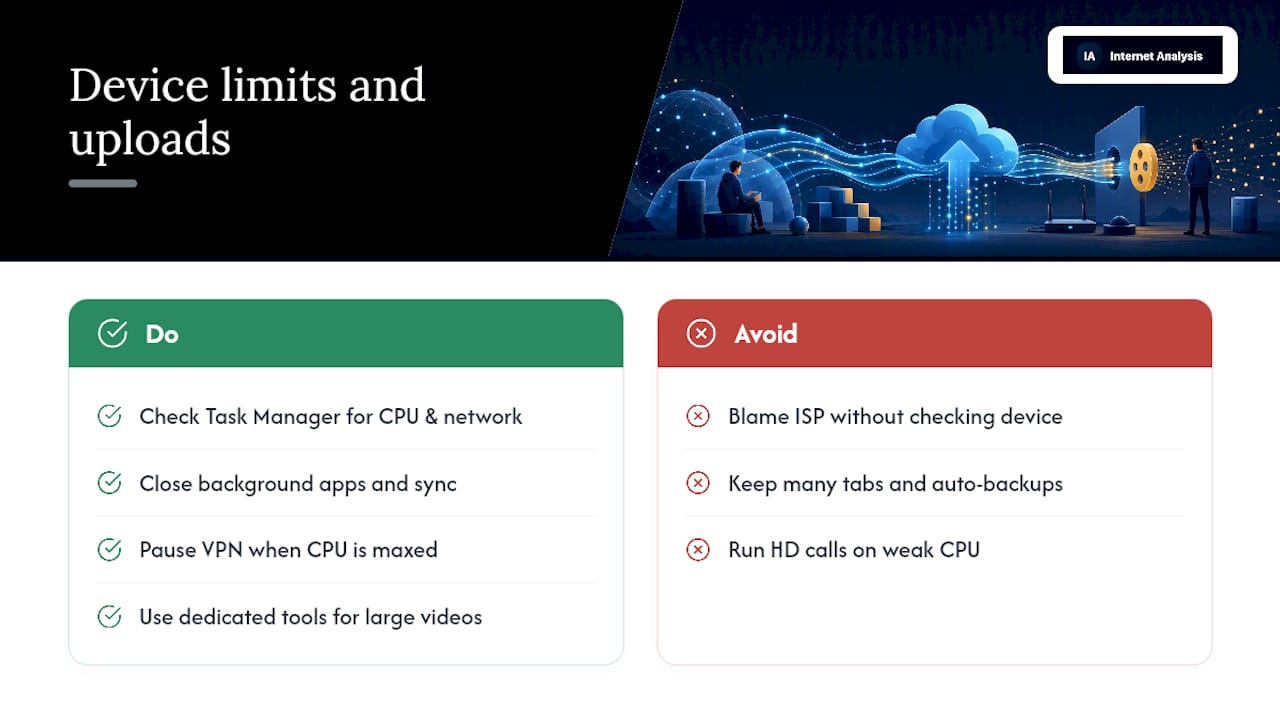
Your device itself can bottleneck upload speed before the signal even reaches your router. Older laptops with outdated Wi-Fi chipsets, for example, may only support older wireless standards that cap throughput well below what your router and ISP plan can actually deliver.
Background applications compound the problem in ways that are easy to miss. Automatic photo backups, video conferencing apps left running in the background, software update checks, and browser tabs with autoplay video can all claim a slice of your upstream bandwidth simultaneously. On a laptop juggling a dozen open tabs and two sync services, the operating system is splitting a limited upload pipe across all of them at once, and none of them get full speed.
CPU and memory constraints matter too. An older device struggling to keep up with encryption overhead, especially over a VPN or a secure video call, can create the appearance of a slow upload speed issue when the real limitation is processing power rather than bandwidth. This shows up most often on budget laptops handling HD video calls while multiple browser tabs stay open.
Checking Task Manager or Activity Monitor for both network usage and CPU load at the same time gives you a clearer picture. If CPU usage spikes to near 100% while your upload struggles, the fix might be closing background apps rather than calling your ISP. For creators regularly sending large video files, tools designed specifically for that kind of transfer, like Nara's approach to sending large videos, can also reduce the practical impact of a limited upload connection.
What Upload Speed Do You Actually Need?
A one-on-one video call needs about 1.5 to 3 Mbps upload; group calls with screen sharing want 3 to 4 Mbps, and creators streaming or uploading large files should aim for 15 to 30 Mbps or more. If your wired test clears those numbers, prioritize router and QoS fixes. If it doesn't, a modem or plan upgrade is the better investment.
— Tomasz
Test and Document Your Upload Speed Before You Call Your ISP
Internet-analysis gives you the tools to turn "my uploads feel slow" into a documented, time-stamped case your ISP can't wave away. Start with the speed test to check upload Mbps against your plan, then run the alternative speedtest for a deeper look at jitter and packet loss, the metrics that reveal instability a single number hides.
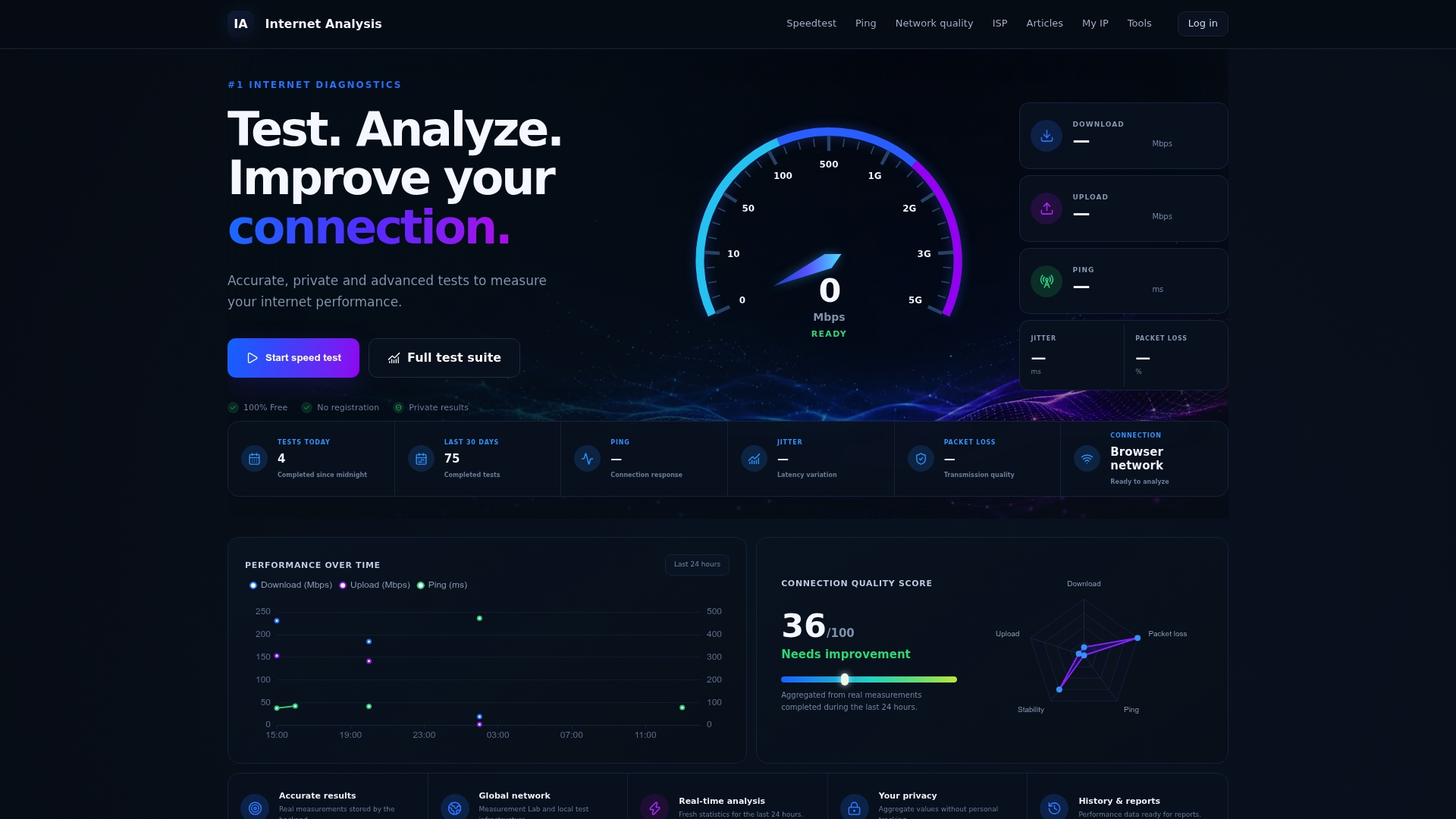
Every test on Internet-analysis draws from a global measurement network and gets aggregated without personal tracking, so you can run the same check five times a day for a week without handing over data you didn't mean to share. That history matters: intermittent upload problems rarely show up in one test, but a pattern across several days is exactly what convinces an ISP support rep to escalate a ticket instead of asking you to reboot again. If your results point to a hardware ceiling rather than a temporary glitch, check the network quality page to build that documented history, then bring the numbers with you when you contact your provider.
Sources
For official broadband definitions and thresholds, see the FCC's broadband speed guide. For cable asymmetry and step-by-step fixes, see CNET's breakdown of upload speed causes. For modem compatibility details, see Hitron's DOCSIS modem documentation.
- FCC research guide on broadband service for home consumers
- CNET — Struggling With Slow Upload Speeds? Here's What's Causing Them, and How to Fix It
FAQ
How Do I Fix a Slow Upload Speed?
Run a wired speed test to compare your actual upload against your plan, pause any cloud backups, reboot your modem and router, and check for background apps consuming upstream bandwidth before assuming it's an ISP problem.
Is 10 Mbps Upload Slow?
It's on the low end for a modern connection, but it's usually enough for one-on-one video calls and normal browsing; it can feel slow for group calls with screen sharing, large file uploads, or live streaming.
Is 1.7 Mbps Upload Speed Good?
No, 1.7 Mbps sits below the roughly 3 Mbps threshold the FCC considers a baseline for smooth modern online activities, and it can cause choppy video calls or failed uploads.
Why Is My Internet Upload Speed Slow?
The most common causes are asymmetric cable plans with low upload ceilings, background cloud syncs competing for bandwidth, weak Wi-Fi signal, bufferbloat, or an outdated modem that can't access upgraded upstream spectrum.