
Download speed determines how fast you receive data (streaming, browsing, gaming downloads), while upload speed determines how fast you send it (video calls, cloud backups, live streaming). Most home users should prioritize download; streamers, remote workers, and anyone using cloud storage should prioritize upload. If you're unsure where you stand, run a speed test now and compare your numbers to the benchmarks below.
TL;DR:
- Most home users can comfortably stream HD to 4K content with 5-50 Mbps download speeds, but multiple simultaneous 4K streams require over 100 Mbps.
- Upload speeds of 3-5 Mbps support smooth video calls, and at least 10 Mbps are recommended for reliable live streaming and large file uploads.
- Fiber offers symmetrical speeds ideal for remote work and streaming, unlike cable or DSL, which typically have much slower upload bandwidth.
- Testing internet performance requires Ethernet connections, multiple tests during peak hours, and monitoring ping and jitter for accurate assessment.
- Upgrading your plan or switching to fiber is necessary if consistent testing shows your upload speed cannot support your live streaming or cloud backup needs.
Table of Contents
- What Is Download Speed and When Does It Matter?
- What Is Upload Speed and Who Actually Needs It?
- Why Is Upload Speed Usually Slower Than Download?
- How Much Internet Speed Do You Actually Need?
- How Do Fiber, Cable, DSL, 5G, and Satellite Compare?
- How Do You Test Your Speed the Right Way?
- What Should You Do If Your Speed Falls Short?
- A Publisher's Note on Diagnosing Real Connection Problems
- Ready to See Your Real Upload and Download Numbers?
- Sources
What Is Download Speed and When Does It Matter?
Download speed measures how quickly your connection pulls data from the internet to your device, measured in megabits per second (Mbps). It's the number most providers advertise, and for good reason: it governs nearly every passive activity you do online.
Web browsing, streaming, and downloading files all lean almost entirely on download bandwidth. The FCC's broadband speed guide sets baseline benchmarks that most providers design their plans around, and those benchmarks map cleanly to everyday tasks:
- General browsing and email: 5–10 Mbps
- HD video streaming (1080p): 5–8 Mbps per stream
- 4K streaming: 25–50 Mbps per active screen
- Downloading large games or files: 50–100+ Mbps for reasonable wait times
- Multiple simultaneous 4K streams: 100+ Mbps combined
A single-person household streaming in HD rarely needs more than a moderate Mbps download. A family running two 4K TVs and a laptop downloading updates in the background is a different story entirely, and that's where the math starts to matter more than the marketing.
What Is Upload Speed and Who Actually Needs It?
Upload speed measures how fast your device sends data out, and it's the number most residential plans quietly shortchange. If you've ever had a smooth video call turn choppy right when someone else in the house started uploading photos, you already know why this number deserves attention.
Video calls, cloud backups, large file transfers, and live streaming all depend on upload bandwidth, and the requirements vary sharply by task:
- Video calls (Zoom, Teams, FaceTime): 3–5 Mbps per participant stream
- Cloud backup or large file transfers: 10–25 Mbps for reasonable speeds
- Live streaming at 1080p60: a stable 10–15 Mbps upload, with headroom
Streaming math that matters: most streaming guides recommend capping your actual stream bitrate at 70–75% of your tested upload speed. A safe-bitrate calculator puts it plainly: safe bitrate equals your upload Mbps times 1,000, times 0.75. So a 10 Mbps upload connection gives you roughly 7,500 Kbps of usable, reliable streaming bitrate, not 10,000.
Skip that math and you'll see dropped frames the moment your roommate opens a video call.
Why Is Upload Speed Usually Slower Than Download?
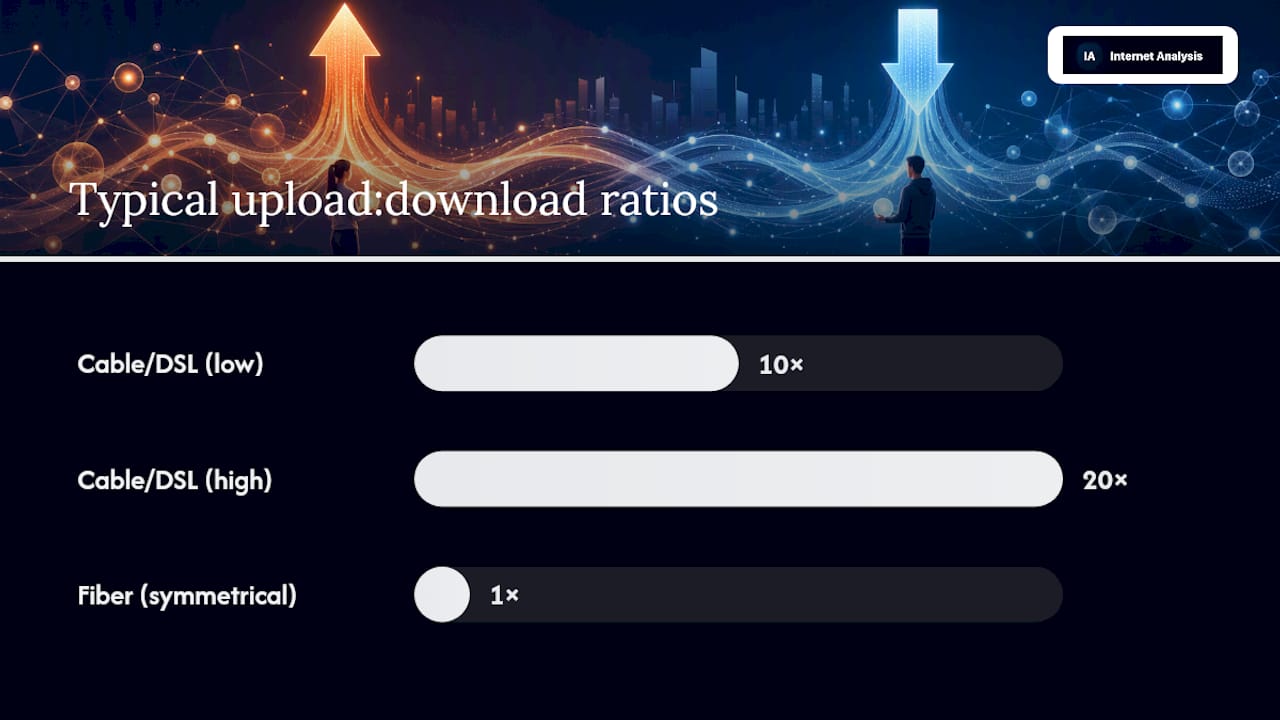
Most residential internet plans are asymmetrical by design, not by accident. Cable and DSL networks were built decades ago around a simple assumption: people consume far more data than they send. That assumption shaped the infrastructure, and it still shows up in the numbers today, with upload-to-download ratios often landing around 10:1 to 20:1 on cable and DSL connections.
Fiber-optic lines break that pattern because the underlying technology has no inherent bias toward one direction. A fiber connection rated at 500 Mbps typically delivers 500 Mbps in both directions, which is why fiber is the technology to look for if upload matters to you.
Symmetrical speed is worth paying for in specific situations:
- You stream regularly on Twitch, YouTube, or a similar platform
- You work remotely and rely on video calls for most of your day
- You back up large files to the cloud on a routine basis
- Multiple people in your household upload simultaneously (calls, gaming, content creation)
If your household mostly streams Netflix and browses social media, chasing symmetrical upload speeds is money spent on a problem you don't have.
How Much Internet Speed Do You Actually Need?
The honest answer depends on what you're doing and how many devices are doing it at once, but the benchmarks below cover nearly every common scenario.
By activity:
| Activity | Download | Upload |
|---|---|---|
| Web browsing, email | 5–10 Mbps | 1–2 Mbps |
| SD video streaming | 3–4 Mbps | Minimal |
| HD streaming (1080p) | 5–8 Mbps | Minimal |
| 4K streaming | 25–50 Mbps | Minimal |
| Video calls | 3–5 Mbps | 3–5 Mbps |
| Online gaming | 3–6 Mbps | 1–3 Mbps |
| Live streaming (1080p60) | 10–25 Mbps | 10–15 Mbps |
| Large cloud uploads | 10–25 Mbps | 10–25 Mbps |
By household size:
- Single user: 100–200 Mbps download, 10 Mbps upload covers most needs comfortably, including 4K streaming on one screen.
- Two to four users: 200–400 Mbps download, 20 Mbps upload gives enough headroom for simultaneous streaming, gaming, and calls without visible slowdown.
- Five or more users, or a household with a streamer or remote worker: 500+ Mbps download with symmetrical or high upload (50+ Mbps) is worth the extra cost, particularly if you're wondering whether 300 Mbps is fast enough for your specific mix of devices.
Streamers should map their target bitrate directly to upload need. Aim to stream at 6,000 Kbps on Twitch, a common cap for non-partner accounts, and you'll want roughly 9–10 Mbps of stable, sustained upload to stay inside that 70–75% safety zone. Worth noting: pushing upload far beyond what your target platform allows won't improve stream quality if the platform itself caps incoming bitrate, so more upload isn't automatically better once you clear the threshold your destination actually uses.
How Do Fiber, Cable, DSL, 5G, and Satellite Compare?
Connection type determines your upload ceiling more than almost any other factor, and the gaps between technologies are larger than most people expect.
- Fiber: very high Mbps speeds, typically symmetrical. The clear choice for streamers and remote workers.
- Cable: 25–2,000 Mbps download, but only 5–50 Mbps upload. Fine for browsing and streaming, tight for anything upload-heavy.
- DSL: 10–50 Mbps download, 1–10 Mbps upload. Workable for a single light user, limiting for nearly everything else.
- Fixed 5G: 20–1,000 Mbps download, 10–50 Mbps upload. Solid middle ground where fiber isn't available.
- Satellite: moderate download and typically low to moderate upload speeds, with notably higher latency and jitter that affects real-time applications.
Those latency and jitter differences matter more than raw Mbps for video calls and gaming. A satellite connection can post a decent speed test result and still produce laggy calls or stuttering gameplay because of round-trip delay and inconsistent packet timing. If your work or hobby depends on live, two-way communication, treat limited upload capacity as a genuine deal-breaker rather than a minor inconvenience, regardless of how fast the download number looks.
How Do You Test Your Speed the Right Way?
A single speed test tells you very little on its own. Reliable numbers come from testing correctly and testing repeatedly.
- Connect a device directly to your router with an Ethernet cable; Wi-Fi introduces packet loss that can make a "good" test result meaningless in practice.
- Run the test at the time of day you actually use the connection most, since evening peak hours often show different numbers than a quiet Tuesday morning.
- Pause background uploads, cloud syncs, or downloads elsewhere on the network before testing.
- Run at least three tests across different times and average the results rather than trusting a single snapshot.
- Check ping, jitter, and packet loss alongside raw Mbps. High jitter or packet loss can wreck a video call even when download and upload numbers look strong.
Pro Tip: If your speed test looks fine but calls and streams still stutter, the problem is usually jitter or packet loss, not raw bandwidth. Internet-analysis's network quality diagnostics break out those numbers separately so you can see exactly which one is causing the trouble.
Here's the numeric example worth remembering: if you're streaming at 6,000 Kbps and your tested upload comes back at 12 Mbps, you're within the 70–75% safe zone. If it comes back at 7 Mbps, you're over the line and headed for dropped frames.
What Should You Do If Your Speed Falls Short?
Fixing slow upload or download rarely requires calling your provider first. Work through these steps in order.
- Reboot your router and modem. This resolves a surprising share of speed complaints on its own.
- Test with a wired connection to rule out Wi-Fi interference before blaming your plan.
- Close background apps, especially cloud sync tools and auto-updating software, that quietly consume upload bandwidth.
- Update your router's firmware and consider splitting your 2.4GHz and 5GHz networks into separate SSIDs to reduce congestion.
- Set up Quality of Service (QoS) rules if your router supports them, prioritizing video calls or streaming traffic over background downloads.
- If speeds stay low after these steps, log several days of test results, including timestamps and any error patterns, before calling your ISP. That evidence gets you a faster, more useful support conversation than "my internet feels slow."
- If your household consistently needs more upload than your current technology can deliver, a plan upgrade or a switch to fiber is the more permanent fix.
A Publisher's Note on Diagnosing Real Connection Problems
Most people run one speed test, glance at the number, and move on. That single snapshot rarely tells the whole story. Patterns matter more than any one result, which is why Internet-analysis has built its approach around repeated, logged tests rather than isolated checks. Across more than 25 million tests run in over 180 countries, the clearest signal has always come from comparing results over time, not from any single number.
Our aggregation is privacy-forward by design: results feed into broader performance insights without tracking individuals. If your connection still feels wrong after working through the basics, the deeper diagnostics are there for exactly that situation.
— Tomasz
Ready to See Your Real Upload and Download Numbers?
You've got the benchmarks now. The next step is seeing where your own connection actually lands, and that's where Internet-analysis earns its keep: real-world measurement without a sales pitch attached to every result. The alternative speed test checks download, upload, ping, jitter, and packet loss in a single run, then holds onto historical data so you can spot a slow trend before it becomes a full outage.
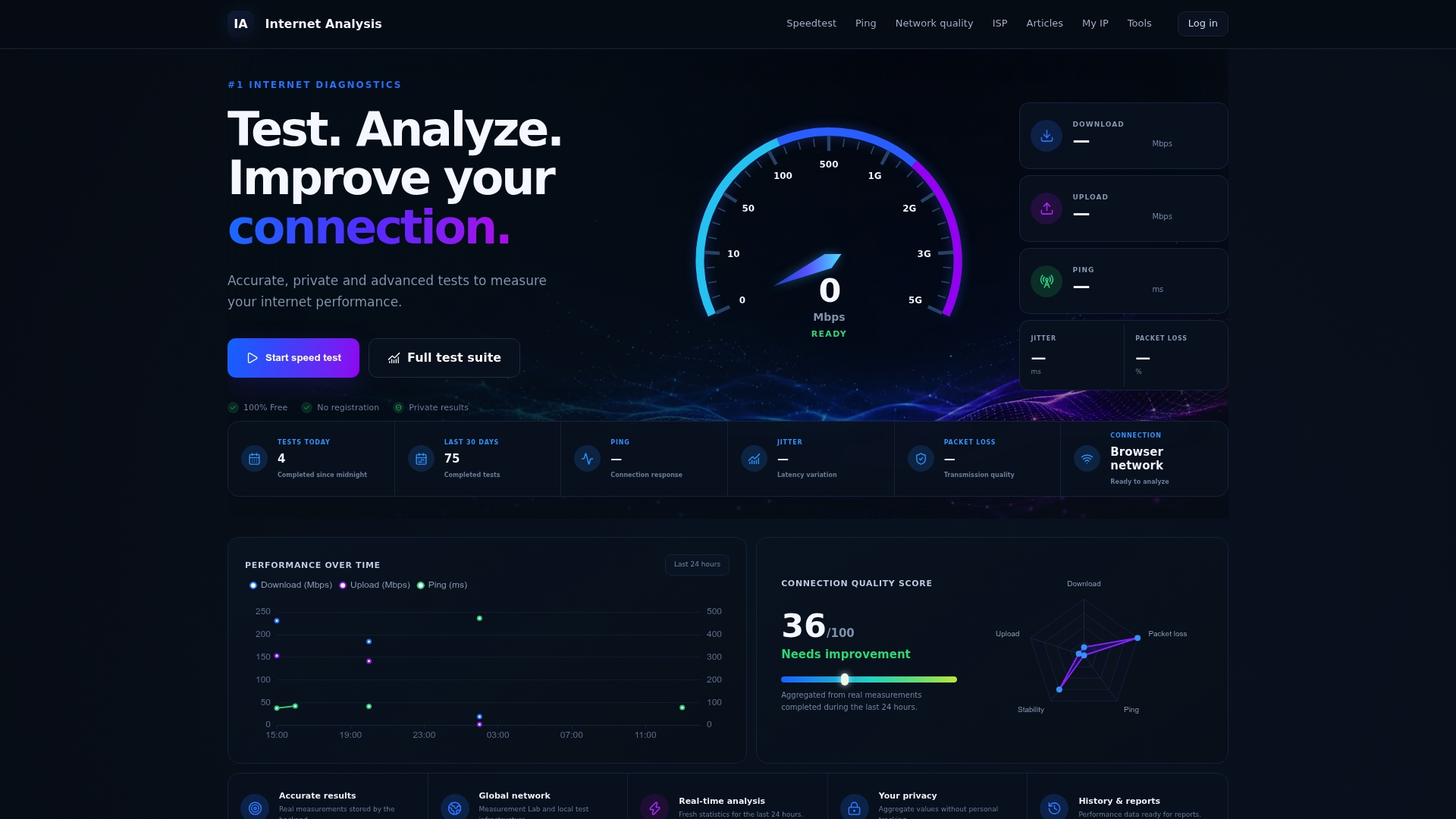
Because results are aggregated without personal tracking, you get accurate, real-world numbers pulled from Internet-analysis's global test network, not a single localized server chosen to make your ISP look good. If you're troubleshooting a specific problem, like a fast test result paired with genuinely slow real-world performance, the diagnostic flow for that exact mismatch walks through likely causes step by step. Run the full speed test now and see how your upload and download numbers stack up against the benchmarks above.
Sources
- Upload speed to bitrate calculator | BitrateCalculator
- How much upload speed do you need for streaming? | StreamerSize
- Reviews