
Most Wi‑Fi drops trace back to one of three sources: the router or its network environment, a single misbehaving device, or a software setting fighting the connection. Before touching any settings, reboot the router and modem, then plug a laptop into Ethernet and see if the connection holds. If wired stays rock solid while Wi‑Fi keeps dropping, you've already ruled out your internet service provider.
TL;DR:
- Most Wi-Fi drops result from router placement, interference, or outdated firmware rather than service provider issues.
- Identifying the pattern of disconnects, such as device-specific, localized, periodic, or coverage-related, guides targeted fixes.
- Firmware updates, channel optimization, and hardware checks are common solutions for router-related disconnections.
- Interference from household electronics, thick walls, or neighboring networks typically causes drops in the 2.4 GHz band.
- Running real-time wired and wireless tests during disconnects provides concrete evidence to diagnose and resolve the problem effectively.
Table of Contents
- Why Does My Wifi Keep Dropping? Read the Pattern First
- Fixing Wifi Disconnects on Your Laptop, Phone, or Tablet
- How Router Settings Cause Frequent Wifi Disconnections
- What's Causing Interference With My Wifi Signal?
- How to Test and Prove What's Really Causing the Drops
- Is My Internet Provider or Modem the Real Problem?
- Do I Need a New Router, Mesh System, or Extender?
- Your Wifi Troubleshooting Checklist, Step by Step
- What I've Learned Chasing Down Wi‑Fi Drops
- Capture the Evidence Before You Call Support or Buy Hardware
- Sources
Why Does My Wifi Keep Dropping? Read the Pattern First
The fastest way to find the fix is to stop guessing and start observing. Wi‑Fi disconnects almost always fall into one of four recognizable patterns, and each one points to a different culprit.
- Single device drops, everything else stays connected. This points to the device itself: a bad driver, an aggressive power‑saving setting, or a phone deciding to abandon a weak signal. Test by connecting a second device in the same spot. If it stays online, the problem lives on the first device.
- Whole house loses Wi‑Fi at once. This usually means the router, the modem, or the ISP connection upstream. Run a wired test straight from the modem. A clean wired connection during a wireless outage confirms the router or its radio settings, not the ISP, is at fault.
- Drops happen at fixed intervals, like every 30 or 60 minutes. That rhythm is a signature. It typically means a DHCP lease renewal failure or a scheduled router reboot, not random interference.
- Drops only happen in one room or at one distance from the router. That's a coverage and interference problem, not a settings problem. Walk toward the router with a laptop running a continuous ping; note exactly where the connection degrades.
Before changing a single setting, write down which pattern you're seeing, what time the drops happen, and which devices are affected. That fifteen minutes of observation saves hours of trial and error.
Fixing Wifi Disconnects on Your Laptop, Phone, or Tablet
When only one device keeps cutting out, the fix is almost always local to that device, not your network.
On Windows, the most common offender is power management quietly shutting off the wireless adapter to save battery. Open Device Manager, find your network adapter under Network adapters, go to the Power Management tab, and uncheck "Allow the computer to turn off this device to save power." While you're there, set the wireless adapter's power mode to Maximum Performance instead of a balanced or saver setting. If drops started right after a Windows update, roll back the Wi‑Fi driver or grab a fresh one from the manufacturer's site.
On macOS, forget the network under System Settings > Wi‑Fi, restart, and rejoin. Confirm you're on the latest macOS version, since Apple regularly patches Wi‑Fi stack bugs. If the problem persists, resetting SMC or NVRAM clears out corrupted low‑level network settings that a normal restart won't touch.
On phones and tablets, forget and rejoin the network, and check whether battery‑saver mode is killing the Wi‑Fi radio in the background. A VPN app or an overzealous security app can also interfere with reconnection.
- Disable adapter power saving (Windows)
- Update or roll back the Wi‑Fi driver
- Forget and rejoin the network on any device
- Check battery saver, VPN, and security apps on mobile
One overlooked cause is roaming aggression: some devices unilaterally drop a marginal signal to hunt for a "better" one even when the connection was fine. This shows up as random disconnects on one device while others stay put.
Pro Tip: If a laptop keeps dropping but a phone in the exact same spot never does, the fault almost certainly sits in the laptop's adapter settings, not your router.
How Router Settings Cause Frequent Wifi Disconnections
When every device drops together, the router and its environment deserve the closest look. Heat, congestion, and auto‑switching features are the usual suspects.
Start with placement. Routers tucked inside cabinets, next to a wall, or crammed near other electronics run hotter and lose signal quality. Give the unit open airflow on all sides, elevate it off the floor, and keep it away from thick walls and metal furniture. Long‑form troubleshooting guides note that overheating routers can cause repeated multi‑minute outages, and that most consumer routers hold up for roughly three to five years before hardware fatigue starts contributing to instability.
Band and channel choices matter more than most people expect:
- Use 5 GHz for devices near the router that need speed and stability; reserve 2.4 GHz for range across rooms and floors.
- In crowded apartment buildings, manually set 2.4 GHz to channel 1, 6, or 11 and use a 20 MHz width instead of the wider default.
- Disable Smart Connect or band steering, or split your network into separate 2.4 GHz and 5 GHz SSIDs, if devices keep flapping between bands. Vendor guidance from TP‑Link specifically flags this auto‑switching behavior as a common trigger for disconnects.
- Check for firmware updates. Manufacturers regularly patch bugs tied to scheduled reboots and DHCP handling.
- Lengthen the DHCP lease time in the router's admin panel if drops repeat at a fixed interval; short leases force frequent renewals that occasionally fail.
A moderate number of actively connected devices is a practical limit for many consumer routers before performance degrades under load. If your household runs a stack of smart‑home gadgets, streaming boxes, and laptops simultaneously, an overloaded router can start dropping connections simply from client count, not interference. Log into the router's client list and count active connections to confirm.
What's Causing Interference With My Wifi Signal?
Physical interference explains a large share of drops that seem random but aren't. The 2.4 GHz band is far more vulnerable than 5 GHz because it shares spectrum with common household devices.
- Microwaves running mid‑cycle can knock out nearby 2.4 GHz connections for the duration of use.
- Older Bluetooth speakers, baby monitors, and cordless phones operate in overlapping frequencies.
- Thick walls, mirrors, and metal appliances block or reflect signal, especially in older homes.
- Crowded apartment buildings stack dozens of overlapping neighbor networks onto the same few channels.
To test for interference, power off the suspect appliance and see if drops stop, or run the same test at a different time of day when neighboring networks are quieter. If moving to 5 GHz or a cleaner 2.4 GHz channel doesn't fully solve it, repositioning the router away from the interference source is often the simplest permanent fix. Some walls and floor plans simply beat physics; that's when a wired connection or a mesh node in the affected room makes more sense than fighting the signal.
How to Test and Prove What's Really Causing the Drops
Guessing wastes time. A short, repeatable test sequence tells you exactly where the failure lives.
- Run a wired baseline. Connect a laptop directly to the modem or router with an Ethernet cable and run a download/upload, ping, and packet loss test. Repeat this at the exact time your drops usually happen.
- Run the same test over Wi‑Fi at the problem location. Compare the numbers side by side. If wired stays clean but Wi‑Fi shows latency spikes or packet loss, the fault is wireless, not upstream.
- Run a traceroute to see whether packets fail at your own router (the first hop) or several hops later inside your ISP's network. A failure at hop one or two points home; failures further out point to the provider.
| Test | What it reveals | Where to run it |
|---|---|---|
| Speed test | Download/upload throughput at the moment of the drop | Internet Analysis speed test |
| Latency and jitter | Whether the connection is unstable even when it doesn't fully disconnect | Internet Analysis latency test |
| Packet loss | Dropped packets that show up as stutters or brief disconnects | Internet Analysis packet loss test |
| Traceroute | Where in the path (home network vs. ISP) failures occur | Advanced Network Testing |
Running these tests through Internet-analysis gives you a timestamped, shareable log rather than a single number you have to remember. That log becomes the exact evidence an ISP support agent needs to escalate a ticket instead of dismissing it.
Is My Internet Provider or Modem the Real Problem?
- Connect a computer directly to the modem with Ethernet, bypassing the router entirely, and run the same speed, ping, and packet loss tests.
- Check your provider's outage tracker or status page for known local issues before assuming it's your equipment.
- If the wired test itself drops or shows repeated errors, the modem or the line coming into your home is the likely cause, not your Wi‑Fi settings.
Whole‑home drops, degraded wired performance, and repeated upstream errors in a traceroute are the clearest signs the problem sits with the ISP or modem. Before calling support, gather test logs with timestamps, the exact times drops occurred, and results from both wired and wireless tests. That evidence is what gets a technician dispatched instead of a generic "restart your router" reply.
Do I Need a New Router, Mesh System, or Extender?
Match the upgrade to the pattern you diagnosed, not to whatever's on sale.
- One dead zone in a single room: an extender or a dedicated access point wired back to the router usually solves it for less than a full mesh system.
- Patchy coverage across the whole home: a mesh system with wired backhaul between nodes performs far more reliably than mesh running purely on wireless backhaul, which can double your hop count and add drops of its own.
- Router provided by your ISP: ask whether it can run in bridge/modem‑only mode so you can pair it with your own router; some ISP hubs handle Wi‑Fi poorly even when the connection itself is fine.
- Router older than three to five years: if you've worked through channel, placement, and firmware fixes and drops persist, aging hardware is a reasonable next suspect before buying anything new.
For hardware options once you've confirmed the router is the bottleneck, CommsBuyer's wireless and Wi‑Fi lineup is worth a look.
Your Wifi Troubleshooting Checklist, Step by Step
- Reboot the router and modem, then wait two full minutes before testing.
- Plug a laptop into Ethernet and confirm the wired connection is stable.
- Check whether other devices in the same room show the same drops.
- Run a quick speed, latency, and packet loss test at the moment of a drop.
- Update router firmware and any outdated Wi‑Fi drivers.
- Split 2.4 GHz and 5 GHz into separate SSIDs, or disable Smart Connect.
- Manually set 2.4 GHz to channel 1, 6, or 11 with a 20 MHz width.
- Disable the adapter power‑saving setting on the affected device.
- Lengthen the router's DHCP lease time if drops repeat on a fixed schedule.
- If none of that works, add a mesh node with wired backhaul or replace the router.
Stop as soon as a step fixes it. Most households never need to reach step eight.
What I've Learned Chasing Down Wi‑Fi Drops
Test first, then fix. That order matters more than which fix you try, because the same symptom, a Wi‑Fi connection that drops every few minutes, can come from a hot router, a stubborn laptop driver, or a lease renewal bug, and each one needs a completely different response. Jumping straight to "buy a new router" skips the diagnosis and often leaves the real cause untouched.
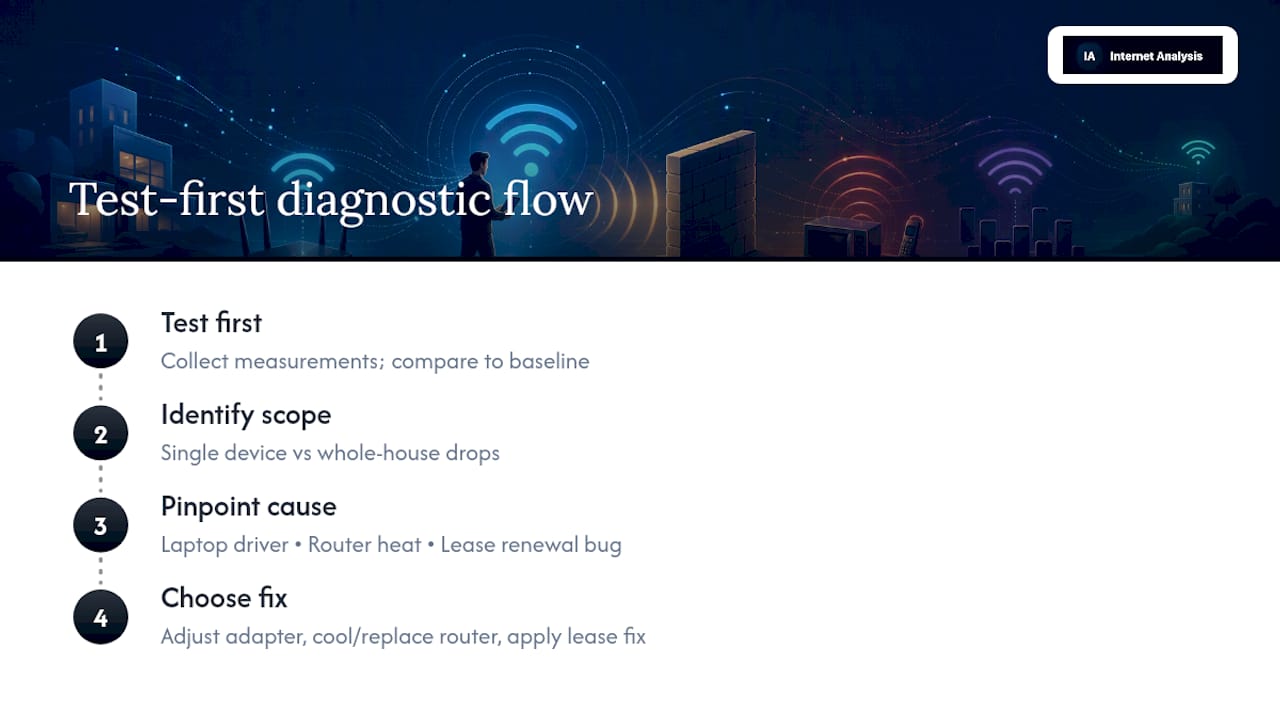
The pattern is the diagnosis. A single device dropping while everything else stays connected is not the same problem as the whole house losing Wi‑Fi every hour on the hour, and treating them the same way wastes time and sometimes money on hardware that was never the issue.
Internet-analysis runs on real measurements collected across a global test network spanning more than 25 million tests in over 180 countries, aggregated without personal tracking. That scale is what makes a single household's log meaningful when it's time to compare against a baseline instead of guessing in isolation.
— Tomasz
Capture the Evidence Before You Call Support or Buy Hardware
An intermittent Wi‑Fi drop is hard to prove after the fact. By the time you're on the phone with support, the connection has usually reconnected and the moment is gone, along with your evidence. Running a quick test the instant a drop happens, or right when the connection wobbles, turns a vague complaint into a timestamped record an ISP or a support tech can actually act on.
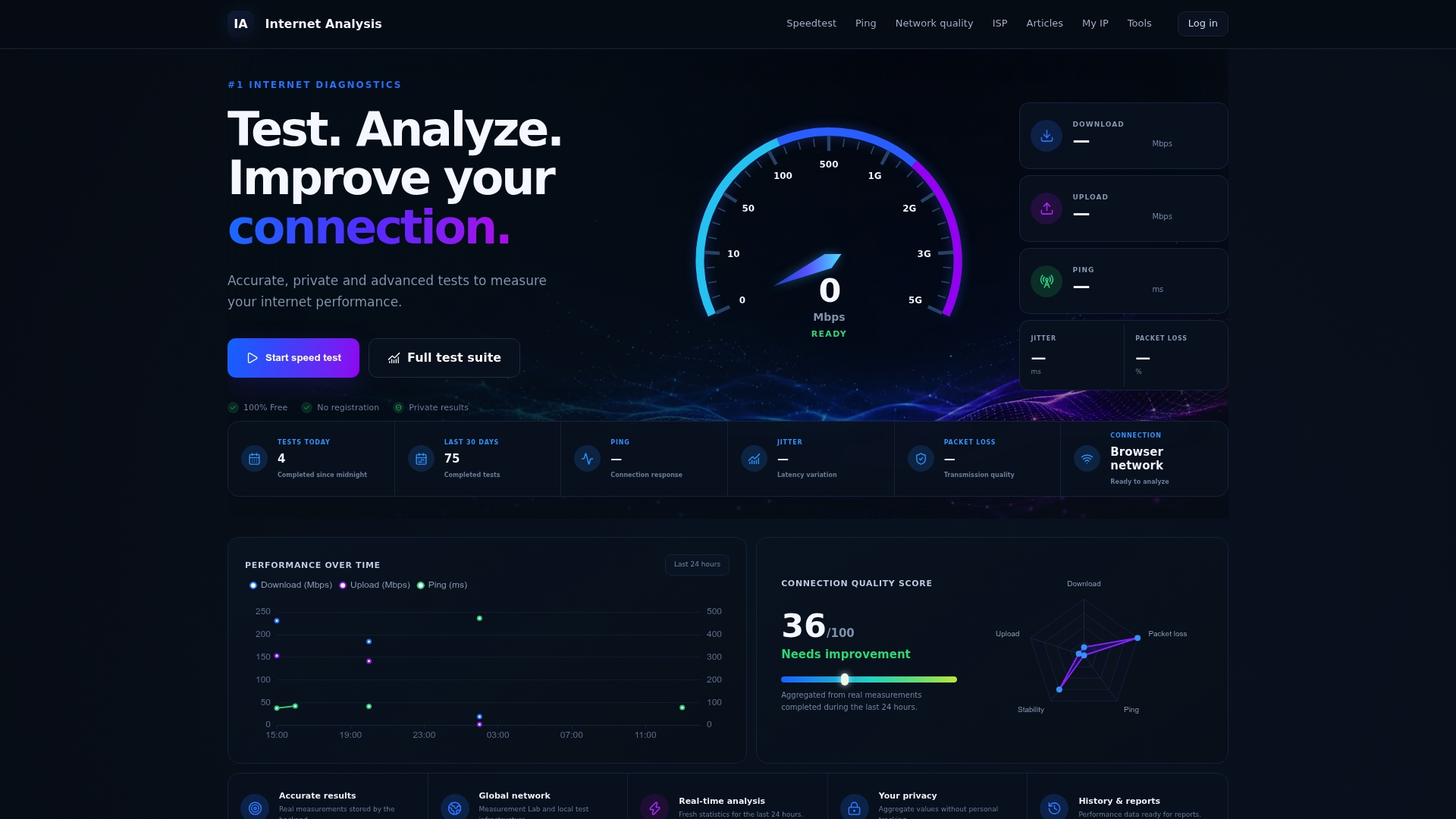
The core tests matter for exactly the symptoms this guide covers: a speed test confirms throughput at the moment of failure, latency and jitter reveal instability even when the connection technically stays up, packet loss explains the stutters and brief freezes that feel like drops, and a traceroute through Advanced Network Testing shows whether the failure sits inside your home network or further upstream. Run the full network quality check at internet-analysis.com the next time the connection drops, save the results, and bring that log to your ISP. It replaces "it keeps disconnecting" with a specific, defensible record of when, where, and how badly your connection failed.
Sources
- TP‑Link Router Keeps Disconnecting | Troubleshooting Guide
- Fix Wi‑Fi connection issues in Windows
- WiFi Keeps Dropping: Fix It Free First, Then Upgrade by Budget (2026)