
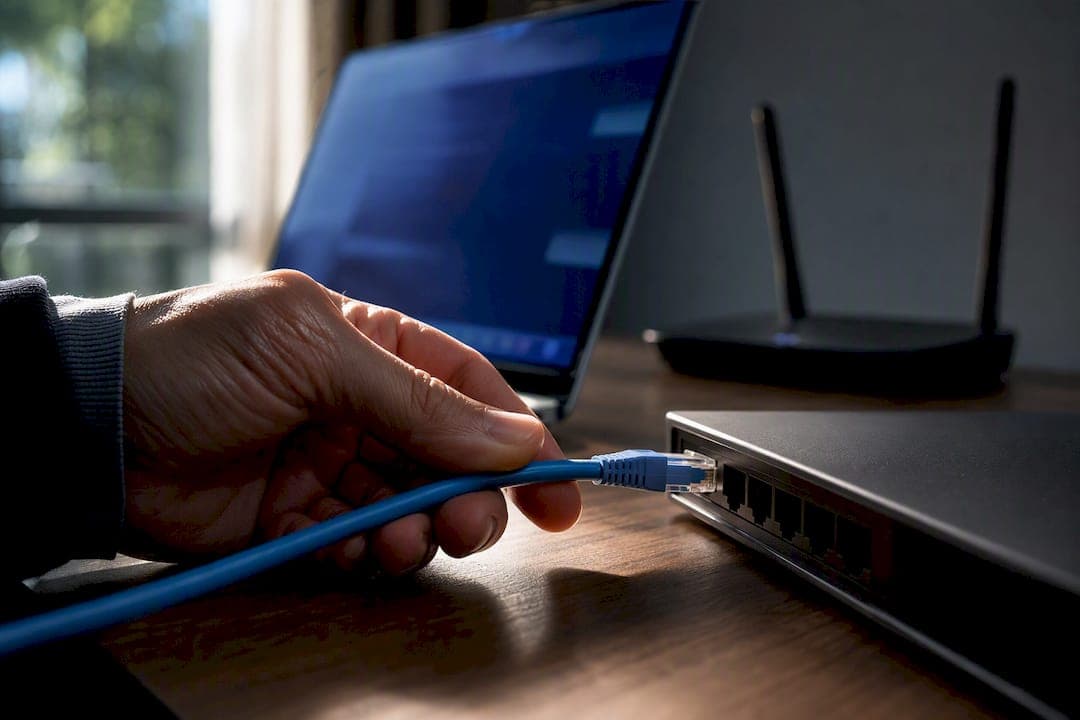
Wire the devices that sit still and need reliable performance, like desktops, TVs, and game consoles. Keep phones, tablets, and laptops on Wi-Fi where mobility matters more than raw consistency. Ethernet wins on stability and latency because it runs on a dedicated, full-duplex line, while Wi-Fi shares airtime with every other device nearby. If something feels slow, testing both connections at the same location tells you which one is actually the problem.
TL;DR:
- Ethernet provides superior stability and lower jitter, making it essential for gaming, video calls, and time-sensitive tasks, especially in fixed locations.
- Wireless speeds often fall 20 to 50 percent short of theoretical maximums, with latency and jitter spiking as distance from the router increases and interference occurs.
- Testing your network by running simultaneous wired and Wi-Fi speed tests at the same spot can accurately identify whether the bottleneck is your provider or wireless environment.
- Prioritize wiring stationary, bandwidth-heavy devices like desktops, gaming consoles, and smart TVs, while keeping phones and laptops on Wi-Fi for mobility.
- Improving Wi-Fi performance involves optimizing placement, selecting the right band and channel, and updating hardware, but wired connections remain the most reliable for fixed devices.
Table of Contents
- Wi-Fi vs Ethernet Speed and Latency: What the Numbers Show
- How Do You Test Wired vs Wireless to Find the Real Bottleneck?
- Which Devices Should You Wire First?
- How Can You Improve Wi-Fi When Wiring Isn't an Option?
- The Bottom Line: Wire What Stays Put, Wireless What Moves
- Does Wi-Fi or Ethernet Drain Your Battery Faster?
- Why Measuring Beats Guessing
- Try the Diagnostics That Show You What's Actually Happening
- Sources
- FAQ
Wi-Fi vs Ethernet Speed and Latency: What the Numbers Show
The real gap between these two technologies shows up less in top-line speed and more in consistency. Ethernet is a dedicated, full-duplex medium, meaning a device can send and receive at the same time without competing for space on the wire. Wi-Fi is a shared, half-duplex medium: every phone, laptop, and smart speaker on the network takes turns talking, even when it looks instantaneous.
That difference shows up directly in jitter, the metric that determines how smooth a video call or ranked match feels. Wi-Fi jitter in the same room as the router typically runs 5 to 15 milliseconds, while Ethernet holds steady at 0 to 2 milliseconds. For gaming or video conferencing, that spread is often the difference between a stable connection and one that stutters at the worst possible moment.
Quick comparison:
- Speed: Ethernet holds close to the router's rated port speed consistently; Wi-Fi throughput often runs 20 to 50% below a clean wired result once you move a couple of rooms away or add more connected devices.
- Latency and jitter: Ethernet stays near zero; Wi-Fi latency spikes with interference and distance, which is why ethernet is faster than Wi-Fi for anything time-sensitive.
- Reliability: Ethernet performance barely changes hour to hour; Wi-Fi varies based on neighboring networks, microwave use, and even wall construction.
- Security: Ethernet requires physical access to a cable or switch port; Wi-Fi broadcasts a signal anyone nearby can attempt to intercept.
- Cost: Ethernet needs cabling and possibly a switch; Wi-Fi is built into nearly every router at no added expense.
- Future-proofing: Multi-gig Ethernet (2.5G, 5G, and 10G) is expanding steadily across consumer and business gear, giving wired networks more long-term headroom than most home Wi-Fi setups.
Security is worth a closer look. A Wi-Fi signal extends past your walls, which means anyone within range can attempt to connect or eavesdrop on unencrypted traffic. Ethernet's main vulnerability is physical: someone would need to plug directly into your switch. For wireless networks, use WPA3 encryption if your router supports it, put IoT devices like cameras and smart plugs on a separate guest network, and consider 802.1X authentication for a small business setup where port-level control matters. Newer Wi-Fi standards like Wi-Fi 6E and 6 GHz channels narrow the real-world gap somewhat, but they don't eliminate the fundamental shared-medium problem that Ethernet simply doesn't have.
How Do You Test Wired vs Wireless to Find the Real Bottleneck?
Guessing which connection is at fault wastes time. A short, structured test tells you definitively whether the problem is your Wi-Fi, your device, or your internet provider.
- Run a wired baseline test first. Plug a laptop or desktop directly into your router or gateway with an Ethernet cable and run a speed test. This number represents what your plan is actually capable of delivering, and the FCC's broadband guidance recommends this exact step to confirm your ISP is delivering what you pay for.
- Run the same test over Wi-Fi at the same spot, then repeat it at the locations where you actually use the internet, like a bedroom or home office.
- Record four numbers each time: download and upload Mbps, ping (latency), jitter, and packet loss. Ping under 20 ms and jitter under 5 ms are solid for gaming or calls; packet loss above 1% usually causes visible stutter.
- Compare the results. If wired hits your plan speed and Wi-Fi falls well short, the wireless environment is the problem, not your provider. If both come in low, the issue sits upstream with your modem or ISP.
A tool that checks network quality metrics like jitter and packet loss side by side makes this comparison faster than switching between multiple apps.
Pro Tip: Run each test three times at different times of day. A single result can be skewed by a neighbor's Wi-Fi congestion or a temporary ISP hiccup, and averaging removes that noise.
Which Devices Should You Wire First?
Not every device needs a cable, and running Ethernet to everything in the house isn't realistic. Prioritizing by how the device is used, and how sensitive it is to lag, makes the decision straightforward.
- Must-wire: Desktop PCs, game consoles, streaming boxes, and network-attached storage. These sit in one place and benefit most from Ethernet's low jitter, especially for competitive gaming, where wired vs wireless latency can decide a match.
- Should-wire: Smart TVs, desktop VoIP phones, and office printers. They don't move, and freeing them from Wi-Fi reduces contention for every other device.
- Fine-wireless: Phones, tablets, laptops used around the house, and smart speakers. Mobility matters more here than shaving off a few milliseconds of latency.
For homes running mesh Wi-Fi with multiple access points, wire the backhaul connection between nodes whenever possible. A wireless backhaul link eats into the same airtime your devices need, cutting available bandwidth for everyone.
For cabling, Cat5e handles gigabit speeds fine for most homes. Cat6 or Cat6a is worth the extra cost if you're running multi-gig internet or planning ahead. If pulling cable through walls isn't practical, powerline adapters and MoCA (coax) adapters offer a middle ground: powerline speed varies heavily depending on your home's electrical wiring and can suffer from interference, while MoCA over existing coax tends to be more consistent. Neither matches dedicated Ethernet, but both beat straining Wi-Fi through several walls. For gaming specifically, a wired connection remains the more reliable route, as this breakdown on Ethernet versus Wi-Fi for gaming explains in more depth.
How Can You Improve Wi-Fi When Wiring Isn't an Option?
A few adjustments to your existing setup often recover a meaningful chunk of the performance gap, even without running new cable.
- Placement matters more than most people expect. Keep the router elevated, away from microwaves, thick walls, and metal appliances, all of which interfere with the signal.
- Pick the right band and channel. Use 5 GHz or 6 GHz for nearby devices needing speed, and reserve 2.4 GHz for distant or low-power gadgets. Narrower channel widths reduce interference in crowded apartment buildings, even though they cap peak speed.
- Wire your mesh backhaul if your system supports it, or dedicate one band solely to node-to-node traffic rather than mixing it with client devices.
- Turn on Smart Queue Management (SQM) or QoS on your router to prioritize latency-sensitive traffic like video calls over background downloads.
- Check for outdated firmware or an aging client adapter. A five-year-old laptop's Wi-Fi chip is often the actual bottleneck, not the router.
Common culprits behind sluggish wireless performance include poor placement, channel congestion, and outdated hardware, and each has a specific fix rather than a blanket "buy a new router" answer.
Pro Tip: If you're troubleshooting a mesh system, temporarily disconnect all nodes but one and retest. If speed improves dramatically, one of your other nodes is likely running on a weak wireless backhaul link.
The Bottom Line: Wire What Stays Put, Wireless What Moves
Wire the desktop, the console, the TV. Keep phones and laptops on Wi-Fi. That single rule solves most of the frustration people run into with home networks.
- Run a wired-vs-wireless test to find your actual baseline.
- Wire your top three bandwidth-heavy, stationary devices.
- Turn on WPA3 encryption on your router if it's available.
- Use wired backhaul for any mesh Wi-Fi nodes.
- Retest after each change to confirm it actually helped.
— Tomasz
Does Wi-Fi or Ethernet Drain Your Battery Faster?
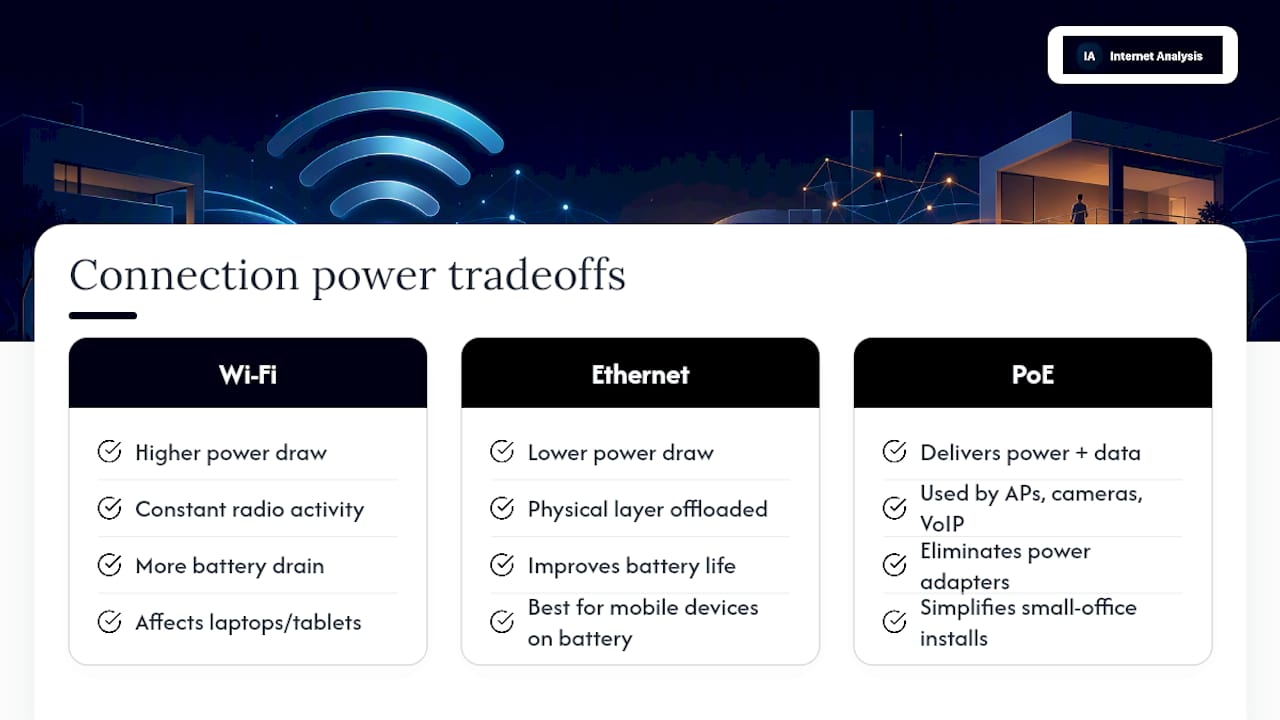
Wi-Fi radios draw noticeably more power than Ethernet connections on battery-powered devices, and it's one of the more overlooked differences between the two. A Wi-Fi chip is constantly negotiating for airtime, scanning for stronger signals, and managing encryption overhead in real time. That background activity adds up on a laptop or tablet running off a battery.
Ethernet, by contrast, offloads the physical layer's timing and error correction to the cable and switch hardware rather than the device's radio. A laptop plugged into Ethernet and running on battery will typically see a measurable improvement in battery life compared to the same laptop on Wi-Fi, since the network card isn't burning cycles managing a wireless connection.
This matters most for devices where battery life is a real constraint: laptops in long meetings, tablets used for extended work sessions, or any device without easy access to a charger. It's a smaller factor for desktops and consoles that are plugged into wall power regardless of connection type, so the tradeoff is really about mobile computing.
Power over Ethernet (PoE) flips this equation for a different category of hardware entirely. Devices like access points, IP cameras, and VoIP phones can draw both data and power through a single Ethernet cable, eliminating the need for a separate power adapter altogether. For small offices installing multiple access points or cameras, PoE switches simplify the wiring closet considerably, cutting down on the tangle of power bricks that wireless-only setups tend to accumulate.
Why Measuring Beats Guessing
Most people assume their internet problem is their provider's fault. Often it isn't. Plugging a device straight into the router with Ethernet is the fastest way to isolate whether the ISP or the wireless environment is at fault, and that single step ends more troubleshooting guesses than any router restart ever will.
Diagnostics are built on real-world measurements rather than theoretical maximums, aggregated anonymously across a global test network rather than tied to any single household. That real-world grounding matters, because vendor-listed Wi-Fi speeds describe lab conditions no home actually replicates. Testing your own connection, wired and wireless, at the times and locations you actually use it, is the only way to know what you're really working with.
Try the Diagnostics That Show You What's Actually Happening
Beyond just running one speed test, understanding the full picture means checking ping, jitter, and packet loss alongside download and upload numbers. The platform was built around exactly that kind of real-world, privacy-forward measurement. Results are aggregated without personal tracking, drawing on a global network of tests rather than a single lab benchmark, so what you see reflects how connections actually behave in homes and small offices, not marketing claims.
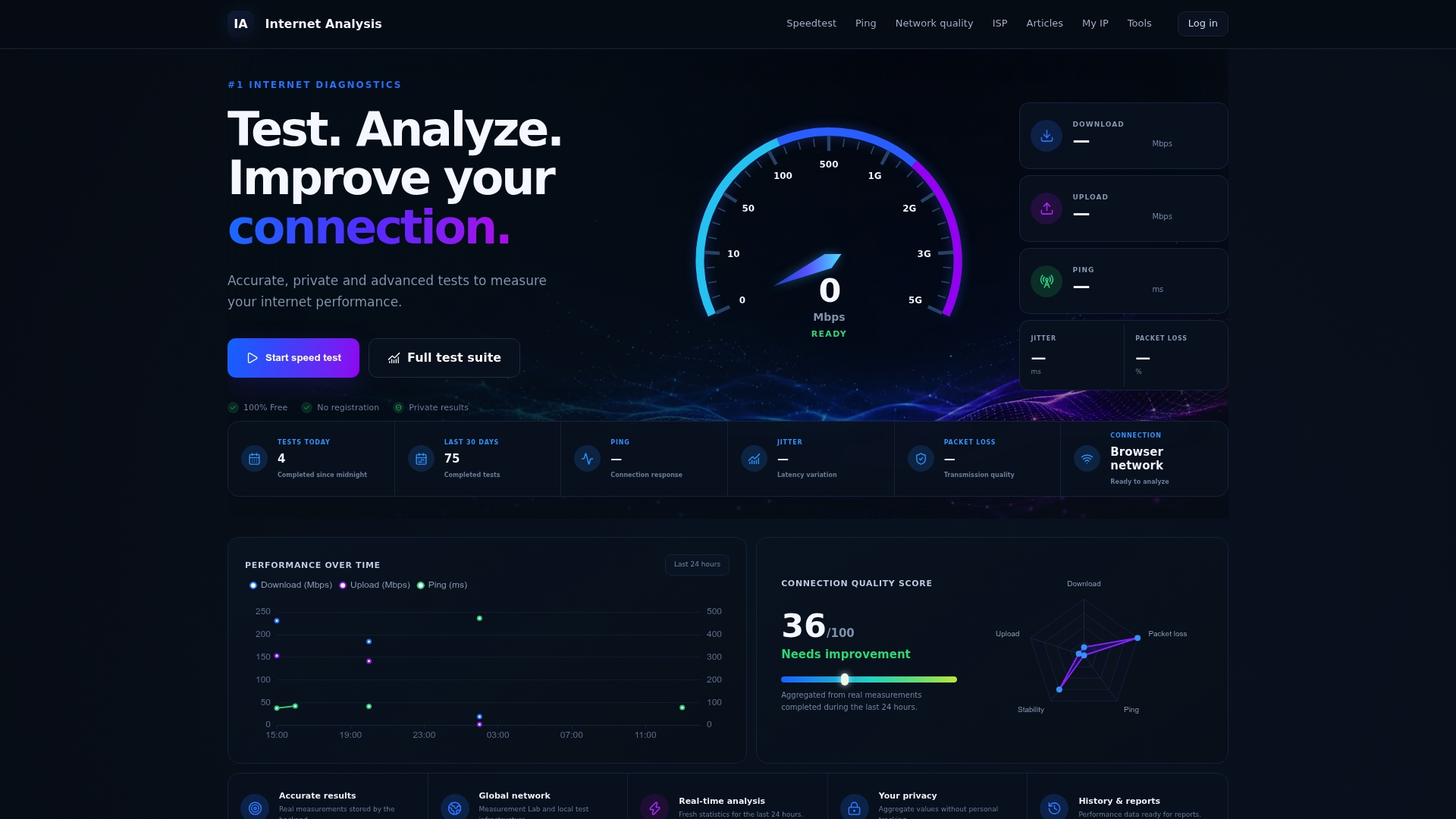
If you've read this far wondering whether your own setup has a wireless bottleneck, the fastest way to find out is to run the comparison yourself. Start with a wired speed test plugged directly into your router, then repeat it over Wi-Fi at the spot where you actually use your devices. For a closer look at latency and jitter specifically, the advanced network testing tools break down the exact numbers that separate a stable connection from a shaky one. If your speed test looks fine but your internet still feels slow, the fast speed test but slow internet diagnostic walks through what to check next.
Sources
- Wired and grounded: Why Ethernet still outperforms Wi‑Fi
- FCC — Broadband Speed Guide
- Wi‑Fi vs. Ethernet: Real‑World Throughput & How to Fix Wi‑Fi Bottlenecks | ISP Reports
- Ethernet Alliance — 2024 Ethernet roadmap
- Why Wi‑Fi speeds are slower than Ethernet — Allconnect
FAQ
Do I Need Both Wi-Fi and Ethernet?
Yes, most homes and small offices benefit from running both. Wire stationary, performance-sensitive devices like desktops and consoles, and keep phones, tablets, and laptops on Wi-Fi for mobility.
Is Ethernet Outdated Now?
No, Ethernet remains the more reliable option for latency-sensitive tasks, and multi-gig Ethernet standards continue to advance alongside newer Wi-Fi generations. Faster Wi-Fi standards have narrowed the gap, but haven't removed the shared-airtime limitation Ethernet doesn't have.
What Are the Downsides of Ethernet?
The main downsides are cost and flexibility. Running cable through walls takes time and money, and it ties a device to a fixed location, which doesn't work for phones or laptops you carry around.
Do I Need Wi-Fi if I Have Ethernet?
Most households still need Wi-Fi for phones, tablets, laptops, and smart home devices that move around or can't be practically wired. Ethernet handles the stationary, performance-critical devices, while Wi-Fi covers everything else. Running a wired versus wireless test on your own setup shows exactly how much each connection type is contributing to your experience.