
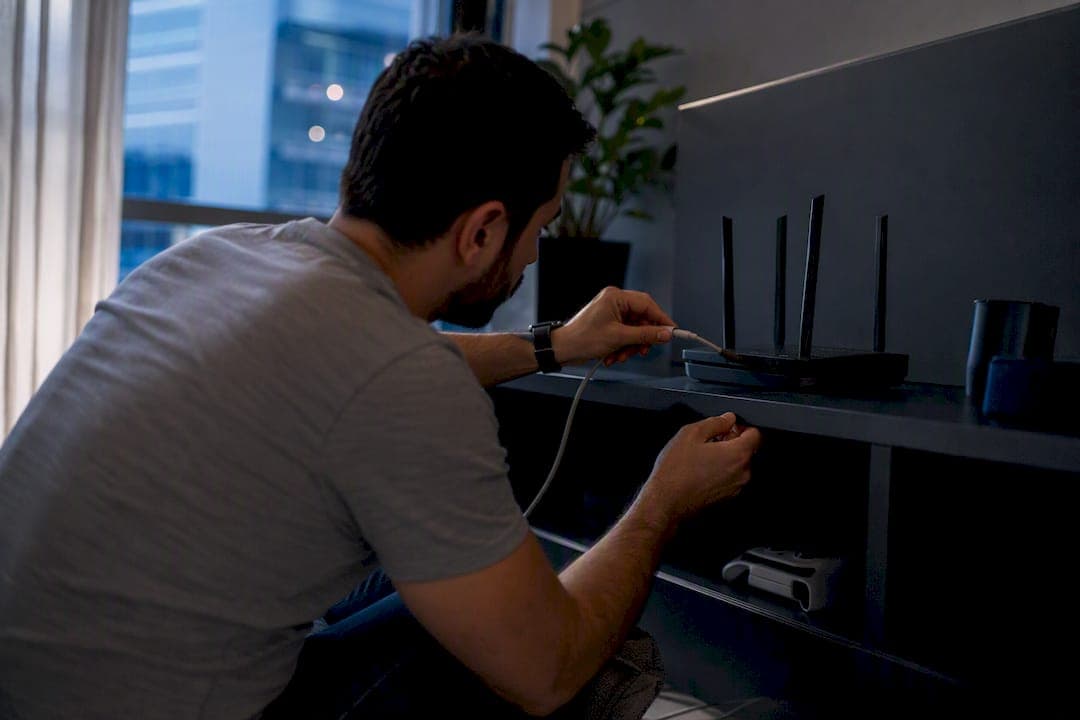
Switch to a wired Ethernet connection and run Xbox's Test Network Speed & Statistics first. If the packet-loss number drops to normal on a wired connection, your Wi-Fi or local hardware was the problem. If loss persists, run a ping and traceroute test to determine whether the fault sits with your router, your ISP, or the game server itself.
Do this now:
- Plug the console directly into the router with an Ethernet cable and rerun the Xbox network test.
- If loss remains high, power-cycle the router and console, then test again.
- If it's still high after that, test on a phone hotspot to rule out your home network entirely.
Pro Tip: Screenshot every Xbox network test result with the time and date visible on your phone or a second device. If you end up contacting your ISP or Xbox Support, timestamped packet-loss percentages are the difference between a five-minute fix and a week of back-and-forth.
Key Takeaways
Wired Ethernet plus the Xbox network test identifies most packet loss causes in under ten minutes, and documented ping and traceroute evidence settles the rest.
| Point | Details |
|---|---|
| Start wired, not wireless | Plug in Ethernet and rerun Xbox's Test Network Speed & Statistics before changing any settings. |
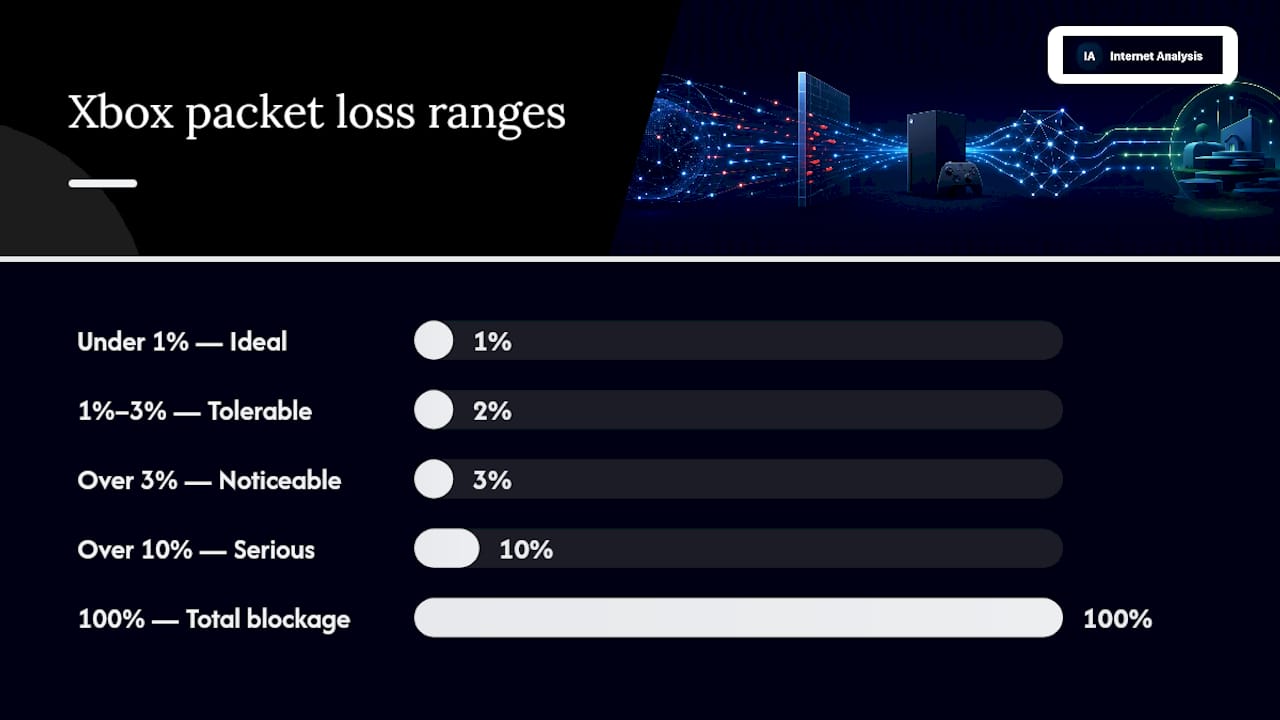
| Know your thresholds | Under 1% is ideal, over 3% is noticeable, over 10% causes serious disconnects and timeouts. |
| Isolate before you fix | Test hotspot, wired, and Wi-Fi separately to prove whether the fault is local or upstream. |
| Change one router setting at a time | Test UPnP, QoS, and DNS individually so you know exactly what worked. |
| Document before escalating | Use Internet Analysis packet-loss and traceroute tests to build timestamped evidence for your ISP or Xbox Support. |
Table of Contents
- Immediate 5-15 Minute Checks For Xbox High Packet Loss
- What Does the Xbox Packet Loss Percentage Actually Mean?
- How Do You Tell If Packet Loss Is Local or ISP-Side?
- Router Settings That Reduce Xbox Packet Loss
- How Do You Test Packet Loss With Ping and Traceroute?
- Can a VPN Fix Xbox Packet Loss?
- Console-Level Fixes: Cache, MAC Address, and Hardware
- When Should You Contact Your ISP or Xbox Support?
- Turn Your Packet Loss Data Into Evidence That Gets Results
- Frequently Asked Questions
- Sources
Immediate 5-15 Minute Checks For Xbox High Packet Loss
Before touching router settings or running command-line tools, rule out the obvious. Most cases of xbox high packet loss trace back to something simple: a weak Wi-Fi signal, a saturated connection, or a router that just needs a reset.
Work through this sequence in order:
- Power cycle the router and the console. Unplug both, wait 30 seconds, then plug the router back in first and let it fully reconnect before powering on the Xbox.
- Switch connection types. If you're on Wi-Fi, connect via Ethernet. If you're already wired, try a different cable and a different port on the router.
- Test with a phone hotspot. Connect the Xbox to a mobile hotspot for five minutes and run the same test. If packet loss disappears, the issue lives in your home network, not your ISP.
- Run the built-in diagnostic. Go to Profile & system > Settings > Network settings > Test Network Speed & Statistics and note the packet loss percentage and latency it reports.
- Check for bandwidth hogs. A laptop mid-download, a smart TV streaming in 4K, or three phones auto-backing up photos can all starve your console during peak hours.
After each change, re-run the Xbox network test and write down the packet loss percentage and latency reading. A single test means nothing. A pattern across four or five tests tells you what's actually happening.
- Rule out one variable at a time. Changing the cable, the router port, and the DNS server all at once tells you nothing about which one worked.
- Note the time of day. Packet loss that appears only during evening hours (6 to 10 PM) often points to neighborhood congestion rather than your own gear.
Pro Tip: Grab a known-good Cat5e or Cat6 cable rather than whatever cord came bundled with the router years ago. Cheap or damaged Ethernet cables are one of the most overlooked causes of intermittent packet loss, and swapping the router port at the same time rules out a failing port on the router itself.
What Does the Xbox Packet Loss Percentage Actually Mean?
Xbox displays its network diagnostics in one specific place: Profile & system > Settings > Network settings > Test Network Speed & Statistics. Run it, and you'll see a packet loss percentage alongside your latency, download, and upload speeds. That single number is the most useful data point you have.
Packet loss isn't a pass/fail metric. It's a spectrum, and the symptoms scale with the percentage.
| Packet Loss | What It Means | Typical In-Game Effect |
|---|---|---|
| Under 1% | Ideal, essentially invisible | No noticeable impact |
| 1% to 3% | Usually tolerable | Occasional minor stutter |
| Over 3% | Noticeable | Rubberbanding, delayed hit registration |
| Over 10% | Serious | Frequent disconnects, timeouts |
| 100% | Total blockage | No connection, or a false-positive test result |
GamesRadar's guidance confirms that noticeably increased packet loss stops being a minor annoyance and starts actively degrading gameplay, while very high loss makes competitive play essentially unplayable.
One wrinkle worth knowing: a 100% reading doesn't always mean your internet is dead. Community reports on Microsoft's support forums describe consoles flashing 100% packet loss while YouTube and downloads keep working fine on the same network. That points to a software bug or a server-side hiccup, not a dead connection. This is exactly why the next step is isolating where the fault actually lives.
How Do You Tell If Packet Loss Is Local or ISP-Side?
Guessing wastes time. A short, controlled sequence of tests tells you definitively whether the problem is your gear, your ISP, or the game server, and that answer determines what you fix next.
- Test wired versus wireless. Run the Xbox network test on Ethernet, then on Wi-Fi, at roughly the same time. A big gap points to your wireless setup.
- Test on a mobile hotspot. If packet loss disappears entirely on hotspot data, your home network or ISP connection is the cause, not your console.
- Test with everything else off. Pause downloads, disconnect other devices, and rerun the test to remove bandwidth competition as a variable.
- Run the same tests at different times of day. Morning versus evening comparisons expose congestion patterns that a single test misses.
- Move to command-line tools if the pattern holds. A basic ping sequence to a stable server, followed by a traceroute if loss persists, pinpoints which hop along the path is dropping packets.
Keep the variables controlled while you do this: same device, same time window when possible, background traffic stopped. If packet loss shows up consistently no matter which connection type or device you use, Comparitech's troubleshooting guide notes that's a strong signal the fault sits upstream at your ISP or the game server, not on your side of the router.
- Local-only pattern: loss disappears on hotspot or a different device.
- ISP or server-side pattern: loss persists across every connection type and device you try.
Router Settings That Reduce Xbox Packet Loss
Once you've ruled out simple local causes, your router's configuration is the next place to look. A handful of settings genuinely move the needle for console gaming, and a few common "fixes" can quietly make things worse.
Work through these in order, testing the Xbox network test after each change:
- Enable UPnP, or set up manual port forwarding if UPnP is disabled. Xbox needs an Open NAT type for smooth multiplayer, and a Moderate or Strict NAT often shows up alongside elevated packet loss during matchmaking. GameRevolution's guide lists the specific ports to forward manually when UPnP fails or isn't supported.
- Check your Quality of Service (QoS) settings. QoS can help if it's prioritizing gaming traffic correctly, but a misconfigured QoS rule can throttle your own console. If you've never touched it, try disabling it first and testing again.
- Use DMZ only as a last resort. Placing the Xbox in the router's DMZ removes NAT restrictions entirely, which can eliminate port-related packet loss, but it also exposes the console directly to the internet. Treat it as a temporary diagnostic step, not a permanent setting.
- Swap your DNS servers. 1 or Google's 8.8.8.8 often resolve game server addresses faster than your ISP's default DNS. This won't fix raw packet loss on the data path, but it removes lookup delay as a contributing factor to lag.
- Update your router's firmware. Outdated firmware causes more connection instability than most people expect.
- Try a different Ethernet port on the router, and avoid powerline adapters unless you've specifically tested one and confirmed it doesn't add loss, since running data over household wiring can introduce jitter from other appliances on the same circuit.
Pro Tip: Change exactly one router setting, then run the Xbox test immediately after. Batch-changing five settings at once means that when packet loss finally drops, you'll have no idea which change actually fixed it.
How Do You Test Packet Loss With Ping and Traceroute?
Command-line tools give you evidence the Xbox test can't. A ping test measures raw packet loss and jitter to a specific server; a traceroute shows exactly which hop along the path is dropping packets.
Run a basic ping test:
- On Windows, open Command Prompt and type
ping 8.8.8.8 -n 50to send 50 packets and see the loss percentage in the summary. - On macOS or Linux, open Terminal and type
ping -c 50 8.8.8.8for the same result. - Read the summary line: anything showing "0% loss" with consistent times (say, 20 to 40ms) is healthy. Climbing loss percentages or wildly inconsistent times point to a real problem.
Run a traceroute to find where loss happens:
- On Windows, type
tracert 8.8.8.8. On macOS or Linux, typetraceroute 8.8.8.8. - Read the output hop by hop. If loss or high latency appears at hop 2 or 3 (typically your router or ISP's first node), the fault is close to home. If it only shows up at the final hops, the game server or a distant network segment is more likely responsible.
- Ignore loss that appears only at the very last hop if earlier hops are clean. Some servers deprioritize ping replies without actually dropping real traffic, which is a common false alarm.
For evidence you can actually hand to an ISP or Xbox Support, run a packet-loss test through Internet Analysis, which logs per-hop traceroute data and packet-loss percentage over time and lets you export or share the result directly.
Pro Tip: Run your ping and traceroute tests at the exact moment you experience lag in-game, not an hour later. Packet loss tied to specific times of day gets dismissed fast if your evidence doesn't match the timestamp of the actual problem.

Can a VPN Fix Xbox Packet Loss?
Sometimes, but only for one specific cause. A VPN reroutes your traffic away from your ISP's default path, which helps if your ISP is throttling gaming traffic or routing it inefficiently. It does nothing for Wi-Fi interference, a bad cable, or a congested game server.
| Scenario | Does a VPN Help? |
|---|---|
| ISP throttling or poor routing | Often yes |
| Wi-Fi interference or weak signal | No |
| Faulty cable or router hardware | No |
| Game server congestion | No |
| Added latency from VPN server distance | Can make things worse |
To test whether a VPN actually helps:
- Run a packet-loss and traceroute test without a VPN and record the results.
- Connect through a VPN on your PC or router (most consoles can't run a VPN client directly), then rerun the same tests.
- Compare the two traceroutes. If loss drops noticeably with the VPN active, your ISP's routing was likely the culprit, and you can check for ISP throttling directly rather than relying on a VPN as a permanent workaround.
If the VPN test shows no improvement, or actually adds latency, skip it. Console-only VPN setups also require routing through a PC or a VPN-capable router, which adds complexity most casual players don't need.
Console-Level Fixes: Cache, MAC Address, and Hardware
A few Xbox-specific settings occasionally clear up packet loss that survives every router fix. These take minutes and rule out the console itself as the source.
- Clear the alternate MAC address. Go to Settings > Network settings > Advanced settings > Alternate MAC address, and select Clear. This resets a cached network identity that occasionally conflicts with router-assigned addresses.
- Power cycle fully and check for updates. Hold the Xbox power button for 10 seconds to force a full shutdown, then restart and check for pending system and game updates.
- Inspect the Ethernet port and cable. A worn cable or a slightly bent port pin can cause intermittent loss that looks identical to a network problem. Swap in a known-good cable and try a different router port.
- Check for NAT conflicts if you run multiple consoles. Two Xbox consoles behind the same router can fight over the same forwarded ports, producing packet loss that looks random but is actually a configuration collision. Assign each console a unique local IP and forward ports separately for each.
When Should You Contact Your ISP or Xbox Support?
Escalate once you've confirmed the problem isn't local. That means: packet loss stays above 3 to 5% consistently, you're seeing repeated 100% events, or loss shows up at the same timestamps across wired, wireless, and hotspot tests.
Before you contact anyone, gather this evidence:
- A screenshot of the Xbox Test Network Speed & Statistics result, with packet loss percentage visible.
- Ping and traceroute logs from at least two different times of day.
- A shareable Internet Analysis report link showing packet loss and latency over time.
- A short list of what you've already tried (wired connection, router reset, different DNS).
A sample message for ISP support chat or email:
"I'm seeing consistent packet loss of [X]% on my Xbox at [time], confirmed on both wired and wireless connections. Traceroute shows loss starting at hop [number]. I've already reset my router, tried a different cable, and tested on mobile hotspot. Can you check for line issues or routing problems on my account?"
Most ISPs respond within 24 to 48 hours for a documented network complaint, and a technician visit typically gets scheduled within a few days if the line itself needs testing. Before escalating, also check the official Xbox Status page, since server-side outages get resolved without any action on your end.
A Practical Note on Troubleshooting Order
Test wired before anything else. It's the single change most likely to resolve xbox high packet loss, and it takes five minutes. From there, gather real evidence, timestamps, screenshots, traceroutes, before you touch router settings you don't fully understand.
Most cases resolve within a day once you've isolated the cause correctly. The ones that don't are usually genuine ISP or server issues, and no amount of router tinkering fixes those. That's not a failure on your part. It just means you've done the diagnostic work correctly and it's time to hand the evidence to someone who can fix the upstream problem.
Turn Your Packet Loss Data Into Evidence That Gets Results
Run a quick test whenever you notice lag, and the results are easy to save, screenshot, or link directly when you're writing to your ISP or Xbox Support. A few pages worth bookmarking for this exact purpose:
- Latency and jitter tracking for proving intermittent spikes over time.
- Gaming-specific network testing for benchmarks tailored to online play.
Next time your Xbox flags high packet loss, run a test on Internet Analysis before you call anyone. Five minutes now saves a week of back-and-forth with a support script.
Frequently Asked Questions
What causes xbox high packet loss most often? The leading causes are Wi-Fi interference, a saturated home network, an outdated router, or a NAT conflict from multiple consoles. ISP routing issues and game server congestion account for most cases that survive local troubleshooting.
Is 5% packet loss bad for Xbox gaming? Yes. Anything above 3% becomes noticeable during gameplay, and 5% typically causes visible rubberbanding and delayed hit registration in fast-paced games.
Why does my Xbox show 100% packet loss but the internet still works? This usually points to a software bug in the Xbox test itself or a temporary server-side issue, not a dead connection, since other services on the same network keep functioning normally.
Will a VPN fix my xbox high ping fix issue permanently? Only if your ISP's routing is the actual cause. A VPN does nothing for Wi-Fi interference, damaged cables, or game server congestion, and it can add latency if the VPN server is far away.
How long should I wait before contacting my ISP?
Sources
- Troubleshoot multiplayer connection errors
- How to solve Xbox High Packet Loss | GamesRadar+
- How to fix high packet loss on Xbox: The ultimate guide
- How do I fix 100% packet loss
- How To Fix Xbox 100% Packet Loss Error for Series X|S and One - GameRevolution